Module 1
- Git configuration contains the necessary information to work on git VCS it contains rules and default parameters for a lot of things like
username, email, defaultbranch, LFS filtersand many more.
git-config
- It contains configurations from different scopes
system, global, local, worktree. Each scope has its configuration to work on. We can set/add/unset configuration using thegit-configcommand :
// command to set global username
git config --global user.name "rishu541"
// command to change the default branch
git config --global init.defaultbranch "main"
Similarly, a lot of options are available to use with git config : Click Here
NOTE: We can also create your git config dotfile for personalized configs.
A repository or repo is a kind of bucket that maintains versions of the same file user can move through these different versions. There are two ways to create a repository
-
Create New Repo
We can create an empty repo using the
git initcommand in any directoryExample Click Here
-
Clone a Repo
We can also clone or copy an existing repo using
git clone [repo URL]Example Click Here
Commit is used to reflect changes in the repo. There are several ways to specify the files that are going to change.
- using
git-add - using
git-rm - using arguments to the
commitcommand (git only gonna change the mentioned files).
Example
git commit -a -m "My first commit"
Every file in a repository stays in any of three stages before undergoing git those three stages are:
- Untracked
- Tracked
- Committed
to know the current stage of any file we use the git status command file name
Example:
//stage of given file name
git status filename
//stage of an entire directory
git status .-
Untracked
The untracked stage means git has no idea about the file in the directory we have to add that file or directory inside the repo.
-
Staged
Git has a staging area where are all the files being tracked and maintained. A file only gets committed if it is staged. To stage a file
git addcommand is usedExample
    // stage the complete directory
    git add .
    // stage the specific file
    git add [filename]
-
Committed
The final stage is to commit all the changes that we have done git creates a log with and maintains a log for all the changes. To commit a change we use the
git commitcommandExample
//commit all the staged files
git commit -m "Committed"
//commit file that is mentioned
It is a dotfile that tracks all the file types (patterns) which we have to exclude from tracking. It contains all the files which are meant to be ignored by the developers across the different versions of the repository.
What is meant to be inside the .gitignore file?
-
Patterns or files that all developers want to exclude to get cloned.
Example:
node modulesfolder -
Patterns are specific to a particular repository that contains some sensitive information of repository.
Example:
.env fileswhich usually contain key and access tokens. -
Patterns and files which users want to ignore in all situations.
Example:
.vscodedirectory which contains settings related to vs code editor.Example of a .gitignore file
*.txt
*.env
*.vscode
nodmodules
Diffing shows the difference between commits, indexes, and branches, it is used to avoid conflicts and visually see the changes in two versions of files or directories.
-
git diffis used to check the difference between the two datasets like files, branches, and indexes.
// display diff between file
git diff [filename]
//display diff between branches
git diff [branch1] [branch2]git branch is a separate version of the main repository. Branching is used to create another version and to avoid unstable code getting merged into the main branch.
The git branch command lets to create, rename, list, and delete branches.
Example
// creates a branch
git branch [branchname]
//rename a branch
git branch -m [oldname] [newname]
//or checkout branch first
git branch -m [newname]
//safely deletes a branch
git branch -d [branchname]
//deletes a branch
git branch -D [branchname]
//switches to a specified branch
git checkout [branchname]The Git log command displays all the commits that are reachable by the following parent branch. The output is given in reverse chronological order by default.
The git log command lets to view the commit logs.
Example
//logs all the commits
git log
//logs reachable by commits
git log [commit1]..[commit2]- Reset
The Reset is a complex tool for undoing changes. Unlike the checkout command, it moves both HEAD and Main to the commit mentioned.
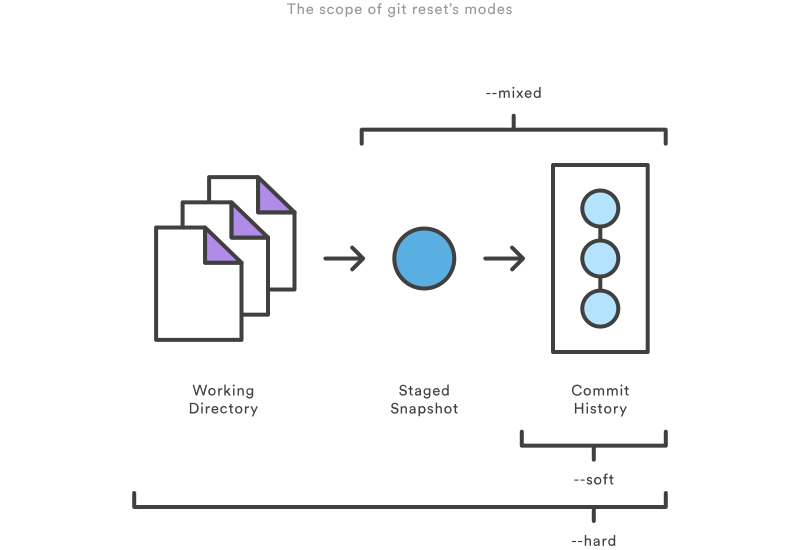
There are three trees in git on which mainly the git reset works.
- The Working Tree
- Staging Index
- Commit History
For each tree, there are three command options to add with git-reset to reset the commits.
.svg?cdnVersion=716)
-
Revert
Revert is kind of undo in git. Instead of removing the commit from the commit history. It creates a new commit with inverted changes created by the old commit.
Example
//reverts the commit
git revert [commit]
Git Cherry Pick is a powerful command it picks commit by reference and appends it to the current working HEAD. It is kind of undoing the change.
Example of cherry pick
a - b - c - d   Main
         \
           e - f - g Feature


   $ git checkout main

   $ git cherry-pick e

   a - b - c - d - e   Main
         \
           e - f - g Feature
Merge conflicts occur when two people have changed the same lines of code in the code base. Git tries to figure out how to automatically integrate new changes, if it fails conflict occurs.
A merge can enter into conflict only into two points:
- At the start of the merge When there are pending changes in the working directory or in the staging area of the current project, conflict might occur that can be solved by either committing or stashing all the changes.
- Git fails during the merge A failure during the merge means a conflict between the local branch and the branch getting merged. This conflict can be solved by understanding the conflict developers.
Stash is a place where you can switch contexts between the files. Git stash saves local modifications away and reverts the working directory to match the current commit.
Stash comes into the picture when we have to switch between the different contexts of code bases and do not want to create conflict.
There are different commands available to stash Example
 // to stash uncommitted files
 git stash
 // to insert into the stash
 git stash push
 // to re-apply stash
 git stash pop
 // to list stash file
 git stash list
 // to inspect  stashed files
git stash showIn Git, the remote is concerned with the remote repository. In a remote repository, everyone pushes their changes with pull requests.
The git remote command is used to create, view, and delete connections with other repositories.
Examples:
//list the remote connection
 git remote -v
 //add remote connection
 git remote add [name] [url]
 //remove the remote connection
 git remote rn [name]
 //rename remote connection
git remote rename [oldname] [newname]- Pull
In git pull refers to fetching and downloading the changes from the remote repository to sync the local repository with the remote.
git pull internally uses git fetch and git merge commands respectively i.e. first download all the commits changes and then merge remote refs and head to local.
Example:
//pull data from remote
git pull- Push
In git push refers to uploading or sending local commits to the remote repository. For pushing there must be remote repositories that can be added using the git remote command. While pushing to remote repositories one should ensure that all the changes done aligns with the remote repository. Git rejects push which is a non-fast-forward push.
Example:
//push the specific branch
git push [remote] [branch]
GitHub and GitLab both are open source repository hosting platforms for programmers and developers. Both support the git version control system for working on the repository.
1. GitHub
The GitHub platform is owned by Microsoft and is not open source and has no built-in CI/CD for integration and delivery.
2.GitLab
The GitLab platform is built and owned by GitLab Inc. It is open source and supports built-in CI/CD with the third party.
-
Merge Request(MRs) term is associated with GitLab. It is a way to check your code into a branch. When raising a merge request you can visualize and collaborate before it merges.
Whenever we are working on a collaborative project. Merge requests and pull requests are the way to get your code merged with proper discussion and review.
Merge request contains:
- A description of the request
- Code changes and inline code reviews.
- Information about CI/CD pipelines.
- A comment section for discussion threads.
- The list of commits.
Pull request is the same as merge request. It shows others about changes you have pushed to a branch in a repository. We can discuss and review the potential changes with collaborators and make changes if any before getting merged.
We can create pull requests on GitHub.com, with GitHub Desktop, in GitHub Codespaces, on GitHub Mobile, and when using GitHub CLI.
Forking is creating a copy of the main repository that you manage. Forks let you make changes to a project without affecting the original repository. We can fetch updates and submit changes to the original repository.
Forking has two major ways :
- You can use a pull request to make changes in the original repository.
- You can bring changes from the upstream repository to your local fork by synchronizing your fork with the upstream repository.
Forking is available in both Github and GitLab .