VISIT THIS LINK FOR REFERENCE
https://github.com/UCMercedACM
Install VS Code onto your system
https://code.visualstudio.com/download
Navigate to Extensions and add Liveserver
https://marketplace.visualstudio.com/items?itemName=ritwickdey.LiveServer
Open VS Code and create a folder named "Halloween_Web" create two files named index.html and index.css
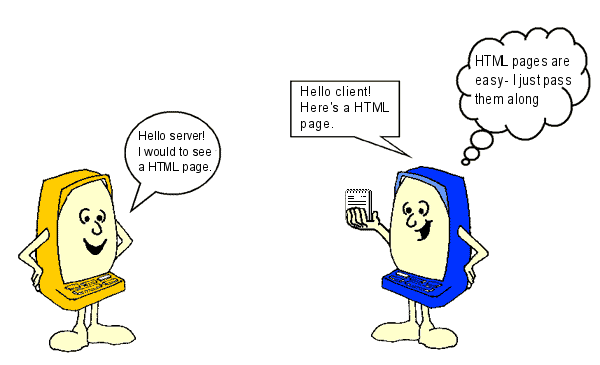
HTML Stands for Hyper Text Markup Language
This is the building block for any website you visit. Visit this link and right click on the page, navigate to Inspect.
https://www.w3schools.com/html/html_basic.asp
Here you will see the HTML for this page.
When deploying your website to a webserver it looks for the "first" item in your directory which would be "index.html" always name your main HTML file "index.html"
Each HTML file starts with a <!DOCTYPE html> this indicates that the file is written in html, add this to the top of your file.
Lets add some basic code to your HTML File. We will come back to this in a minute!
<!DOCTYPE html>
<html>

<head>My First Website</head>

<body>
    <h1>Header</h1>
    <p>Paragrap</p>
</body>


</html>
Add this to your html File and save it. We will then right click on your index.html and click "Open with live Server" You will now see your first website!
To comment sections of HTML we encapsulate it with <!-- --->
For example
<!--
<html>

<head>My First Website</head>

<body>
    <h1>Header</h1>
    <p>Paragrap</p>
</body>


</html>
--->
Tags are an essential part of understanding HTML. Tags begin with an opening tag <tag> and closing tag with a forward slash </tag>
Tags enclose either plan text or other tags. In the example above you can see we have an <html></html> tag that encloses the entire file. Inside this tag we start defining other elements of our page including the <head></head> and the <body></body> tag.
-
Tags placed inside the head tag does not render to the page. This is used for refering to other files such as CSS and or weblinks that work with your site.
-
Your markup language will be typed within this tag. This is where you include your title, paragraphs, pictures or links.
-
header tags stand for "Header size (insert 1-6)" 1 being the biggest sized header.
-
Paragraph tags display large chunks of text
-
This adds an hyperlink to your webpage, anything added within the tag will be hyperlinked.
-
An ordered list of
<li></li>(Think of 1.,2.,3.) -
Unordered lists of items. (Think of bullet Points)
-
This Tag is used for defining the items within the lists above
Now that we have covered basics in Tags lets update our HTML:
<html>

<head>
<!----Place Cool Links here!--->
</head>

<body>
    <h1>Header One</h1>
    <h2>Header</h2>
    <h2>Header</h2>
    <h2>Header</h2>
    <p>This is ACM's Intro to HTML and CSS workshop!</p>
    <ul>
        <li>Item 1</li>
        <li> Item 2 </li>
        <li>Item 3</li>
        <li>Item 4</li>
    </ul>
    <a href="https://www.youtube.com/watch?v=dQw4w9WgXcQ"> The secret to getting into google</a>
</body>
</html>
The DIV Tag stand for 'Division' and it does not modify your text by itself. It is used for dividing your webpage into readable sections and for defining areas that your CSS will apply to, we will add this later.
Update your HTML to apply the <div></div> tag to close the items within your body.
<html>

<head>
<!-Place Cool Links here!--->
</head>

<body>
 <div>
    <h1>Header One</h1>
    <h2>Header</h2>
    <h2>Header</h2>
    <h2>Header</h2>
    <p>This is ACM's Intro to HTML and CSS workshop!</p>
    <ul>
        <li>Item 1</li>
        <li> Item 2 </li>
        <li>Item 3</li>
        <li>Item 4</li>
    </ul>
 </div>
</body>
</html>
The <img> tag displays images onto your website!
Here is an example:
<img src="https://www.universityofcalifornia.edu/sites/default/files/uc-merced-econ-impact.jpg" alt="UC Merced" />
At this point, we have a very simple website going on, but it doesn't look so pretty. What if we want to spice up our website and change the font or change the background color? This is where CSS comes in! CSS (Cascading Style Sheets) is what we use to make any styling changes to HTML pages that we want.
CSS is written fairly simply:
selector {
  propertyname: value;
  otherproperty: otherValue;
}
The selector can be one of a variety, but for our purposes, we'll discuss three properties we talked about: tag name, class, and ID.
The property name can be any one of the comprehensive list.
The value of the property can be - in most situations - any of those offered, but for our purposes, we will focus on two basic ones:
- General measurements by pixels (px)
- Colors by hex code, RGB, and HSL
To select a class of elements on the page, we prepend the class name with a dot (.). To select a class from our page and change the styling of it, we would write:
.className {
  /* ... */
}
To select all elements that have a list of classes, we list them one after another with .. To select all elements from our page with a class list we would write:
.classNameOne.classNameTwo {
  /* ... */
}
To select an element by its ID, we prepend the ID name with a hash (#). To select the an ID from our HTML page, we would write:
#idName {
  /* ... */
}
If you have multiple items with the same ID, this styling will apply to both of them, but you should generally only keep unique IDs for your page
Moving on, let's discuss some of the potential styling choices that one can make.
Every CSS property has a particular value and format to which it adheres. If you're ever confused about what the format of a particular property's value is, you can check online by looking it up. A good resource for this is the Mozilla Developer Network.
We can change the font size of a particular element with this property. Since we're getting started, we will use measurements of pixels.
h1 {
  font-size: 50px;
}Font weight controls how bold or how light a font is. A lower number means the font will appear more thin, while a higher number means that the font will appear more bold. The font weight that you see by default is 400. Bold is usually 600 or 700, and light is often 200 or so, but you can choose whatever you'd like that is supported by the font!
Example:
h1 {
  font-weight: 200;
}This property allows us to change the color of text contained by a particular tag. One can use any of the following color code combinations:
- Named colors:
white,red,green,blue,grey,black, ... - Hex:
#030123 - RGB:
rgb(3, 1, 35) - HSL:
hsl(243, 94%, 7%)
Example:
body {
  color: #030123;
}

a {
  color: green;
}With this property, we can choose the color that we would like to be the background of a tag. It uses the same color code combinations as mentioned above:
body {
  background-color: rgb(3, 1, 35);
}Border will be our first exposure to a shorthand property in CSS. As mentioned earlier, each property in CSS has its own specific declaration. However, a bunch of specific declarations get difficult to work with very fast.
This is where shorthand properties step in.
There are specific properties in CSS to create borders around elements (border-left, border-top, border-right, border-bottom, border-color, border-style), but this shorthand property, border, wraps all the information needed to create a border into a neat little declaration.
Let's check the MDN reference for it:
To extract the relevant portion of this, the value for the border property is <line-width> || <line-style> || <color>.
Let's write an example where we draw a thick, blue, dashed border around all classes named bordered. Let's also draw a black border around paragraphs.
.bordered {
  border: thick dashed blue;
}

p {
  border: thin solid black;
}With this out of the way, let's take a look at some real CSS in the flesh. Comments will be left throughout to help explain what each part does.
h1 {
  font-size: 50px;
}

h1 {
  font-size: 30px;
}

/* add a border around paragraphs and change their font to comic sans */
p {
  font-family: Comic Sans MS;
  border: thin solid black;
}

/* give divs a different background color */
div {
  background-color: aliceblue; /* this is a real named color in CSS! */
}
Now all that's left is to link this file to our document. But before that...
You may have noticed that we have multiple definitions of font-size for h1 tags. Remember how we mentioned earlier that we would learn what the cascading part was of CSS? The answer lay in this example - the way that CSS determines the priority of styles.
Now that we've learned how to read and write CSS, how will we link this in to our webpage to apply the styling changes? Easy enough, we use the <link> tag!
Running down the list of properties for a <link>:
- Our file's path (
href) is./index.css. - Our file's type (
type) istext/css. - Our file's relationship to the document (
rel) is astylesheet.
Putting this information all together: <link href="./index.css" type="text/css" rel="stylesheet" />
Since this is something that we would like to be loaded prior to the content of our document, we will place the link in the <head> of the document:
<!DOCTYPE html>
<html>
  <head>
    <!-- This is where the head is! -->
    <link href="./index.css" type="text/css" rel="stylesheet" />
  </head>
  <body>
    <!-- ... -->
  </body>
</html>
While we're here, let's also give some elements the class and another the ID we made:
<!-- ... -->
<div>
  <h1 class="yourClassName" id="someIDName">This is h1</h1>
  <h2>This is h2</h2>
  <!-- ... -->
</div>
With this, we can see the styling changes immediately reflected:
Luckily, we can always change them now by editing index.css.
To sum it all up, we learned about what CSS means, how to read and write it, a few basic properties and the values they expect, and how to link it into our webpage!