If you haven't got Git Plugin for Sketch, then follow these steps:
- download git plugin for sketch. Only download latest version using top link
- install plugin (double click)
Now we'll need to set up Git for your project.A bit terminal work, but you'll manage (make sure to be signed out of Pulse for this GitHub only tutorial)
- First open terminal: open finder window, select Go from systems top bar, select Utilities, there you should see Terminal application - please open :)
- at the moment your terminal is probably in different directory than your file, lets get change it to our project folder
- in terminal window type
cdand drag your project folder from finder into terminal window (mac magic), and hit Enter. you shoul now be in your project folder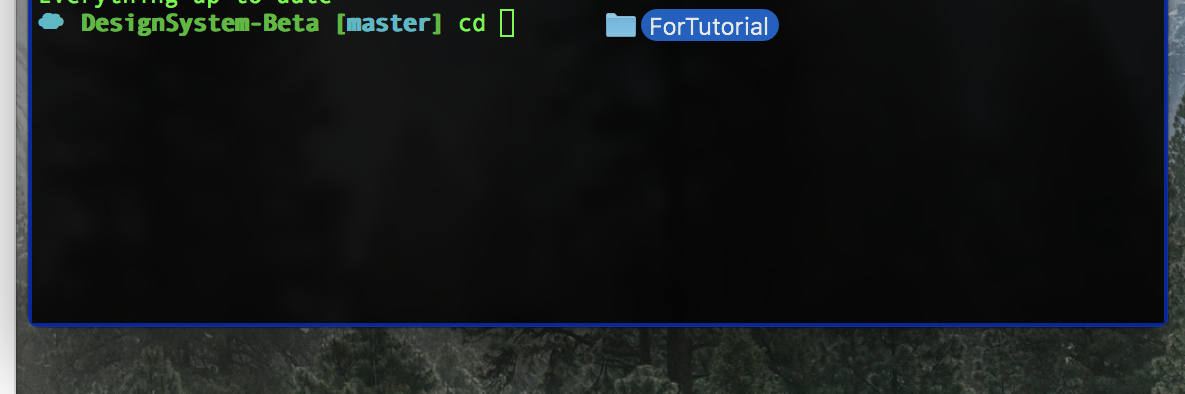
- now use
git initto set up a project
- then
git add .to make sure git knows about all the files in your project folder (it wouldn't know until you add them, same if you created a new file that you'd like to be tracked) - now create your first commit (even if you haven't made any changes yet, this helps for plugin to set up)
git commit -m "NOTE ABOUT YOUR COMMIT NEEDS TO BE PLACED HERE"
Now lets set up a remote repository using github. Create an account if you haven't got one
- login to github, then from the landing page select either "Start project" or "New repository"
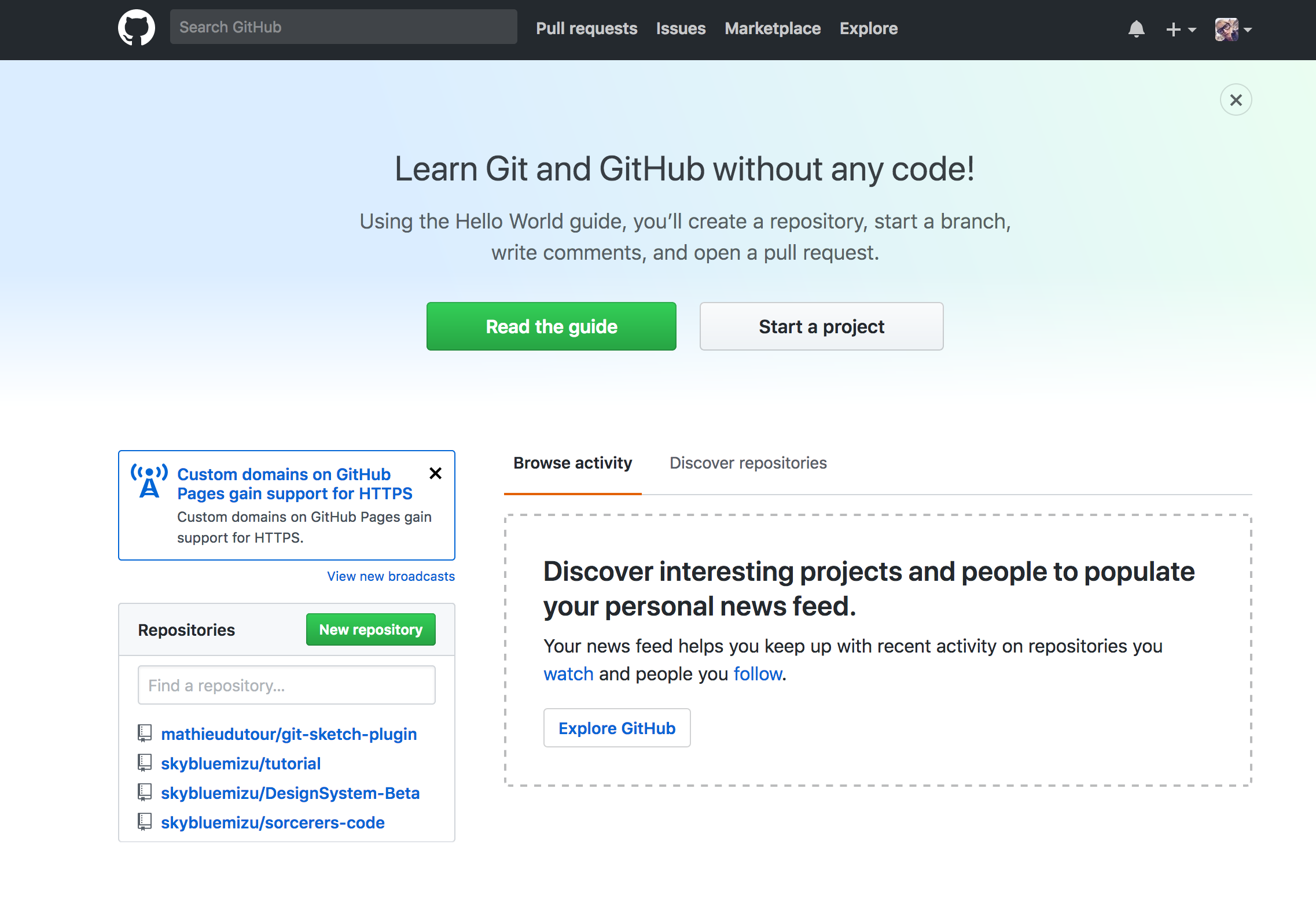
- on "Create a new repository" page, pick a name foro your repository and hit "Create repository"
- you should now see home page of your new repository, with setup tips
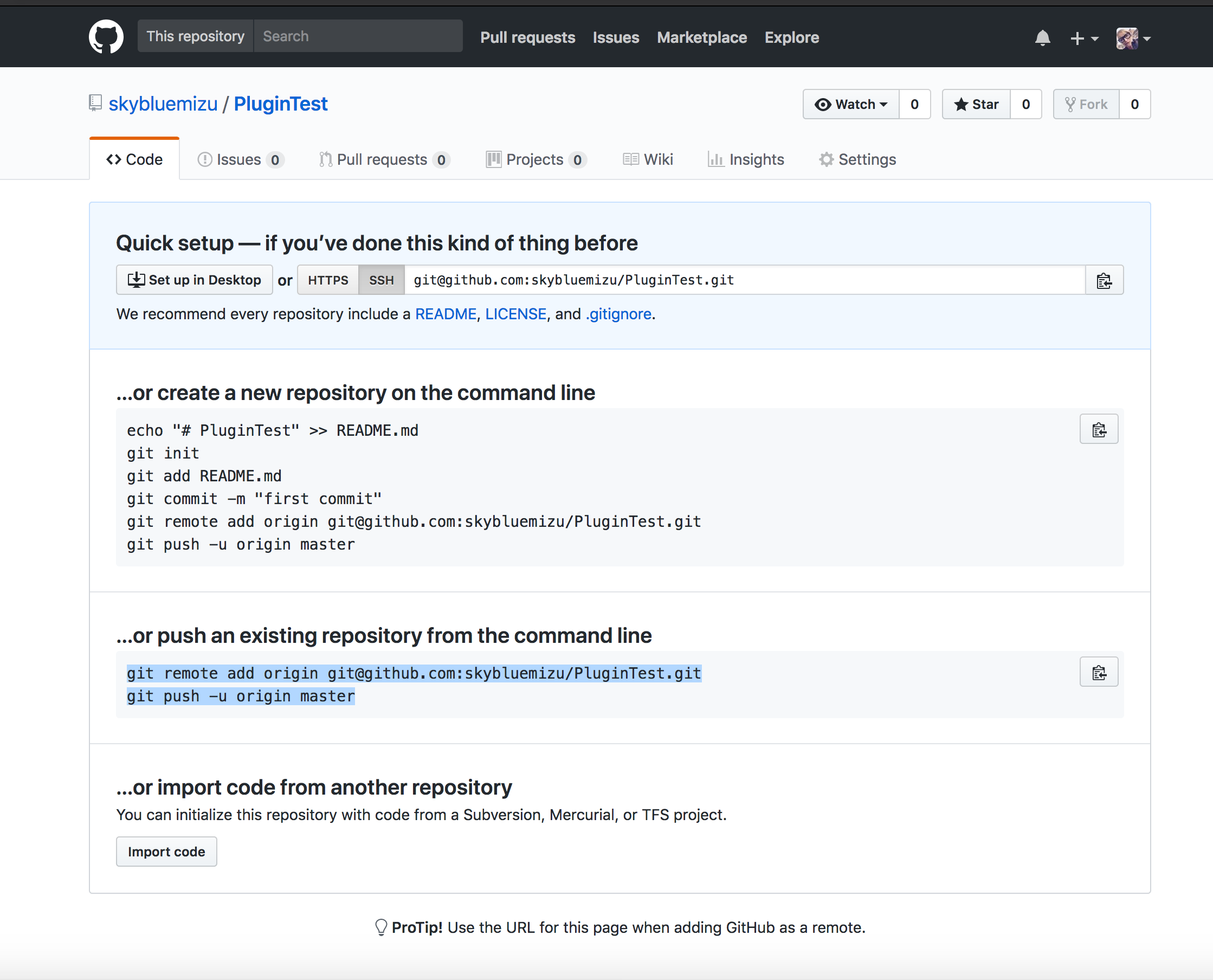
- on this page, make sure HTTPS option is selected at the top of the page
- copy the url
- back in terminal type
git remote add originfollowed by the url you've just copied and hit enter. Note that terminal won't give you a confirmation, if all went ok, it will just start a new line :)
- then push your local repo into remote one with
git push -u origin master
- open your sketch file and make first set of changes
- when done SAVE your file (this needs to happen first otherwise git won't see any changes)
- then click plugins>Git>Commit (shortcut ctrl + alt + cmd + c) and add note about your changes (Standard Conventions for Commit Messages: Must be in quotation marks, Written in the present tense, Should be brief (50 characters or less))
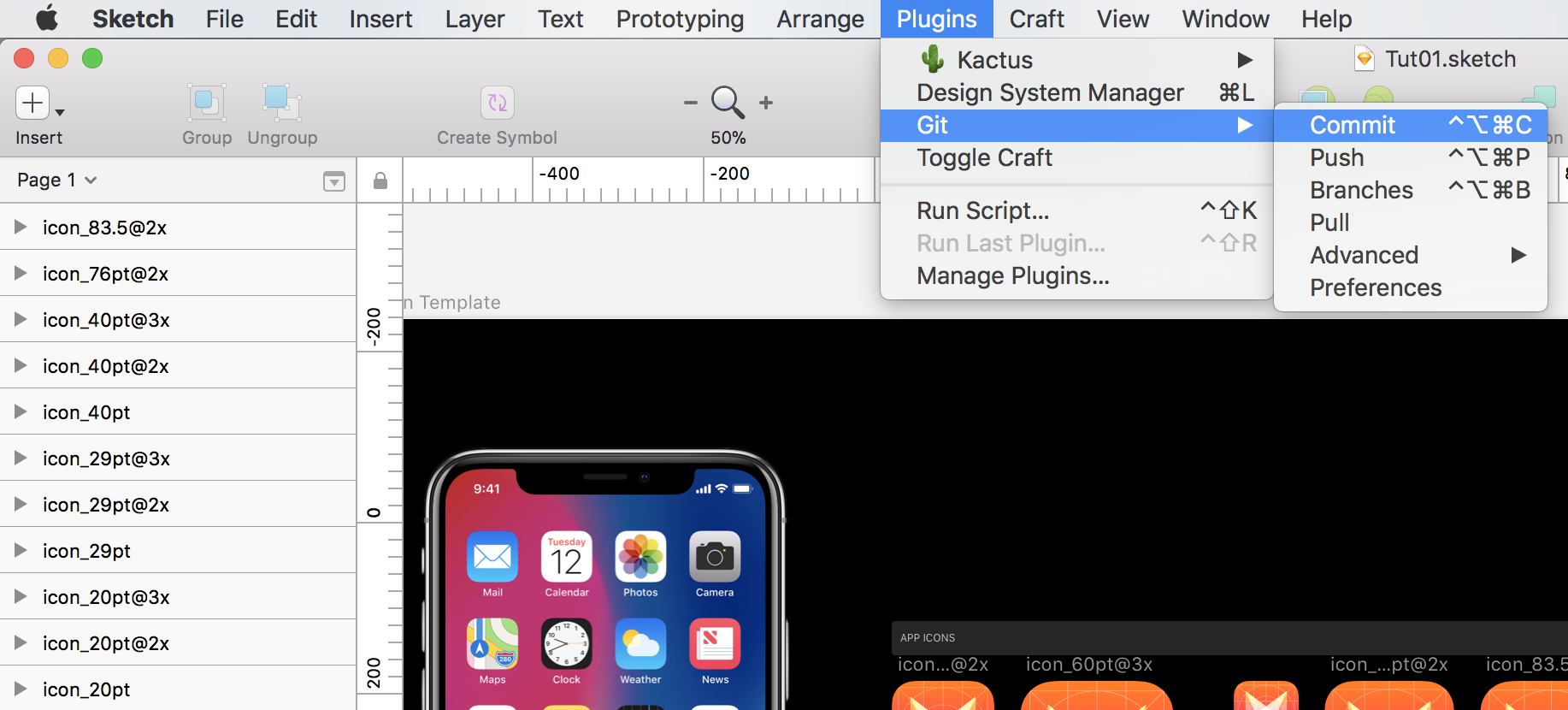
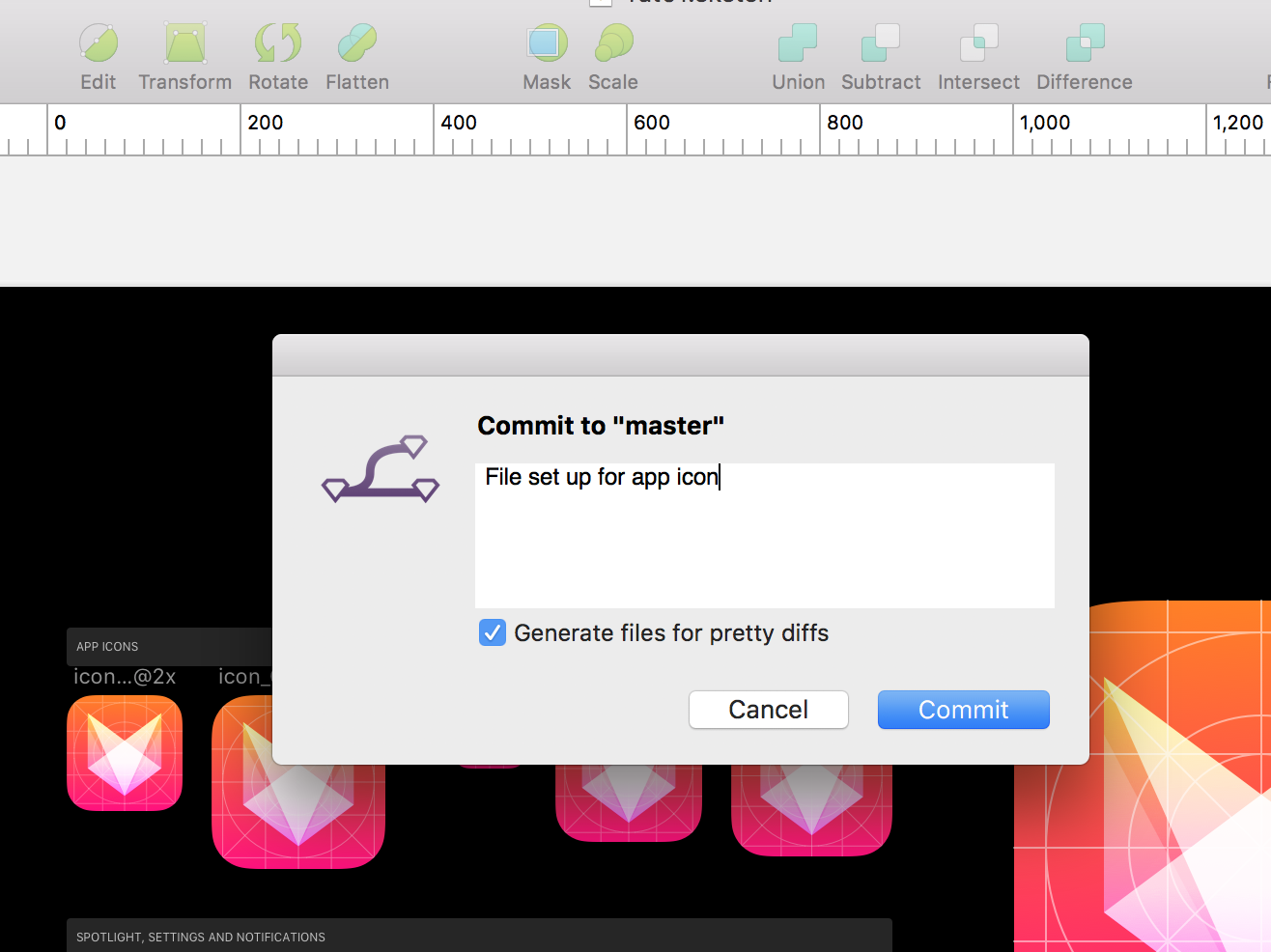
- You've just created the last step in our Git workflow. A commit permanently stores changes from the staging area inside the repository.
- now it's time to share your work with the A-team, Plugins>Git>Push will push your branch up to the remote
- tell git you want to save your GitHUb password to MacOS keychain. A bit terminal work, but you'll manage (make sure to be signed out of Pulse)
- First open terminal: open finder window, select Go from systems top bar, select Utilities, there you should see Terminal application - please open :)
- at the moment your terminal is probably in different directory than your file, lets get change it to our project folder
- in terminal window type
cdand drag your project folder from finder into terminal window (mac magic), and hit Enter. you shoul now be in your project folder - follow instructions for enabling keychain here note that after 3rd point terminal won't give you a confirmation, if all went ok, it will just start a new line
- now you need to add your local repo to GH, and login. Don't worry you'll have to do this only once, then they keychan will remember you
- now you need to add your local repo to GH
git remote add origin git@github.com:skybluemizu/PluginTest.git. Where "origin" is name of your local repo