A chess app that allows for the creation of totally custom pieces.
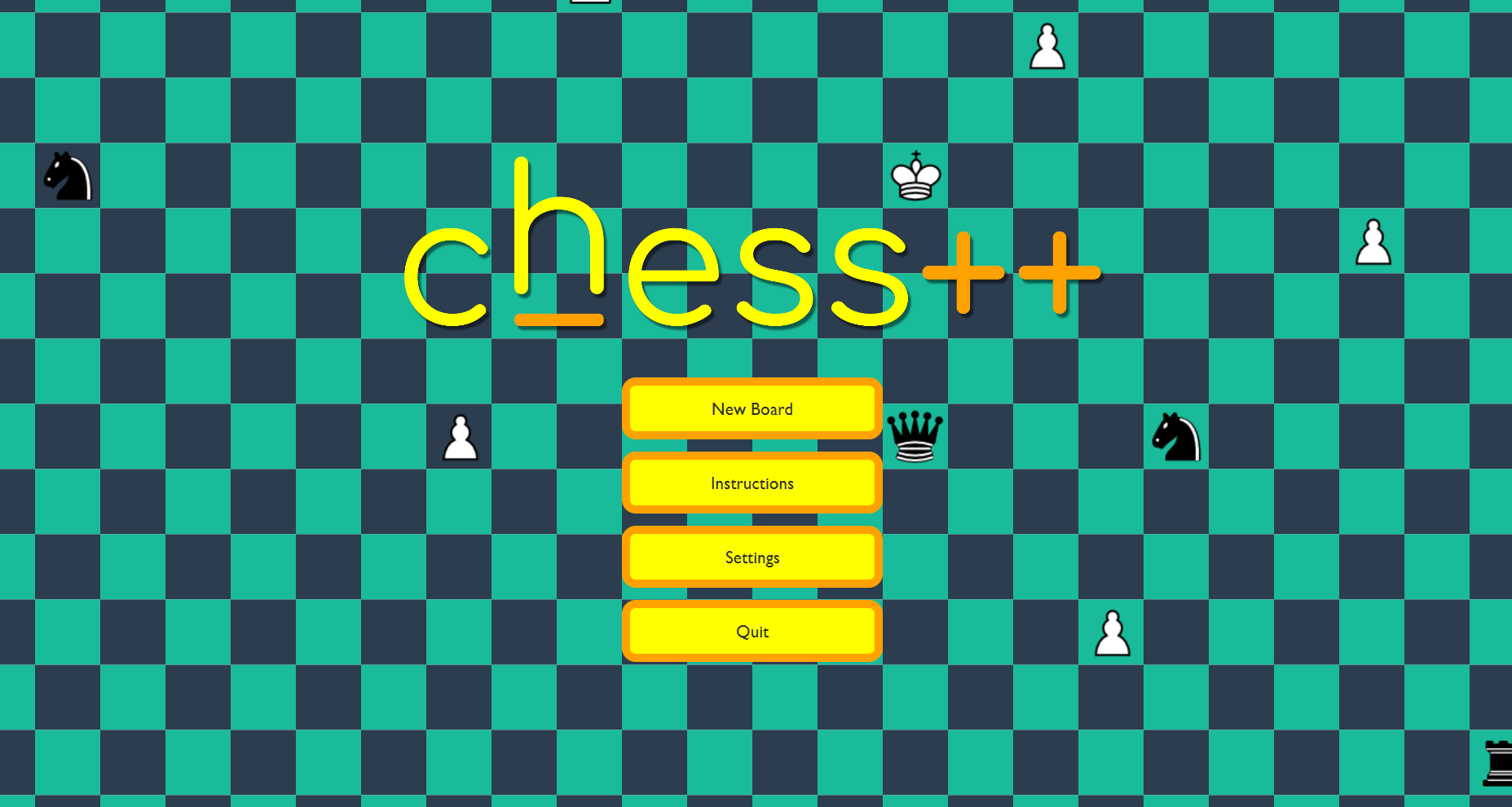
Home Screen:
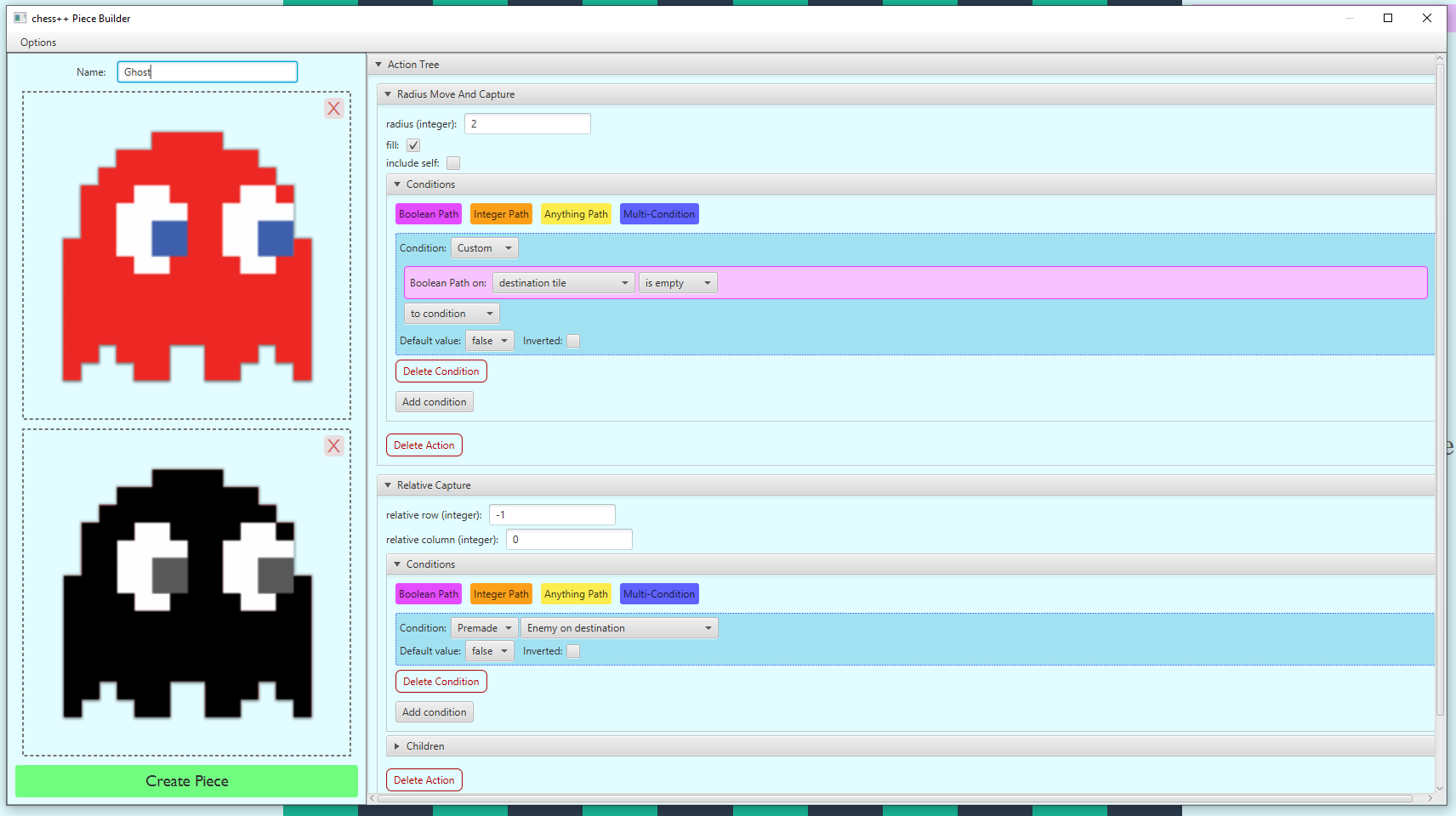
 Piece Builder:
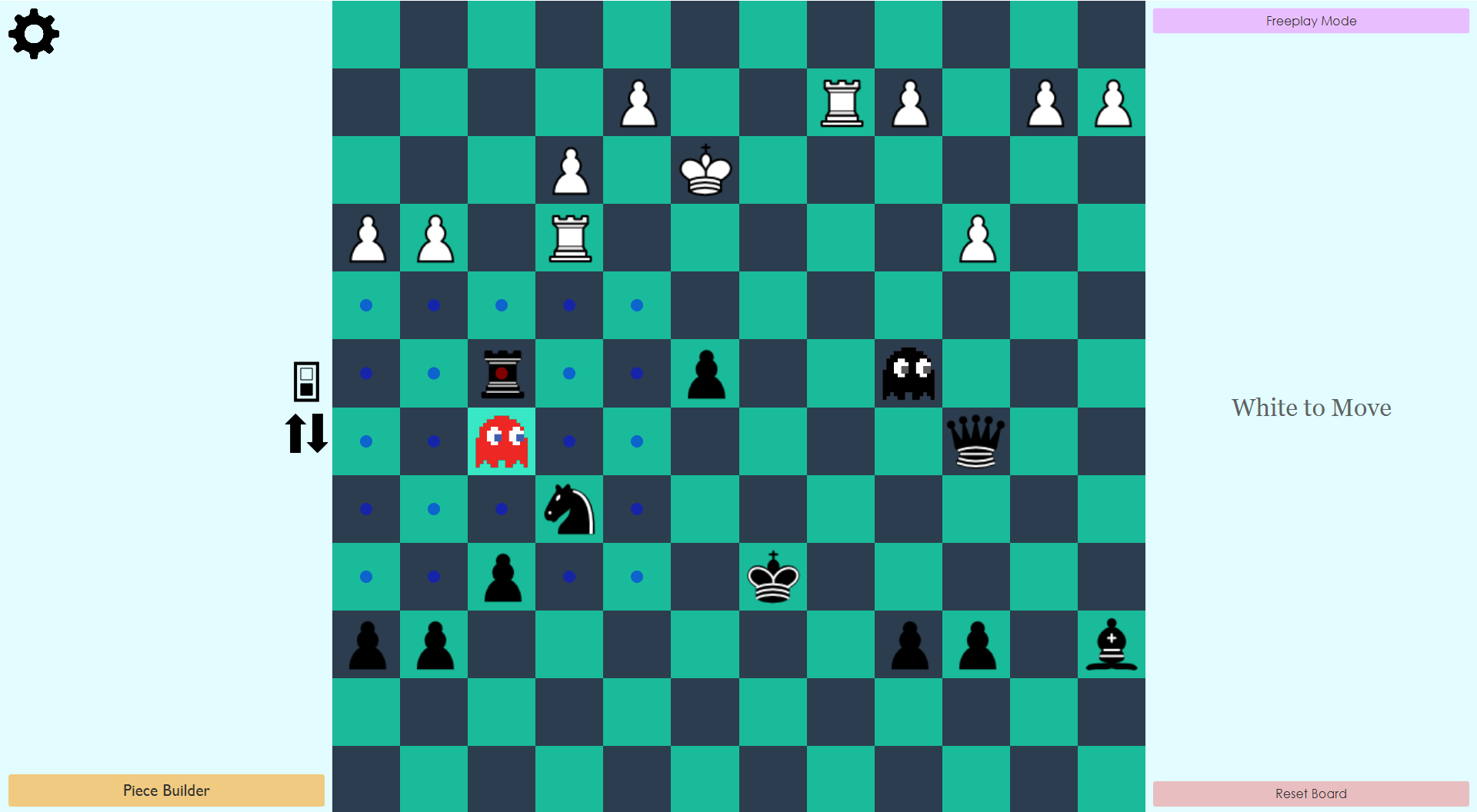
 Play Mode:
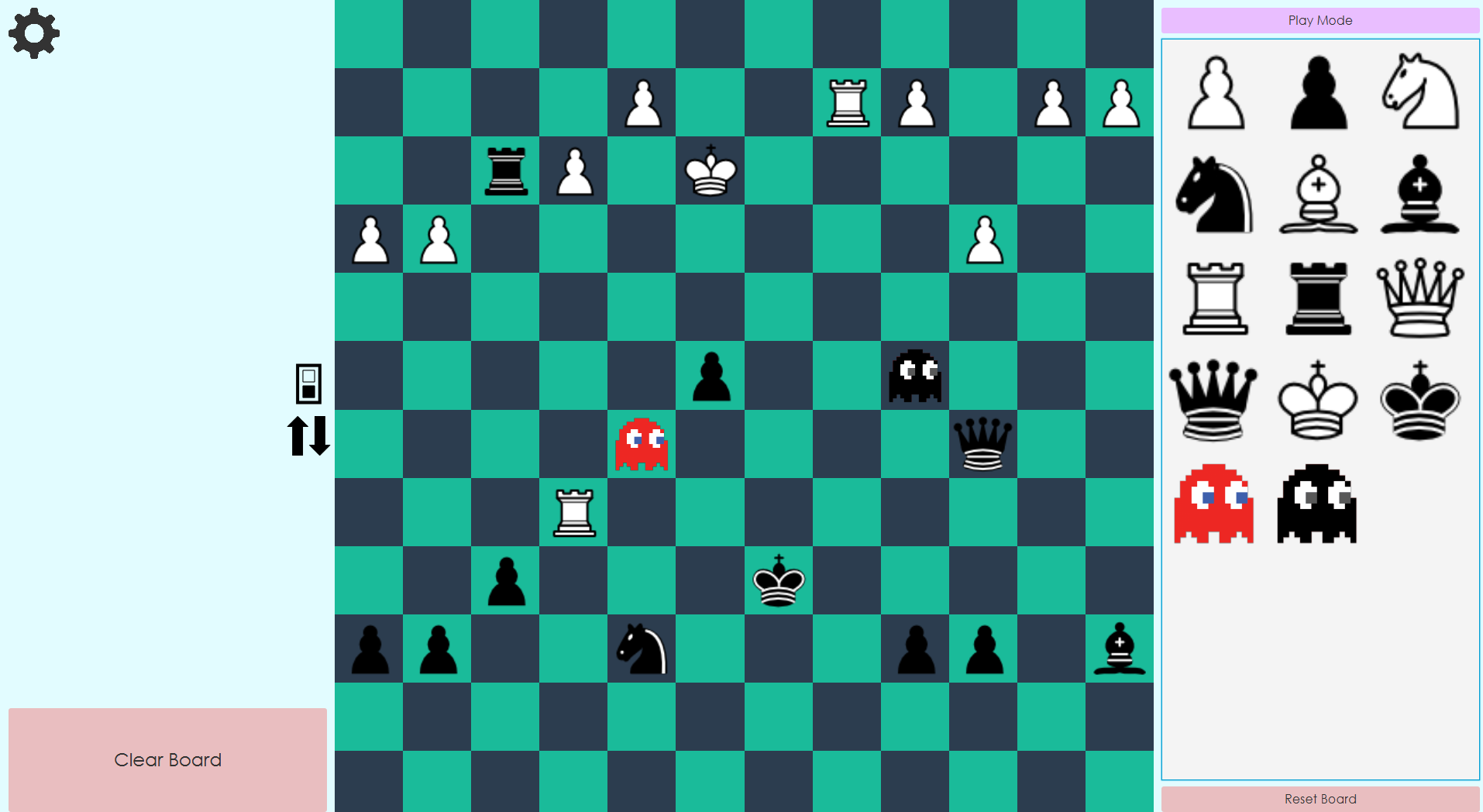
 Freeplay Mode:
The following information also appears in the app:
Introduction
Chess++ is a chess app that allows for the creation of totally custom pieces. You can create a new chessboard by clicking the “New Board” button on the main menu. Once you have a board, you can click the button in the top right corner to switch between Play and Freeplay mode, where you can test out your pieces by setting up a custom board. You can build new pieces by clicking the “Piece Builder” button in the bottom left corner.
Play Mode
Play Mode is the normal mode of a chessboard. Play mode acts as if you were playing a regular chess game - the two colors take turns playing back and forth. When you click a piece in Play Mode, its legal moves will show up on the board. Pieces may have multiple legal moves on the same tile or no legal moves at all. The board and turn can be flipped using the buttons on the left. When in Play Mode, you can switch to Freeplay Mode using the button in the top right corner. Note that Play Mode will not work correctly unless two kings are on the board, one of each color.
Freeplay Mode
Freeplay Mode allows you to test out pieces, positions, strategies, etc. In Freeplay Mode, you can drag and drop pieces onto the board, and you can remove pieces by dragging them to the “X” that will appear on the left. When in Freeplay Mode, you can switch back to Play Mode using the button in the top right corner.
Custom Pieces
Chess++ comes with the default six chess pieces: Pawn, Knight, Bishop, Rook, Queen, and King, whose actions line up with the normal chess rules. Their actions and images cannot be edited. However, the user can create custom pieces in the Piece Builder.
Piece Builder
The Piece Builder allows for the creation of custom pieces. It can be opened when a board is on screen from the button in the bottom left corner. Each piece has a few components - its name, its images, and its set of actions. The images and name can be created using the pane on the left, and the action set can be created using the “action tree builder” pane on the right. The action set of a piece is described by its (single) action tree.
Action Tree
Every piece (including the built-in ones) has an action tree that describes its set of legal actions. Each piece’s action tree is evaluated at the start of every chess turn to determine what its legal moves are for that turn. The action tree is, technically speaking, a tree data structure. That means it has a set of nodes (items in the tree) and that the nodes are ordered in a top-down fashion where each node has a connection to zero or more child nodes in the tree. There is a single node at the top of the tree, called the root, who is the “ancestor” of all the other nodes in the tree. The root node of the action tree is inaccessible to the user and has no content. The immediate child nodes of the root are the top-level nodes defined by the user in the action tree builder. When a tree is evaluated to determine the legal moves of a piece for a specific turn, the nodes are evaluated starting with the root node. When a node in the tree is considered “legal” (defined below), its child nodes are evaluated. However, when a node is not legal, its child nodes are not evaluated and thus are not legal either. The children of the root node are always evaluated.
Each node is in the tree is either an action node or a bottleneck. Action nodes contain an action, and the node is “legal” for that evaluation of the tree if the node’s action is legal. An action contains its conditions, which are the requirements that must be true for that action to be legal (conditions are described in depth below). Bottleneck nodes do not contain an action but instead only contain conditions. A bottleneck is legal when all of its conditions are satisfied. A bottleneck is useful when a set of conditions need to be applied to several action nodes - the action nodes can all be children of the bottleneck and thus will only be evaluated when all of the bottleneck’s conditions are satisfied.
Actions
Actions are the most important part of the action tree, as they define what a piece can do. There are six types of actions that a piece can make: Move And Captures, Other Move and Captures, Captures, Promotions, Summons, and Multi-actions. There are also variants of actions, which determine where the action’s valid destinations are on the board. For example, one action variant of Move And Capture is called “Line” - Line variant actions are valid only in a line extending from the piece’s starting position. This is the action variant a Rook would use for its actions since they extend out in a line from the Rook’s starting point. Another action variant is “relative” - Relative variant actions are only valid on a tile relative to the starting point. This is the variant a Knight would use since its actions are valid only on relative tiles, such as the spot two tiles down and one tile left from the Knight’s position. Each action can be given conditions, which determine whether or not that action will be legal for that evaluation of that tree. (Note the distinction between “valid” and “legal” - a move is valid if it could be legal after the conditions are checked; a move is legal only when its conditions are satisfied. For example, a knight’s move is valid if it lies on a spot two tiles down and one tile left, but it is only legal if there is not a piece of the same color already on that tile, it is not pinned to the king, etc.). All of an action’s conditions must be satisfied for the action to be legal. An action does not need to have any conditions.
Action Types
Move and Capture actions are when a piece moves to a tile on the board, capturing whatever is there (if anything). The six built-in chess pieces use only Move and Capture actions (except for their special moves, such as castling, en passant, or pawn promotion). Note that while there is a separate Capture action type, there is no separate “move without capture” action type - a “move without capture” is just a Move and Capture when there was no piece on the destination tile. Move and Capture actions have five variants: Relative, Line, Relative Line, Relative Segment, and Radius.
Other Move and Capture actions are when one piece moves an “other” piece to a new tile, capturing whatever was on that tile that the “other” piece landed on. Note that there are no “other captures” because would be no different than a normal capture, there are no “other promotions” as that could be constructed as a summon on top of a piece, and there are no “other summons” as that would be no different than a normal summon. When using a condition on an Other Move and Capture action, the start and destination used for the condition are the start and destination tile of the “other” piece. An example of an Other Move And Capture would be when the King moves the Rook during castling. Other Move and Capture actions have one variant: Relative.
Capture actions are when one piece removes another from the game but does not move to the tile that the removed piece was on. Capture actions may be played on empty tiles; such moves will effectively do nothing. Capture actions have five variants: Relative, Line, Relative Line, Relative Segment, and Radius.
Promotion actions are when one piece transforms into another. Although called a “promotion” to conform with typical chess names, a piece is allowed to “promote” to a “weaker” piece. Promotions can be set to have certain promotion options, or pieces that the acting piece can transform into. An example of a promotion action would be pawn promotion in normal chess. Promotion Actions have only one variant: On Start.
Summon actions are when one piece creates another. A piece can summon on any tile, including its own tile (which will effectively kill the acting piece, thus behaving like a “promotion” of sorts). Summon actions have summon options, which are the pieces that the acting piece can create. Summon actions have five variants: Relative, Line, Relative Line, Relative Segment, and Radius.
Multi-actions are composed of several sub-actions. The valid sub-actions are Move and Capture (relative variant), Other Move And Capture (relative variant), Capture (relative & radius variant), Promotion (on start variant), and Summon (relative & radius variant). Sub-actions vary slightly from their normal-action counterparts in that they can be specified to either be played relative to the starting tile or relative to the destination tile of the Multi-action. The Multi-action itself can have conditions (which must be satisfied for the entire Multi-action to be legal), and the sub-actions can also have their own conditions (which must be satisfied for that specific sub-action to be legal). At least one of a Multi-action’s sub-actions must be legal for the entire Multi-action to be legal. The legal Multi-action that ultimately gets played on the board will only consist of the sub-actions that were deemed legal during the evaluation of the action tree. A sub-action can be specified as “necessary,” which means it must be legal for the entire Multi-Action to be legal. An example of a Multi-action would be the Pawn’s en-passant action in normal chess, which is a Multi-action consisting of a Move And Capture (relative variant) sub-acton and Capture (relative variant) sub-action. Multi-actions have one variant: Relative.
Action variants
Relative variant actions designate a single valid tile whose location is relative to the acting piece. Relative variant actions have of at least two integer parameters: relative row and relative column. Child nodes of action nodes containing a Relative variant action will be evaluated if the relative action is legal.
Line variant actions designate a line of tiles extending from the acting piece’s start location. In addition to the standard set of conditions applied to all actions, line variant actions also have stop conditions. Once all of the stop conditions have been satisfied for a potential destination tile, no further tiles extending in that direction can be legal. Line variant actions have at least two integer parameters: delta row and delta column. (“delta row/column” is the amount that a piece moves for each point in the line. For example, a piece who moves upward in a line (like a Rook) would have a Line variant action with a delta row of -1 and a delta column of 0). Action nodes containing Line variant actions cannot have child nodes.
Relative Line variant actions designate a line of tiles extending from a relative starting tile. Like Line variant actions, Relative Line variant actions have stop conditions (see the Line variant section). Relative Line variant actions include the starting tile as a valid destination, while line variants don’t. Relative Line variant actions have at least five parameters: relative start row (integer), relative start column (integer), delta row (integer), delta column (integer), and requires start to be on board (yes/no). See the Line variant section for a definition of delta row/column. Action nodes containing Relative Line variant actions cannot have child nodes.
Relative Segment variant actions designate a line segment of tiles starting at a relative tile from the acting piece. Relative Segment variant actons have at least six parameters: relative start row (integer), relative start column (integer), delta row (integer), delta column (integer), segment length (integer), and requires start to be on board (yes/no). See the Line variant section for a definition of delta row/column. Child nodes of action nodes containing a Relative Segment variant action will be evaluated if the final point in the line segment was legal.
Radius variant actions designate a square pattern of tiles centered around the acting piece’s starting location. The radius is the distance the acting piece is from edge of the square. Radius variant actions can be set to “fill,” which means that tiles within the square pattern will be designated as valid, and “include self,” which means that the acting piece’s tile will also be considered as a valid destination. (Note that the value of include self is ignored if fill is disabled). Radius variant actions have at least three parameters: radius (integer), fill (yes/no), include self (yes/no). Action nodes containing Radius variant actions cannot have child nodes
The On Start variant only applies to promotion actions and designates the tile of the acting piece. It has no required parameters. Action nodes containing On Start variant actions cannot have child nodes
Conditions
Conditions give the user fine control over whether or not an action is legal for a given board position. They determine when a piece can do something. Several common conditions exist as premade conditions, such as “Piece on destination” or “Destination is Empty.” The user can also make their own custom conditions, which are described in the remainder of this section.
Conditions must ultimately evaluate to true or false. Each condition starts with a “path” - something that leads to a piece of data that the condition will use. There are three types of paths: Boolean Paths, Integer Paths, and Anything Paths.
Boolean Paths lead to a piece of data that is itself either true or false (such as whether or not the starting tile is a light square). Boolean Paths can be converted to a condition directly, meaning that the value of the piece of data will be used as the condition’s value. Boolean Paths can also be compared to other Boolean Paths, such as by checking if the values of the two paths evaluate to the same value. The color of a piece is also a boolean, where white corresponds to true, and black corresponds to false. Thus, a Boolean Path can lead to a piece’s color, which can then be checked to see if that piece is a teammate or an enemy. The user can also input a raw value (true or false) directly to form a Boolean Path whose value is constant.
Integer Paths lead to a piece of data that is an integer; they cannot be used as conditions directly. An Integer Path must be compared to another Integer Path (such as by checking which one is greater, whether or not they’re equal, etc.) to form a condition. The user can also input a raw value directly to form an Integer Path whose value is constant.
Anything Paths can lead to any piece of data except a boolean (true or false) value or an integer value. Anything Paths cannot be used as conditions directly. Some operation, such as checking whether or not the data exists, must be applied to the path to form a condition. Anything Paths can be used to check what type of piece is on a tile or what type of action something is, as well as if two things are equal. (Note: To check if two pieces are the same type of piece, compare their “piece types,” not the pieces themselves).
All of an action’s conditions must be valid for the action to be valid. However, the user may make “multi-conditions” that function as single conditions but have multiple parts. Multi-conditions combine two or more conditions using some logical operator - either AND, OR, or XOR. In this way, the user can make, for example, an action that is legal when one thing or another is true. Multi-conditions must be dragged from the section at the top of the “Conditions” pane onto an existing condition to be used in the action tree builder.