


The Ultimate Free & Fast Image Optimizer for Windows
- Batch optimize images for web, apps, and archives
- Drag & drop folders or files
- No resize or advanced multi-resolution output
- PNG, JPEG, WebP, AVIF for output
- Multiple output option
- Lossless & lossy modes
- Metadata stripping for privacy & size
- Multi-threaded for maximum speed
- GPU acceleration (if available)
- Modern, easy-to-use interface
- Professional Windows installer
- No telemetry, no ads, 100% free
- Regular users:
- Want to shrink images for email, web, or storage
- Need a simple, safe, and fast tool
- Don't want to mess with settings or command lines
- Photographers, designers, developers:
- Need advanced control over quality, format, and size
- Want batch processing and automation
- Care about image quality and file size

Download the latest release from GitHub
or use the always-latest direct link:
- Download and run the installer (
MMImageOptimizer_Setup.exe) - The app will be installed to:
C:\Users\<username>\AppData\Local\MMImageOptimizer- You cannot change the install folder (for reliability)
- Optionally create Start Menu, Desktop, or Quick Launch shortcuts
- Launch from Start Menu, Desktop, or the installed folder
No admin rights required!
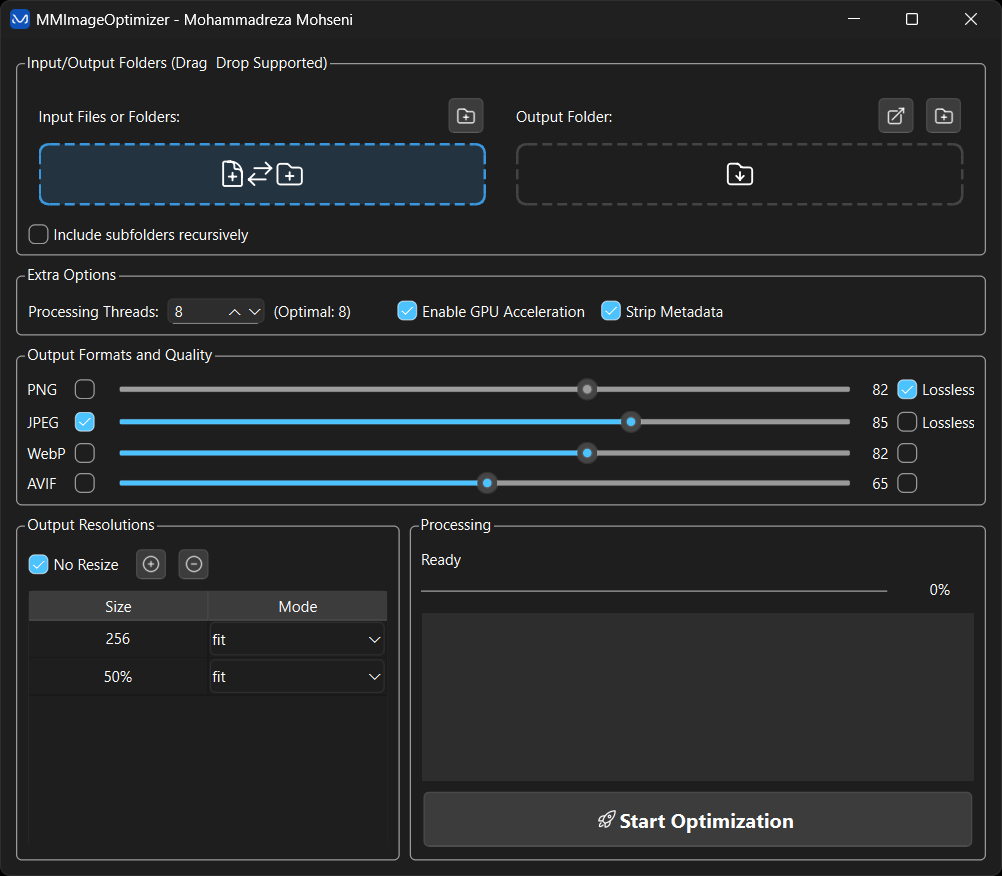
- Open MM Image Optimizer
- Drag & drop images or folders, or use the folder/file picker
- Choose output folder
- Select output formats (PNG, JPEG, WebP, AVIF)
- Set quality, lossless/lossy, and resolutions
- Click "Start Optimization"
- Wait for the batch to finish. See stats and error summary at the end.
-
Use "No Resize" to keep original dimensions, or add custom resolutions (e.g., 256 px, 50%).
-
Enable "Strip Metadata" for privacy, smaller files, and removing all extra info—including AI workflow data and creation history in AI-generated images.
-
Turn on GPU Acceleration (if available) for much faster processing, especially with large batches.
-
Lossless in PNG means zero quality loss, while in JPEG it means visually lossless: the result is nearly indistinguishable from the original, but some data may be changed.
-
Select multiple files and folders as input for flexible batch processing.
-
Set custom thread count for optimal performance on powerful machines.
-
Use advanced resize modes (“crop”, “fit”, “width”, “height”) for precise output control.
-
For web use, choose modern formats like WebP and AVIF for best quality-to-size ratio.
-
Try disabling “Recursive” scan if you only want to process images in the top folder.
- Input: PNG, JPEG, WebP, AVIF, TIFF, BMP, GIF, and more
- Output: PNG, JPEG (jpegli), WebP, AVIF
- Resizing: Multi-resolution, fit/crop/width/height modes
- Metadata: Optionally strip all EXIF/IPTC/XMP
- Threading: Multi-core, multi-threaded batch processing
- GPU: OpenCL/CUDA acceleration for ImageMagick (if available for resizing)
Click to see full list
- PNG (.png, .png8, .png16, .png24, .png32, .png48, .png64)
- JPEG (.jpg, .jpeg, .jpe)
- WebP (.webp)
- AVIF (.avif)
- BMP (.bmp)
- GIF (.gif)
- TIFF (.tif, .tiff)
- HEIC/HEIF (.heic, .heif)
- JPEG 2000 (.jp2, .j2k, .j2c)
- JPEG XL (.jxl)
- DDS (.dds)
- PSD (.psd)
- TGA (.tga)
- ICO (.ico)
And many more common raster image formats supported by ImageMagick.
- Output: PNG, JPEG (jpegli), WebP, AVIF
- Resizing: Multi-resolution, fit/crop/width/height modes
- Metadata: Optionally strip all EXIF/IPTC/XMP
- Threading: Multi-core, multi-threaded batch processing
- GPU: OpenCL/CUDA acceleration for ImageMagick (if available)
- Installer: Built with Inno Setup
- GUI: Built with PySide6 (Qt for Python)
- Portable binaries are bundled in the installer for reliability
- No internet required after install
- ImageMagick — imagemagick.org
- jpegli — github.com/google/jpegli
- libwebp/cwebp — developers.google.com/speed/webp
- libavif/avifenc — github.com/AOMediaCodec/libavif
- oxipng — github.com/shssoichiro/oxipng
- pngquant — pngquant.org
- exiftool — exiftool.org
- PySide6 — doc.qt.io/qtforpython/
- Inno Setup — jrsoftware.org/isinfo.php
All trademarks and copyrights belong to their respective owners. This project simply bundles and orchestrates these tools for user convenience.
Q: Why can't I change the install folder?
For reliability, all binaries are loaded from a fixed path. This avoids path issues and makes support easier.
Q: Is this really free?
Yes! 100% free, no ads, no telemetry, no registration.
Q: Is my data private?
Yes. All processing is local. No files are uploaded or tracked.
Q: Can I use this for commercial work?
Yes, but see the licenses of the bundled tools for any restrictions.
- Source code: See
main.py - Installer script: See
setup.iss - Requirements: See
requirements.txt - How to build:
- Install Python 3.10+ and PySide6
- Build the app with Nuitka or PyInstaller (see
compile-nuitka.bat) - Use Inno Setup to package the installer
- Contributions welcome!
This project is licensed under the GNU General Public License v3.0 or later (GPLv3+). See LICENSE.txt for full terms.
Note: Bundled binaries (ImageMagick, jpegli, cwebp, avifenc, oxipng, pngquant, exiftool, etc.) are distributed under their respective open source licenses. Please refer to their official sites for more information.
MM Image Optimizer — Fast, Free, and Professional Image Optimization for Everyone!