
This branch (main) of the repository contains all the information you need to run the RTFED(BASIC) on Windows for online and remote data collection from FED3 devices, if you prefer to use the full-featured RTFED on Raspberry Pi, please visit the other branch RTFEDPi.

RTFED is a software that enables you to collect data from FED3 remotely and online. RTFED stores data locally and also sends it to a Google spreadsheet and this process does not require any additional hardware change to FED3 units. With RTFED you can synchronize the time on all of your FEDs and set the modes on each of your FED3 devices via your computer instead of poking. Here I share a walkthrough of the process of setting up RTFED and incorporating a Google Apps Script with your spreadsheet to send you an alarm email in case your FED3 fails to deliver a pellet (e.g. jamming happens).
Since you need to have your FED3 connected to a computer via a USB cable all the time, this solution works best for labs who do not place the FED3 inside the mouse cage or can protect the FED3 and cable from the mice.
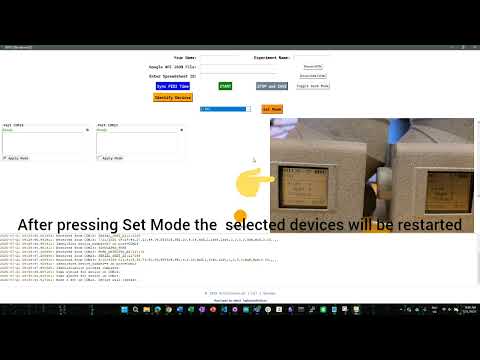
RTFED now handles interruptions in your internet connection by caching the data on RAM and periodically checking the connection
RTFED now comes with a GUI (zip file in /source), dynamically detects FED3 devices connected to your computer. Plug and Play! Just setup your Google spreadsheet and get the JSON file and connect your FED3s and run your experiment.
RTFED has port indicator for each FED3 device connected to it, in case you have many FED3s connected and can not find which port receives data from which FED3, you can make right poke to see a tiny indicator blinking next to the active port
RTFED handles reconnecting FED3 devices during a running experiment, e.g. you can switch off a FED to fix jamming and then reconnect it and RTFED keeps logging the data from the device.
RTFED GUI handles multiple FED3 units better than before. Some issues are also fixed for FR vs Free Feeding modes.
Device number is now identified when RTFED runs and sheets will be named based on device number.
Dark mode toggle added to the GUI in addition to some more instructions and hints for users
Sync FED3 Time: A new feature added to the GUI which synchronizes the clock of your FED3 units based on your host computer. This is especially good for people who are having issues with the coin battery of clocks or need very accurate Timed Feeding across their FED3 devices.
Device Identification function added and RTS library updated to listen to a command to trigger poke when the user sends a poke request. This feature helps the user easily identify many devices once all the FED units are mounted and cages are ready to go online!
Now the users can select modes directly from their computer, once the FEDs are plugged and identified by RTFED, you can choose which FED (or all FEDs) you want to change the modes on and RTFED handles it by restarting the FEDs with the new mode. Additionally, new modes are included in the .ino file, that includes Deterministic Bandit, Bandit (80/20), ProbReversal and ClosedEconomy_PR2
Enhanced GUI experience and added Offline mode after reviewers' comments"
DOWNLOAD THE RTFED_GUI.ZIP and run the RTFED.exe from /dist.
The first time you run the RTFED.exe file you might face a security error, to fix it, right click on the RTFED icon and go to properties, under the General tab you will find an Unblock option.

If your IT Security issues persist, you can run the code under the hood by running the RTFED.py or the notebook RTFED.ipynb file from ../scripts/ folder, but you need to make sure that you have installed the packages on your environment, to find more information, please look at the Extra section at the bottom of this page.
The process of flashing FED3 is explained in detail on the original FED3 repository, the only process you need to follow is to go to your Arduino library folder, find the FED3 library and in folder /src replace the FED3.h and FED3.cpp files with files provided here RTFED_Library.
How to find my Arduino Library folder?
It depends on your arduino installation settings, for example on my computer FED library is located in C:\Arduino_lib\libraries\FED3\src or on a Mac it is located in /Users/your_user_name/Documents/Arduino/libraries but the easiest way to find it is to go to File menu in your Arduino IDE and then select Preference, there you will find the pathway to your libraries.


After replacing the files, connect your FED3 to your computer(Not via the charging port rather use the one on the feather board inside the FED body), put it on boot loader mode(Double-press the tiny button on feather board) and flash it just as explained in the original FED3 repository.
 Use the port indicated on the image to flash your FED otherwise your computer won't detect any device
Note: You should remove the initial files including FED3.h and FED3.cpp and replace them with update files, you can save those files in a safe place in case you want to revert the changes later*
You are recommended to also flash your board with a new "Classic_FED3_Bandits.ino" file available here, this file includes Closed_economy_PR2, DetBandit, Bandit8020 and ProbReversal modes in addition to previous modes included in original ClassicFED3.
IMPORTANT Notes There are some changes in this new update of library
- When the device fails to deliver a pellet, it will just try 5 times in "Jam clearing" state and then stops clearing the jam
- As soon as the JAM is logged, the device is frozen and does not log any new activity, however it will just display the time when jamming happened on the screen.
- The baud rate is set at 115200 to enable FED3 to log events with millisecond resolution
- These changes are not necessary to establish the remote data acquisition and one can try to increase the number of motor turns to clear a jam
 To make sure you have properly flashed your FED3 with RTFED library, check the screen of your FED3 unit, it should display RTT to the left of the battery icon.
To automatically send data from a local script to a specific Google Spreadsheet we need to get Google Service Account credentials which enables your python script to authenticate as a specific account without needing user interaction each time.
- Go to this link to create a new project on you Google Cloud Console, as shown on the screenshot, assign a name to it and press create.


As soon as you create the project you will be prompted to project control panel, if not see notifications on the right corner bell, click on the notification icon and click on the last notification which says "project is created".

Once in the control panel of your project, form the left side panel go to API and Services and then select Library.

A new link will open in the search bar look for Google Drive API. Select the Google Drive API (probably the first item) and then ENABLE it. It will open a new link where you can control parameters of your Google Drive API.


After enabling your Google Drive API you will be prompted back to APIs and services, click on Credentials in the left panel menu and then select + CREATE CREDENTIALS and from the menu select Service Account


Enter a service account name(choose your preferred name) and Service ID will be filled automatically, then press Create and Continue or you can optionally add more users to your project or just press DONE (You can manage it later if needed)

Now on the dashboard of your APIs and Services of your project, in Credentials tab from the left panel, you will find Service Account created. Under Action click on the edit icon (pen icon)

Click on KEYS

Now click on ADD KEY and then Create Key and then select JSON file.

As soon as you create the JSON key a file is downloaded, take that file and copy it to your preferred location(e.g. where your python script or project folder is located on your computer), we will use this file location in the python script. This JSON file contains information that enables you to interact with the python script and spreadsheet.
On the APIs & Services > Credentials page, go to the Library section and search for Google Sheets API.

Select Google Sheets API and then click Enable to activate it for your project.

Now to allow the Service Account access the Google spreadsheet we need to share the Google spreadsheet with the email associated with your Service account (Go to the JSON file)
- Open the JSON file that you just downloaded, it can be opened in any editor(like notepad or VSCode).
- In the JSON file you will find the "client email", copy that email address(the quotation mark is not needed)
- Go to your Google spreadsheet on your Google drive , click on Share icon on the far right of the screen, Paste the email address from the JSON file, set General Access to "Anyone with the link" and click done, you can edit different levels of access for other people as well (For example View only or Editor).
-
While in your Google Spreadsheet, from menu Extensions, select Apps Script and clear any existing code.

-
Paste the code below, make necessary changes described below in Critical sub-step and then press the "save" icon.

After flashing your FED3 using the .cpp and .h files provided in this repository, you will have two extra columns in your FED files for Humidity and Temperature, those columns will remain blank if you do not have those sensors installed on your FED units, however this will not interfere with your data logging, just make sure correct column number are passed to the Apps Script code
Also to receive a email alerts for JAM and Pellets Consumed, you need to add your own email address to the last snippet of the code where it indicates: var emailAddress. You can also change the variable var pelletThreshold to set a threshold in case you want to receive emails when certain amounts of pellets are consumed by mice
    ////##### in the trigger settings, I recommend to choose Time driven under Select event source , and maybe run every 5 min?/// also Failure notification settings is better to be set on Weekly////

    function checkForJam() {
    var ss = SpreadsheetApp.getActiveSpreadsheet();
    var sheets = ss.getSheets();

    // 1-based columns
    var COL = { timestamp: 1, device: 6, event: 10, pellet: 14 };

    // Tunables, change the numbers if you wish to have different settings
    var PELLET_THRESHOLD = 100;   // this one triggers the daily pellet alert
    var TAIL_ROWS = 500;        // how many most-recent rows to scan each time

    var props = PropertiesService.getScriptProperties();
    var tz = Session.getScriptTimeZone(); // keep in sync with script’s timezone (in my case it is set to Europe/Oslo in File > Project settings if needed, not sure necessary at all!)

    sheets.forEach(function(sheet) {
        var sheetName = sheet.getName();
        var lastRow = sheet.getLastRow();
        if (lastRow < 2) return; // header only / empty

        var startRow = Math.max(2, lastRow - TAIL_ROWS + 1);
        var lastCol  = Math.max(COL.timestamp, COL.device, COL.event, COL.pellet);
        var values   = sheet.getRange(startRow, 1, lastRow - startRow + 1, lastCol).getValues();

        values.forEach(function(r, idx) {
        var rowNum = startRow + idx;

        var event  = String(r[COL.event  - 1] || "").trim();
        var device = String(r[COL.device - 1] || "").trim();
        var pellet = Number(r[COL.pellet - 1]);

        // Parse timestamp -> yyyy-MM-dd (daily key)
        var tsCell = r[COL.timestamp - 1];
        var ts = (tsCell instanceof Date) ? tsCell : (tsCell ? new Date(tsCell) : null);
        var dayKey = ts ? Utilities.formatDate(ts, tz, "yyyy-MM-dd") : "(no-date)";

        // ############################
        // JAM alarm once per row (so this should make sure repeated jams in a day WILL alert again, in case the user fixes a JAM and again a JAM happens)
        // ######
        if (event === "JAM") {
            var jamRowKey = "JAMROW__" + sheetName + "__" + rowNum;
            if (!props.getProperty(jamRowKey)) {
            sendJamAlert(sheetName, rowNum, event, device || "(unknown)");
            props.setProperty(jamRowKey, "1");
            }
        }

        // -####-##-#-#-#-#-#-#
        // Pellet threshold: once per (sheet, device, day)
        //
        if (!device || isNaN(pellet)) return;

        if (pellet >= PELLET_THRESHOLD) {
            var pelletKey = "PELLET__" + sheetName + "__" + device + "__" + dayKey;
            if (!props.getProperty(pelletKey)) {
            sendPelletAlert(sheetName, device, pellet);
            props.setProperty(pelletKey, "1");
            }
        }
        });
    });
    }

    /******** EMAILS  ********/
    function sendJamAlert(sheetName, row, event, deviceNumber) {
    var email = "ENTER YOUR EMAIL ADDRESS HERE";
    var subject = "🚨 FED3 Device Alert: JAM Detected 🚨";
    var message = "🚧 A FED unit has failed.🚧\n\n" +
        "Details:\n" +
        "Sheet: " + sheetName + "\n" +
        "Row: " + row + "\n" +
        "Device Number: " + deviceNumber + "\n" +
        "Event: " + event + "\n" +
        "Please go and check your device! ";
    MailApp.sendEmail(email, subject, message);
    }

    function sendPelletAlert(sheetName, deviceNumber, pelletCount) {
    var email = "ENTER YOUR EMAIL ADDRESS HERE";
    var subject = "🧀🐭FED3 Device Alert: Pellet Threshold Reached🐭🧀";
    var message = "A FED unit has reached the pellet count threshold for today🧀🐁.\n\n" +
        "Details:\n" +
        "Sheet: " + sheetName + "\n" +
        "Device Number: " + deviceNumber + "\n" +
        "Pellet Count: " + pelletCount + "\n" +
        "This alert fires once per device per day.";
    MailApp.sendEmail(email, subject, message);#### you do not need to enter your email address here, it is calling the function not defining a parameter#####
    }
- To activate the Alarm email, in the Apps Script control panel, from the left panel menu, select Triggers and then right bottom corner select + Add Trigger

Set the settings according to the screenshot below:

After saving the trigger, a warning will show up -- image below

Click on Advanced, then click on Go to your project then click on Allow
IMPORTANT NOTE: The RTFED ignores the timestamp data coming from FEDs and gets the timestamp from the mother computer, which means that all the FEDs connected to the main computer will be synchronized.
You can use either the .yml file to create a separate environment for your RTFED python code, or use the requirement.txt file from the same folder to get the required python packages. Follow the instructions on ANACONDA_CHEAT_SHEET, but basically download the above mentioned files and move them to your anaconda environments directory, open your anaconda terminal and navigate to to the directory where the RTFED.yml is located and run the command below:
conda env create -f RTFED.yml
Alternatively you can use the requirement.txt file to either update packages in your base/current environment or making an env from the scratch,simply navigate to the directory where you have the requirements.txt located, and run the following command:
pip install -r requirements.txt
This project is licensed under the Apache License 2.0 - see the LICENSE file for details.
Hamid Taghipourbibalan, Ph.D. student at McCutcheon_lab at UiT The Arctic University of Norway.