


Windows 11 Preview is now available for insiders. There are a lot of great changes, but some features are annoying.
🔷NOTE that you are doing this at your own risk. Changing the wrong thing could lead to break your System.🔷
Do this first • Taskbar position • Taskbar size • Old Startmenu • Login Blur
UPDATE: I added reg files. Just pick the one you want, execute it and you are done.
There is a wondeful project to customize your Windows 11 how you want. You can even make it look like MacOS --> https://www.startallback.com/
Do this first This will be our friend throughout this Guide. You can do that by pressing Windows + R and type regedit
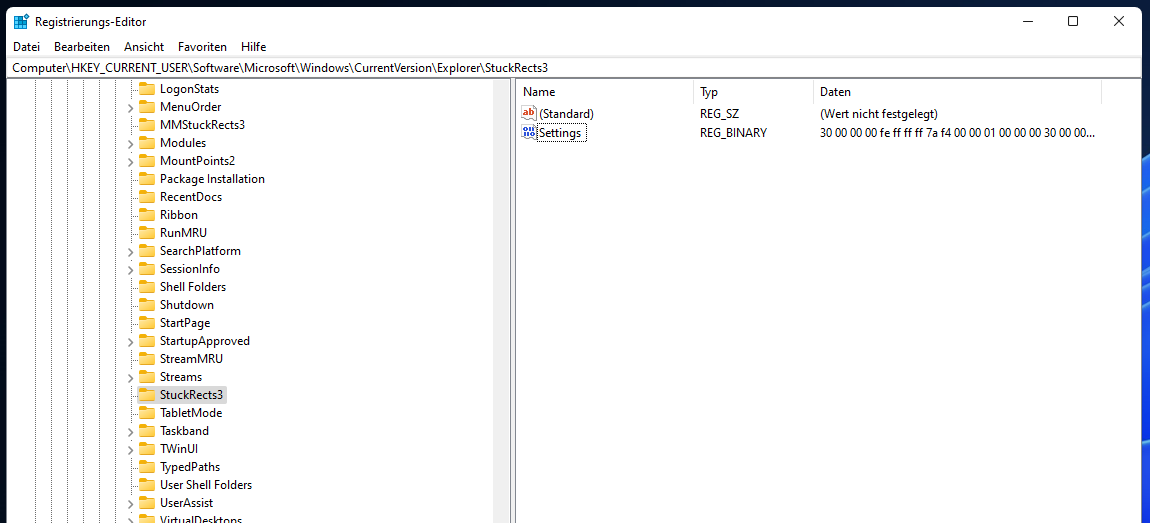
1. Navigate to: HKEY_CURRENT_USER\Software\Microsoft\Windows\CurrentVersion\Explorer\StuckRects3
You can copy and paste this in the search bar.
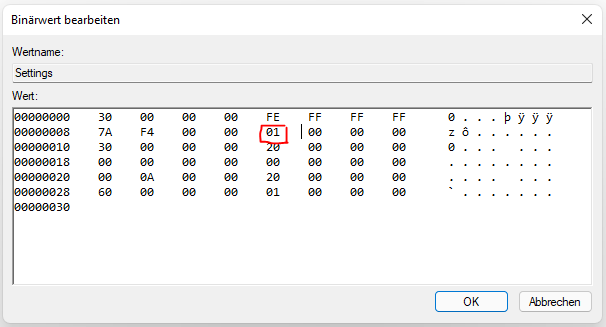
2. Doubleklick "Settings" in the right field.
3. In the second row you will change the fifth value to:
| value | position |
|---|---|
| 00 | left |
| 01 | top |
| 02 | right |
| 03 | bottom |
Then restart explorer.exe or just restart the PC
OPTIONAL
If you have multiple displays and multiple taskbars (why?) then you can change it here:
(4). HKEY_CURRENT_USER\SOFTWARE\Microsoft\Windows\CurrentVersion\Explorer\MMStuckRects3
Repeat the Steps 3 and 4 for each value
1. Navigate to: HKEY_CURRENT_USER\Software\Microsoft\Windows\CurrentVersion\Explorer\Advanced
2. Do a quick rightklick in the right field select New -> DWORD-Value (32 bit)
3. Name this new value TaskbarSi
4. Then double click the Value and change the value to:
| value | position |
|---|---|
| 0 | small |
| 1 | medium |
| 2 | large |
Then restart explorer.exe or just restart the PC
1. Navigate to: HKEY_CURRENT_USER\Software\Microsoft\Windows\CurrentVersion\Explorer\Advanced
2. Do a quick rightklick in the right field select New -> DWORD-Value (32 bit)
3. Name this value Start_ShowClassicMode and change the value to:
| value | description |
|---|---|
| 0 | New Windows 11 Menu |
| 1 | Good old Windows 10 Menu |
I prefer the old one because i have all my stuff there to keep my desktop clean
Then restart explorer.exe or just restart the PC
1. Navigate to: HKEY_LOCAL_MACHINE\SOFTWARE\Policies\Microsoft\Windows\System
2. Do a quick rightklick in the right field select New -> DWORD-Value (32 bit)
3. Name this value DisableAcrylicBackgroundOnLogon and change the value to:
| value | description |
|---|---|
| 1 | Disable |
| Delete "DisableAcrylicBackgroundOnLogon" | Enable |