wxPDFView is a set of wxWidgets controls to display and navigate PDF documents using Google Chromes PDFium library.
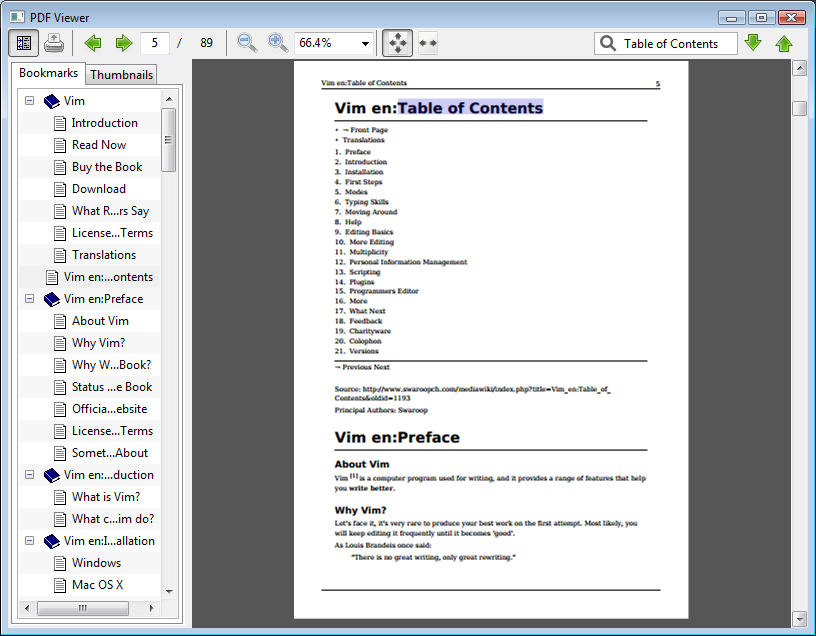
Currently implemented:
- PDF page display control
- PDF bookmarks control
- PDF thumbnail control
- Zooming
- Search
- Printing
- Forms
- Loading PDF from custom sources (any std::istream)
Currently not implemented:
- Text selection
- Build PDFium per instructions on the PDFium page.
- Use GYP_DEFINES='pdf_enable_xfa=0' when building pdfium
- Use CMake to build the samples/simple project
- Or use the included CMake file in your project and link wxPDFView lib (will link the required pdfium libs)
Currently includes 3 classes you can include into your own frames
- wxPDFView Main pdf view
- wxPDFViewBookmarksCtrl tree control displaying bookmarks contained in the PDF
- wxPDFViewThumbnailListBox listbox control for displaying thumbnails
Or you can base your PDF viewing on a complete PDF viewer frame
- wxPDFViewDocumentFrame Combining all controls into a PDF viewer window
After initializing an instance of wxPDFView call wxPDFViewBookmarksCtrl::SetPDFView and/or wxPDFViewThumbnailListBox. Call wxPDFView::LoadFile to load a PDF into the view.
=======
wxPDFView is a set of wxWidgets controls to display and navigate PDF documents using Google Chromes PDFium library.
Currently implemented:
- PDF page display control
- PDF bookmarks control
- PDF thumbnail control
- Zooming
- Search
- Printing
- Forms
- Loading PDF from custom sources (any std::istream)
Currently not implemented:
- Text selection
- Install latest Xcode
- Install Homebrew.
- Install Chromium Depot Tools and make sure you've set PATH correctly by running
gclient. - Install wxWidgets and Cmake:
brew install wxmac cmake
mkdir pdfium
cd pdfium
gclient config --unmanaged --spec "solutions=[{'name':'pdfium','url':'https://pdfium.googlesource.com/pdfium.git@chromium/2953','deps_file':'DEPS','managed':False,'custom_deps':{},'safesync_url':''}]"
gclient sync
cd pdfium
export PDFIUM_DIR=`pwd`
gn gen out/Debug --args="pdf_enable_xfa=false pdf_enable_v8=true"
ninja -C out/Debug pdfium
Make sure PDFIUM_DIR is set (see 2. above).
git clone https://github.com/rsippl/wxPDFView.git
cd wxPDFView/samples/simple
mkdir build
cd build
cmake .. -DCMAKE_BUILD_TYPE=Debug -DPDFIUM_ROOT_DIR=$PDFIUM_DIR -DWITH_PDFIUM_SOURCE=true
make
open wxPDFViewSimpleSample.app
- Install Visual Studio 2015 with Git and all C++ options enabled
- Install Cmake
- Install Chromium Depot Tools and make sure you've set PATH correctly by running
gclient. - The next steps rely on environment variables, make sure you use the same command prompt for all steps, or set the variables globally
Run the following in your command prompt:
mkdir pdfium
cd pdfium
set DEPOT_TOOLS_WIN_TOOLCHAIN=0
gclient config --unmanaged --spec "solutions=[{'name':'pdfium','url':'https://pdfium.googlesource.com/pdfium.git@chromium/2953','deps_file':'DEPS','managed':False,'custom_deps':{},'safesync_url':''}]"
gclient sync
cd pdfium
set PDFIUM_DIR=%cd%
gn gen out/Debug --args="pdf_enable_xfa=false pdf_enable_v8=true pdf_is_standalone=true is_component_build=true target_cpu=\"x86\" is_debug=true"
ninja -C out/Debug pdfium
- Download the wxWidgets 3.1.x Windows ZIP
- Unzip it and open build/msw/wx_vc14.sln in Visual Studio
- Set Solution Configuration to Debug, Solution Platform to Win32, click Build Solution
- Set
WXWIDGETS_DIR, e.g. in your command prompt:
cd wxWidgets-3.1.0
set WXWIDGETS_DIR=%cd%
Run the following in your command prompt:
IF NOT EXIST %PDFIUM_DIR% (echo PDFIUM_DIR not set!)
IF NOT EXIST %WXWIDGETS_DIR% (echo WXWIDGETS_DIR not set!)
git clone https://github.com/rsippl/wxPDFView.git
cd wxPDFView\samples\simple
mkdir build
cd build
cmake .. -DPDFIUM_ROOT_DIR=%PDFIUM_DIR% -DwxWidgets_ROOT_DIR=%WXWIDGETS_DIR% -DwxWidgets_LIB_DIR=%WXWIDGETS_DIR%\lib\vc_lib -DwxWidgets_CONFIGURATION=mswud -DWITH_PDFIUM_SOURCE=true
Open wxPDFView\samples\simple\build\wxPDFViewSimpleSample.sln in Visual Studio, set Solution Configuration to Debug, Solution Platform to Win32, then Build Solution.
After the build process completes, you'll find wxPDFViewSimpleSample.exe in the Debug folder. Finally, copy missing DLLs from PDFium to this folder:
copy %PDFIUM_DIR%\out\Debug\v8.dll Debug\
copy %PDFIUM_DIR%\out\Debug\v8_libplatform.dll Debug\
copy %PDFIUM_DIR%\out\Debug\v8_libbase.dll Debug\
copy %PDFIUM_DIR%\out\Debug\icui18n.dll Debug\
copy %PDFIUM_DIR%\out\Debug\icuuc.dll Debug\
(Tested only on Windows!)
- replace Debug with Release everywhere!
- in 2., in the
gn gen ...line, useis_debug=false - in 3., set Solution Configuration to Release
- in 4., set Solution Configuration to Release, use mswu instead of mswud in the
cmake ...line, and copy the DLL files to the Release folder - distribute Release folder, and make sure the Visual C++ Redistributable for VS2015 (x86) is installed on the target machine
Currently includes 3 classes you can include into your own frames
wxPDFViewMain pdf viewwxPDFViewBookmarksCtrltree control displaying bookmarks contained in the PDFwxPDFViewThumbnailListBoxlistbox control for displaying thumbnails
Or you can base your PDF viewing on a complete PDF viewer frame
wxPDFViewDocumentFrameCombining all controls into a PDF viewer window
After initializing an instance of wxPDFView call wxPDFViewBookmarksCtrl::SetPDFView and/or wxPDFViewThumbnailListBox. Call wxPDFView::LoadFile to load a PDF into the view.