





A well typed React Native library providing support for Apple Authentication on iOS, including support for all AppleButton variants.
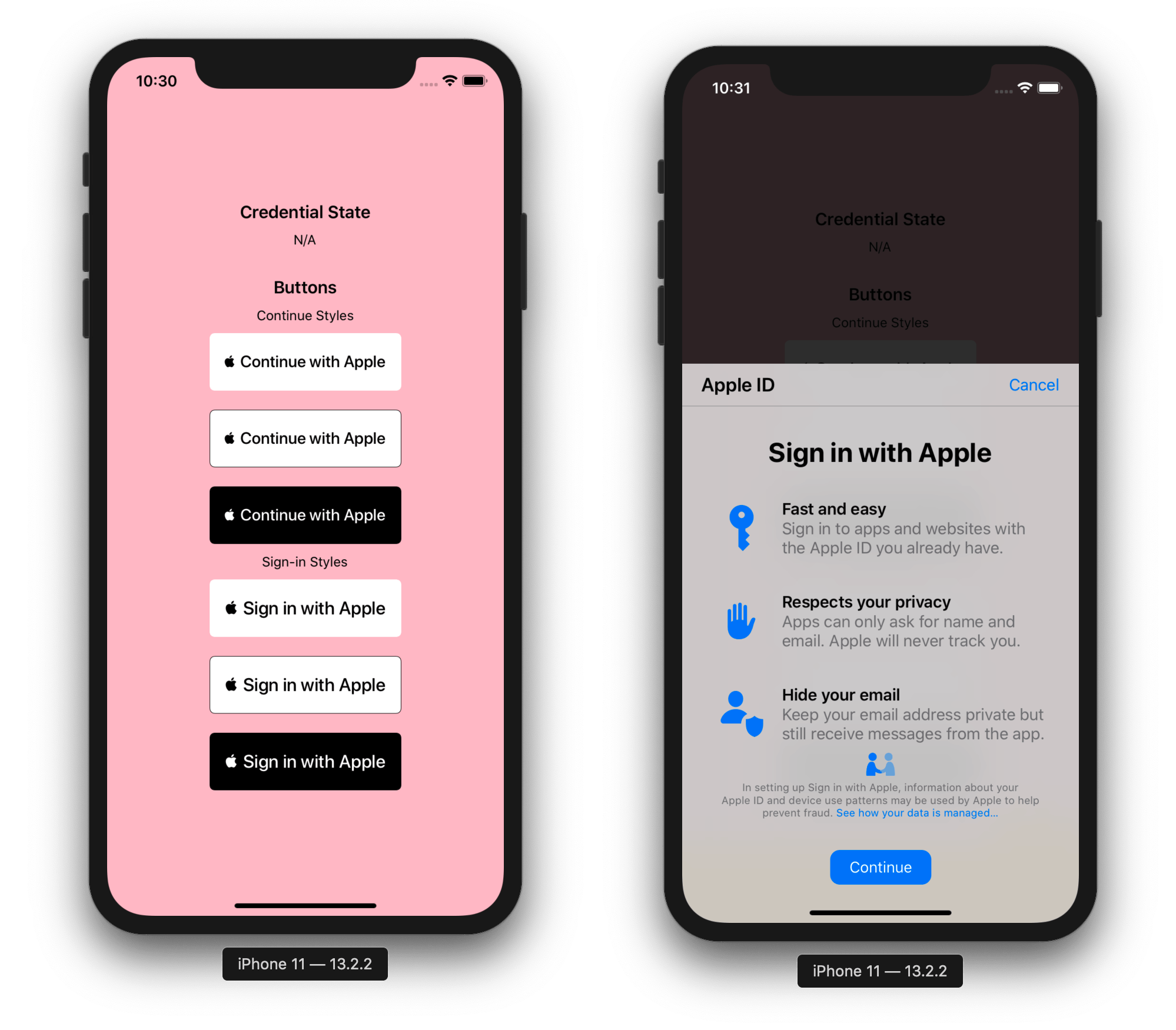
The @invertase/react-native-apple-authentication library will not work if you do not ensure the following:
-
You have setup react-native iOS development environment on your machine (Will only work on Mac). If not, please follow the official React Native documentation for getting started: React Native getting started documentation.
-
You are using React Native version
0.60or higher. -
You are using Xcode version
11or higher. This will allow you to develop using iOS version13, the only version possible for authenticating with Apple. -
Once you're sure you've met the above, please follow our Initial development environment setup guide.
yarn add @invertase/react-native-apple-authentication

cd ios && pod install
You will not have to manually link this module as it supports React Native auto-linking.
Below are simple steps to help you get up and running. Please skip and head to the full code examples noted below if you prefer to see a more complete implementation:
- React Hooks example
- React Class example
- If you're authenticating users via
React Native Firebase; see our Firebase guide
Import the appleAuth (API documentation) module and the AppleButton (API documentation) exported member element from the @invertase/react-native-apple-authentication library. Setup an event handler (onPress) to kick start the authentication request.
// App.js

import React from 'react';
import { View } from 'react-native';
import { AppleButton } from '@invertase/react-native-apple-authentication';

async function onAppleButtonPress() {

}

function App() {
  return (
    <View>
      <AppleButton
        buttonStyle={AppleButton.Style.WHITE}
        buttonType={AppleButton.Type.SIGN_IN}
        style={{
          width: 160,
          height: 45,
        }}
        onPress={() => onAppleButtonPress()}
      />
    </View>
  );
}Import exported members AppleAuthRequestOperation (API documentation), AppleAuthRequestScope API documentation & AppleAuthCredentialState API documentation.
// App.js

import appleAuth, {
  AppleButton,
  AppleAuthRequestOperation,
  AppleAuthRequestScope,
  AppleAuthCredentialState,
} from '@invertase/react-native-apple-authentication';

async function onAppleButtonPress() {
  // performs login request
  const appleAuthRequestResponse = await appleAuth.performRequest({
    requestedOperation: AppleAuthRequestOperation.LOGIN,
    requestedScopes: [AppleAuthRequestScope.EMAIL, AppleAuthRequestScope.FULL_NAME],
  });

  // get current authentication state for user
  // /!\ This method must be tested on a real device. On the iOS simulator it always throws an error.
  const credentialState = await appleAuth.getCredentialStateForUser(appleAuthRequestResponse.user);

  // use credentialState response to ensure the user is authenticated
  if (credentialState === AppleAuthCredentialState.AUTHORIZED) {
    // user is authenticated
  }
}Set up event listener for when user's credentials have been revoked.
// App.js

import React, { useEffect } from 'react';
import { View } from 'react-native';
import appleAuth, { AppleButton } from '@invertase/react-native-apple-authentication';

function App() {
  useEffect(() => {
    // onCredentialRevoked returns a function that will remove the event listener. useEffect will call this function when the component unmounts
    return appleAuth.onCredentialRevoked(async () => {
      console.warn('If this function executes, User Credentials have been Revoked');
    });
  }, []); // passing in an empty array as the second argument ensures this is only ran once when component mounts initially.

  return (
    <View>
      <AppleButton onPress={() => onAppleButtonPress()} />
    </View>
  );
}There is an operation AppleAuthRequestOperation.LOGOUT, however it does not work as expected and is not even being used by Apple in their example code. See this issue for more information
So it is recommended when logging out to just clear all data you have from a user, collected during AppleAuthRequestOperation.LOGIN.
- Based on the Firebase implementation guidelines the nonce provided to
appleAuth.performRequestis automatically SHA256-hashed. - To verify the nonce serverside you first need to hash the nonce value, ie:
crypto.createHash('sha256').update(nonce).digest('hex');
- The nonce can then be easily compared serverside for extra security verification, ie:
import crypto from 'crypto';
import appleSigninAuth from 'apple-signin-auth';

appleIdTokenClaims = await appleSigninAuth.verifyIdToken(id_token, {
  /** sha256 hex hash of raw nonce */
  nonce: nonce ? crypto.createHash('sha256').update(nonce).digest('hex') : undefined,
});
- appleAuth module
- AppleAuthRequestOptions
- AppleAuthRequestResponse
- AppleAuthRequestResponseFullName
- AppleButtonProps
- AppleAuthCredentialState
- AppleAuthError
- AppleAuthRealUserStatus
- AppleAuthRequestOperation
- AppleAuthRequestScope
- AppleButtonStyle
- AppleButtonType
-
Why does
full nameandemailreturnnull?- Apple only returns the
full nameandemailon the first login, it will returnnullon the succeeding login so you need to save those data. - For testing purposes, to be receive these again, go to your device settings;
Settings > Apple ID, iCloud, iTunes & App Store > Password & Security > Apps Using Your Apple ID, tap on your app and tapStop Using Apple ID. You can now sign-in again and you'll receive thefull nameand `email.
- Apple only returns the
-
How to change button language?
- Native Apple Button component reads language value from CFBundleDevelopmentRegion at Info.plist file. By changing CFBundleDevelopmentRegion value you can change default language for component.
<key>CFBundleDevelopmentRegion</key>
<string>en</string>
- For supporting multi language, you can add CFBundleAllowMixedLocalizations key to Info.plist.
<key>CFBundleAllowMixedLocalizations</key>
<string>true</string>
The operation couldn’t be completed. (com.apple.AuthenticationServices.AuthorizationError error 1000.)
In the case you are using the function getCredentialStateForUser on a simulator, this error will always be fired. You should test your code on a real device.
- See LICENSE

Built and maintained with 💛 by Invertase.
💼 Hire Us | ☕️ Sponsor Us | 💻 Work With Us