Home
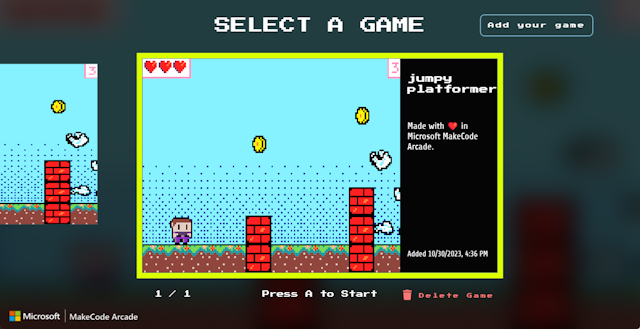
BatoCode-Arcade is a lightweight Linux desktop client designed to give your MakeCode Arcade games a true arcade feel. It runs your exported games in fullscreen, sandbox-free Electron environments — ideal for arcades, exhibits, classrooms, or embedded setups like the Raspberry Pi.
Whether you’re showcasing a single title or curating a full game library, BatoCode-Arcade provides a distraction-free, gamepad-friendly launcher that keeps the focus on play. Best of all, it now runs on Batocera Linux, letting you experience your creations on authentic arcade hardware.
A long time ago, in a galaxy not so far away… I decided to build a small arcade cabinet for my son. The idea was to let him experience the magic of retro gaming and learn how video games have evolved over time. What started as a simple project had a surprisingly big impact on him — it sparked a deep curiosity. Before long, he was researching vintage consoles, classic home computers, and legendary games from past decades.
I was honestly amazed when I heard him chatting with his school friends about the Odyssey 2 and the original Game Boy. His interest kept growing, and eventually, it shifted toward understanding how games are made. That’s when he discovered Microsoft MakeCode Arcade, a platform that lets beginners create games using drag-and-drop code blocks.
He started building his own games and testing them in the small preview window built into the editor. One day, he asked me: “Can we run my games on the arcade cabinet?” That simple question kicked off the next chapter of our project. After some digging, I realized MakeCode Arcade exports were only supported on Windows — not ideal, since our cabinet runs on Linux.
So, I rolled up my sleeves and built a custom wrapper app that would let his MakeCode Arcade games run smoothly on our Linux arcade setup. And that’s how BatoCode-Arcade was born — turning curiosity into creation, and code into something truly playable.
The easiest way to install BatoCode-Arcade on Batocera is by using the custom Pacman repository hosted by this project.
This project uses Github Actions together with Github pages to host two Pacman repositories ready to be used. This is the preferred installation method as it exports all the media files and gamelist details.
-
Open a Terminal
Access the Batocera terminal either locally or via SSH in same domestic network:
ssh root@batocera.local
or
ssh root@<your_batocera_local_domestic_ip>
-
Add the Custom Repository
There are currently two repositories being hosted:
- x86_64 packages are released in https://ramraiders.github.io/batocode-arcade/x86_64
- aarch64 packages are released in https://ramraiders.github.io/batocode-arcade/aarch64
If you are unsure about your system architecture run
uname -mto find out.Edit the local Pacman config file
/userdata/system/pacman/pacman.confand add the following lines, using the correct repo server for your architecture:[batocode-arcade] SigLevel = Optional TrustAll Server = https://ramraiders.github.io/batocode-arcade/<$arch>
for x86_64 replace the last line with:
Server = https://ramraiders.github.io/batocode-arcade/x86_64
for aarch64 replace the last line with:
Server = https://ramraiders.github.io/batocode-arcade/aarch64
-
Update the Package Database
Refresh the package list to include the new repo:
pacman -Sy
-
Check if the repo is listed
Run the following command and check if the package is found:
pacman -Sl batocode-arcade
-
Install BatoCode-Arcade
Use Pacman to install the package:
pacman -S ports-batocode-arcade
Extract the released tar.gz file inside batocera's /userdata/roms/ports. Update your gamelist from the start menu and it should work right away. Additionally you should add the batocode-arcade.sh.key file that contains some basic key mappings to /userdata/roms/ports. And the images/video to their correspondent folder. You will then be able to edit the game metadata manually or by editing the gamelist.xml file.
Just go with the compiled code from a release and give it a try!
Installing from the repo will append the following info automatically. If you installed manually, you can just copy it here and append in /userdata/roms/ports/gamelist.xml inside the root tag:
<game>
	<path>./batocode-arcade.sh</path>
	<name>BatoCode Arcade</name>
	<desc>BatoCode Arcade is a streamlined Linux desktop client purpose-built to transform your MakeCode Arcade games into a seamless kiosk-style experience.
		Designed for plug-and-play simplicity, it launches your exported games in fullscreen, sandbox-free Electron environments — perfect for arcades, exhibits, classrooms, and embedded devices like Raspberry Pi.
		Whether you are showcasing a single game or building a curated collection, BatoCode Arcade offers a focused, distraction-free launcher optimized for gamepad or minimal input navigation.
		Pair it with Batocera to bring your MakeCode creations to life on real arcade hardware.</desc>
	<image>./images/batocode-arcade-image.png</image>
	<video>./videos/batocode-arcade-video.mp4</video>
	<marquee>./images/batocode-arcade-marquee.png</marquee>
	<thumbnail>./images/batocode-arcade-thumb.png</thumbnail>
	<fanart>./images/batocode-arcade-fanart.png</fanart>
	<rating>5</rating>
	<releasedate>20250527T230525</releasedate>
	<developer>RAM Raiders</developer>
	<publisher>RAM Raiders</publisher>
	<genre>Various</genre>
	<arcadesystemname>Microsoft Make Code Arcade Kiosk</arcadesystemname>
	<players>1-4</players>
	<kidgame>true</kidgame>
	<lang>en</lang>
	<region>World</region>
</game>If you installed from the repo this is already installed, else you'll need to add it create it in /userdata/roms/ports/batocode-arcade.sh.keys, feel free to add more shortcuts if you feel useful.
Currently, this file exists here only to map the exit app action using Hotkey+start buttons that by default is (Alt + F4) and the app reload combo that uses Hotkey+east, performing a window reload.
{
  "actions_player1": [
    {
      "trigger": [
        "hotkey",
        "start"
      ],
      "type": "key",
      "target": [
        "KEY_LEFTALT",
        "KEY_F4"
      ]
    },
{
      "trigger": [
        "a",
        "hotkey"
      ],
      "type": "key",
      "target": [
        "KEY_LEFTSHIFT",
        "KEY_F5"
      ]
    }
  ]
}From the repository run
pacman -Syto update the pacman db
and then
pacman -S ports-batocode-arcadeIf you installed this project from the repo, just run:
packman -R ports-batocode-arcadeIn Batocera you'll find the project inside the Ports system folder. Just select it and it will start right away.
To create your own games, you must do so using an internet browser and access the official Microsoft Makecode Arcade website. There are plenty of tutorials in there. Check them out.

You can add any shared games to the platform. Access your own or any community games in a browser, inside the game editor you must press the share button.

Then the share option will be displayed.

Click share

And then click the option with a joystick action named kiosk. It will open an input field for you to add a code.
Then in your Batocode-Arcade app select the add game option.

A qrcode and a text code will be displayed.

Grab the text code and put it in the previous mentioned input field. Your game will be add right away. Navigate inside the app and you should find your new game added. Have fun!
If you want to build the project locally from source:
- Clone this repository:
  git clone git@github.com:RAMRaiders/batocode-arcade.git
cd batocode-arcade- Install dependencies: Install project dependencies with:
npm ciThis command installs all necessary packages exactly as specified in the lockfile, ideal for reproducible builds.
To run the application locally (requires Electron):
npm startThis command will launch the Electron app opening the Makecode Arcade kiosk URL in fullscreen kiosk mode.
To create the distributable package run:
npm run distThis will produce the build files in the dist directory.
This project includes a GitHub Actions workflow that automatically:
- Builds Linux releases on Ubuntu runners for arm64 and x64
- Packages the app builds as tar.gz
- Builds one pacman package per arch
- Creates a GitHub release
- Uploads the built artifacts and a helper launch script (
run-makocera.sh) to the release assets - Uploads the packman releases to github pages
- Github page will serve the two packman repositories
To trigger the build and release workflow, simply push a new git tag matching v*.