
composer require plasticstudio/iconfield
Provides a visual icon picker for content authors. Icon files are managable via the asset library.
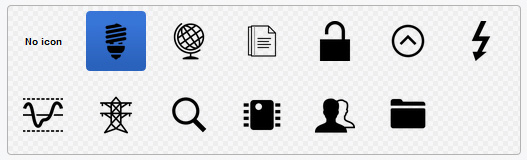
- SilverStripe 4 or 5
- Use release 1 for legacy non-cms editable icon files
- Use release 2 updated icon files managed in CMS Files area
If migrating from release 1 to 2:
- check if svgs are allowed in mimetypes (guru: https://app.getguru.com/card/TjR6ab8c/SVG-Mime-type)
- upgrade to v2
- create new folders in CMS Files area based on IconField set up, eg
SiteIcons(or reload cms page with iconfield to create). Can have nested folders inside SiteIcons. - upload and publish icons
- update IconFields to use new source path, eg
IconField::create('SocialIcon', 'Icon', 'SiteIcons'). You should see relevant icons display in iconfield. - to update database and relink selected icon: run task
IconFieldPathMigrator_BuildTaskfor each class that has been updated - make sure to add params
?classname=Skeletor\DataObjects\SummaryPanel&field=SVGIcon - if your new folder is not 'SiteIcons', add this to the params as well, eg
&new-path=NewFolder - lastly, remove the icon folder from client/assets
- Import the required classes:
use PlasticStudio\IconField\Icon;
use PlasticStudio\IconField\IconField;
-
Set your
$dbfield to typeIcon(eg'PageIcon' => Icon::class) -
IconField::create($name, $title, $folderName)$nameis the database field as defined in your class$titleis the label for this field$folderNameis the name of the folder inside the Assets eg 'SiteIcons', nested folders are allowed eg 'SiteIcons/ProductIcons'
-
Use your icon in templates as you would any other property (eg
$PageIcon). If your icon is an SVG, the SVG image data will be injected into the template. To prevent this, you can call$PageIcon.IMGinstead to enforce use of<img>tags. -
Add a default width and height to the config.yml file to output width/height attributes on image tags, e.g.
<img width="30" height="30" />. This is good for SEO.
PlasticStudio\IconField\IconField:
  default_width: "30"
  default_height: "30"