Companion Computer Setup
Index
The companion computer setup comprises of several steps:
1: Fast DDS Installation: This allows for a communication between the companion computer and Pixhawk
2: ROS 2 Installation: This installs the framework on which the project is written with, along with installing packages that are specific to this project
3: Build ROS workspace: This sets up the ROS workspace
4: Installation verification: This verifies that the installation has installed all needed
5: Hardware connections: Setup hardware connection through serial between Jetson and Pixhawk
Prerequisites
The wiki assumes that you are running a Jetson Nano with Ubuntu 20.04 and a Intel Realsense D435 camera. Ubuntu 20.04 is required for Pixhawk code to work, but the code should work on different versions of Jetson or with different Realsense cameras however it is tested using the prior configuration.
To install Ubuntu 20.04 on Jetson Nano: https://qengineering.eu/install-ubuntu-20.04-on-jetson-nano.html (The image is used)
Fast DDS Installation
Install Java:
sudo apt update
Check if Java is already installed:
java -version
Install:
sudo apt install default-jdk
Check for installation:
java -version
Install gradle:
Install SDKMAN:
curl -s “https://get.sdkman.io/” | bash
Run after installation:
Install gradle: MAKE SURE TO INSTALL 6.3
sdk install gradle 6.3
Install foonathan memory:
git clone https://github.com/eProsima/foonathan_memory_vendor.git
cd foonathan_memory_vendor
mkdir build && cd build
cmake ..
cmake --build . --target install
Install Fast DDS:
git clone --recursive https://github.com/eProsima/Fast-DDS.git -b v2.0.2 ~/FastDDS-2.0.2
cd ~/FastDDS-2.0.2
mkdir build && cd build
cmake -DTHIRDPARTY=ON -DSECURITY=ON -DCOMPILE_EXAMPLES=ON -DPERFORMANCE_TESTS=ON
make -j$(nproc --all)
sudo make install
Install Fast RTPS Gen:
git clone --recursive https://github.com/eProsima/Fast-DDS-Gen.git -b v1.0.4 ~/Fast-RTPS-Gen \
&& cd ~/Fast-RTPS-Gen \
&& gradle assemble \
&& sudo env "PATH=$PATH" gradle install
ROS 2 Installation
Refer to https://docs.ros.org/en/foxy/Installation/Ubuntu-Install-Debians.html to install ROS 2
Install colcon tools
sudo apt install python3-colcon-common-extensions
Install cmake module
sudo apt install ros-foxy-eigen3-cmake-module
Install python dependency
sudo pip3 install -U empy pyros-genmsg setuptools
Build ROS 2 Workspace Create workspace directory
mkdir -p ~/px4_ros_com_ros2/src
Clone Pixhawk packages
git clone https://github.com/PX4/px4_ros_com.git ~/px4_ros_com_ros2/src/px4_ros_com
git clone https://github.com/PX4/px4_msgs.git ~/px4_ros_com_ros2/src/px4_msgs
git clone https://github.com/PX4/Firmware.git --recursive
cd Firmware
bash ./Tools/setup/ubuntu.sh
sudo reboot now
cd Firmware
make px4_sitl jmavsim
Build workspace
cd ~/px4_ros_com_ros2/src/px4_ros_com/scripts
source build_ros2_workspace.bash
Check installation
make px4_sitl_rtps gazebo
source ~/px4_ros_com_ros2/install/setup.bash
micrortps_agent -t UDP
source ~/px4_ros_com_ros2/install/setup.bash
ros2 launch px4_ros_com sensor_combined_listener.launch.py
The bridge should print data on the terminal on which the listener python file was run
Hardware connection
Materials:
USB FTDI adapter (6 pin) Cable for TELEM2 port
Follow this diagram to connect the FTDI to the cable
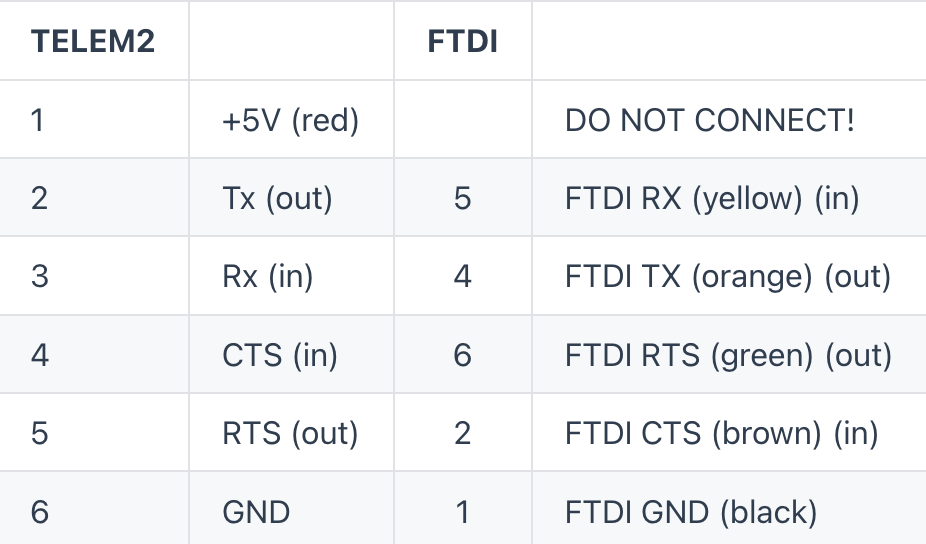
Check that the FTDI is connected to the Jetson by running
lsusb
Rename the FTDI
Identify the name of the FTDI by running > lsusb
Create a new file in /etc/udev/rules.d/99-pixhawk.rules
Copy and paste the following into the file, changing the vendorId and productId
SUBSYSTEM=="tty", ATTRS{idVendor}=="2341", ATTRS{idProduct}=="0042", SYMLINK+="ttyArduino"
SUBSYSTEM=="tty", ATTRS{idVendor}=="26ac", ATTRS{idProduct}=="0011", SYMLINK+="ttyPixhawk"
Add user to groups
usermod -a -G tty ros-user usermod -a -G dialout ros-user
Test hardware connection
Run
micrortps_client start
on Pixhawk through nsh
Run on Jetson
source ~/px4_ros_com_ros2/install/setup.bash
$ micrortps_agent -t UDP
source ~/px4_ros_com_ros2/install/setup.bash
$ ros2 launch px4_ros_com sensor_combined_listener.launch.py