Styles
To change the style of the page, CSS is used. I recommend the website w3schools for a good tutorial on using CSS. https://www.w3schools.com/html/html_css.asp.
The styles are stored in styles/style.css. These are included in the index.html and included using the following line of code.
<link rel="stylesheet" href="./styles/style.css" />If another HTML page is created, remember to add this line of code between the <head> and </head> tags to use the same CSS styling.
Look in the file styles/style.css. Here, you can view and create styles for the page. You can change the default style of a HTML tag. For example, to make the body of the page have a blue background, you can use the following code.
body {
  background-color: blue;
}
You can also create a style class that can be assigned to different elements of the page. For example, in styles.css, there is a class called `large-text'. This makes the font size larger.
.large-text {
  font-size:38px;
}To make an element of the page use a style, for example, the large-text style, go to the part of the HTML (in index.html) you want to style. Inside the open tag, type class=[name of class]. For example, the following code will give the paragraph a larger text size.
<p class="large-text"> Large text Heading </p> Some classes for styles have already been made in the CSS file, which you can use.
This style will make text larger, which is useful for headings.
<h1 class="large-text"> Large Heading </h1>This style creates a white box on the page where content can be entered. For example, here are two page boxes on the screen.
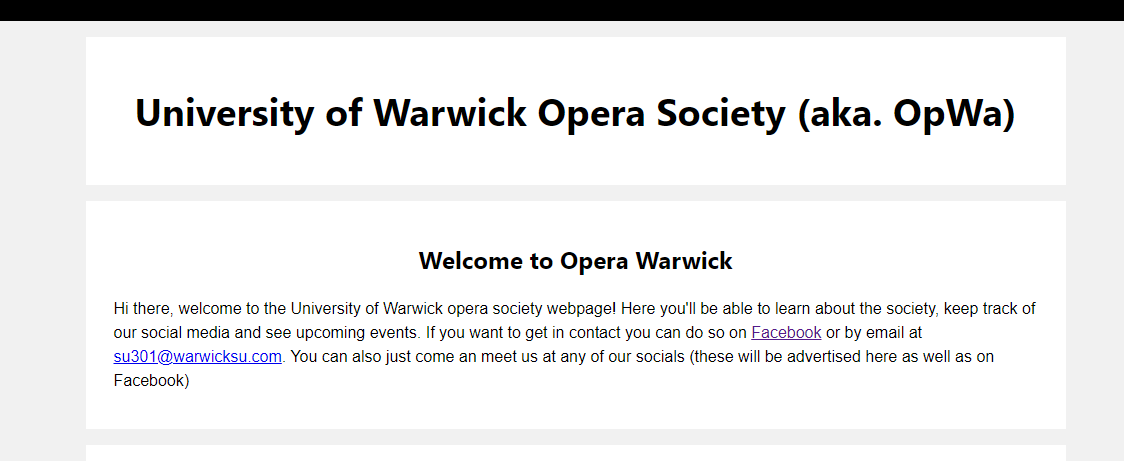
To create a new page box, use the tags: <div class="page-box"> </div> and place the content you want to display between the open and close tags.
<div class="page-box">
    <p> Opera Warwick... </p>
</div>This style centres the text and makes it aligned to the left. For example,
<div class="center">
    <p> Opera Warwick... </p>
</div>