Features
Does not correctly write the English language,
if you find any spelling or grammatical errors, feel free to correct
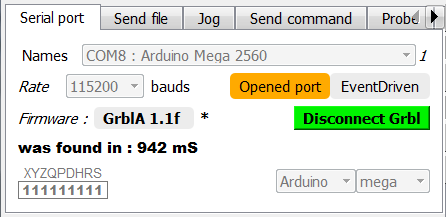
- only enumerates the virtual USB ports,
- uses 'EventDriven' mode (asynchronous events, not polling mode),
- connection standby time, adjustable in the 'Gcv options',
- automatic opening of the last open serial port, adjustable in the 'Gcv options',
- shows the states of the connection: closed, opened, connected.
- automatically detects the connection and disconnection of the USB cable Grbl (not CH340!)
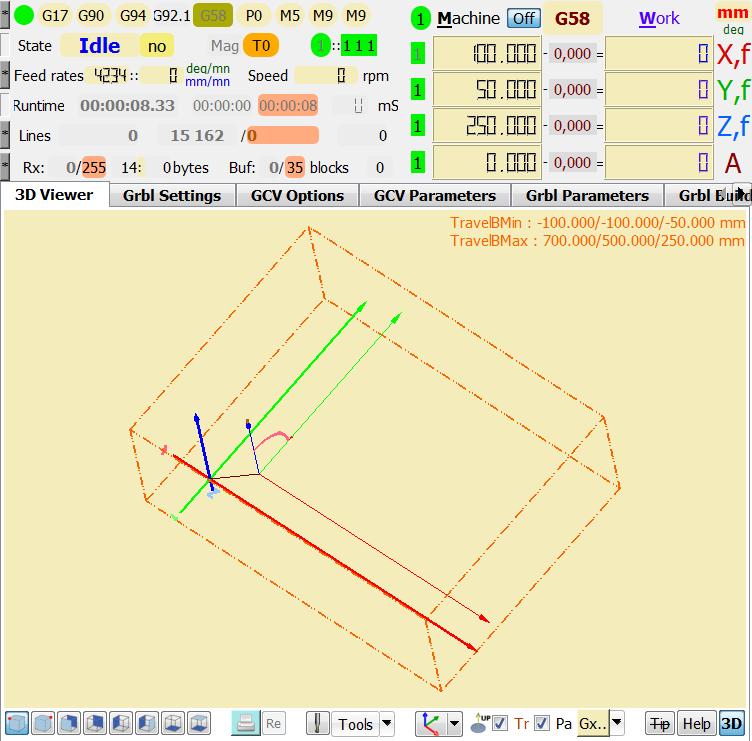
- 4 axes X, Y, Z, Q with GrblQ >= 1.1,
- also the use of fourth axis is now provided (A, B, C choice)
-
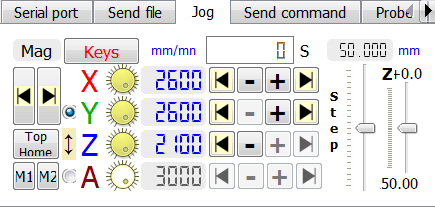
linear axes
-
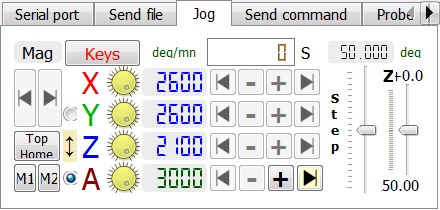
rotative axis
-
manual controls axes (jog) are grouped next to the display positions
-
the incremental value step manual controls is defined by a slide and a display, can be adjusted finely by keyboard keys,
-
each axes has an adjustable feed rate according to the maximum value of Grbl, can be adjusted finely by keyboard keys,
-
two minimum and maximum buttons are available for each axis,
-
homing and standby new button for all axes
-
two buttons allow positions defined by the user (M1, M2)
-
buttons Z, XY (Mag) allow to go to the preset position Mag
-
the instantaneous speed is displayed during movement,
-
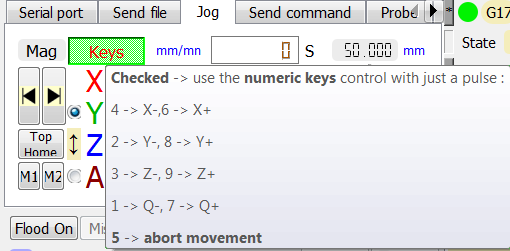
each axis can be controlled from the keyboard
-
-
States
-
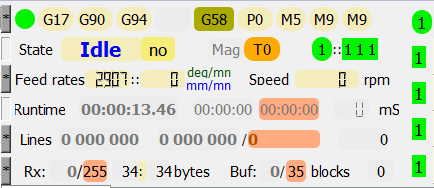
displays the requested feed speed and the real speed provided by Grbl with 'Lcd',
-
also displays the states of the units, mode of travel, the work plan, the coordinate system in progress ...
-
display coolant state and last spindle speed,

-
display machine positions, work positions with 'Lcd'
-
on the left indicators that indicate the status of the door and the position sensors
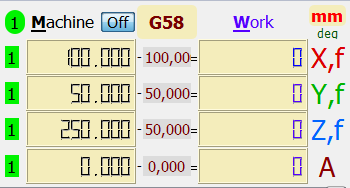
- in manual mode the 'mm' red button toggles 'mm' <-> 'inch'
-
-
Control emission
-
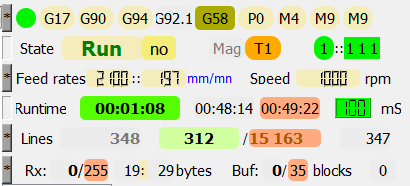
a countdown of working time to track its progress
-
a button Scan status gives the state of the scan status Grbl and if it is active indicates the scanning period
-
two visual provide an estimate of the total duration and the estimated time remaining
-
a toggle button to pause sending gcode file at the end of the current line, will send to 'Grbl', and resume sending,
-
a button ...End immediate ending allows forced to abandon the emissions controls,

-
-
Consoles ('Receive', 'File', 'Code')
-
Receive
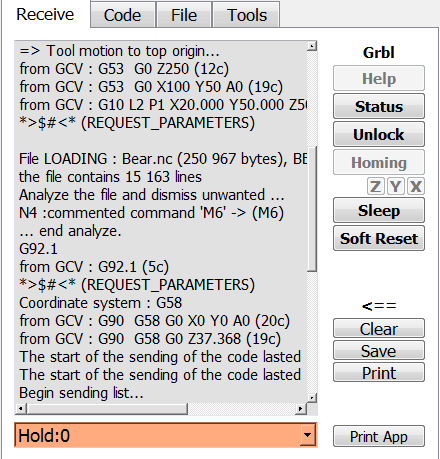
- receives all operating messages during use
- also allows you to send commands to Grbl by the buttons on the top right
-
File
-
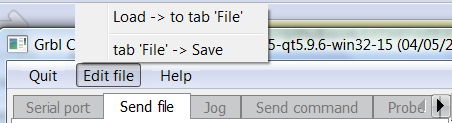
Is used menu
-
Editor
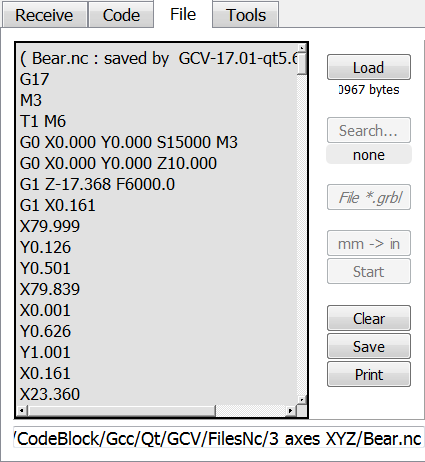
- edit, save, search the text for the console 'File',
- with the ability to copy,
- delete text part,
- delete the selected (or all) text,
- print the selected (or all)
-
-
Code
-
Load a file
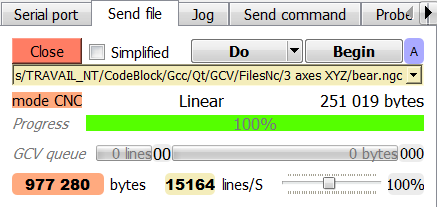
- to send a sequence of 'gcode' lines to Grbl, GCV offers two way dialog :
- anticipated : reflects the RX buffer state (used in 'Check' mode)
- simplified : call-response (used in 'Sending' mode)
- to send a sequence of 'gcode' lines to Grbl, GCV offers two way dialog :
-
Sending file
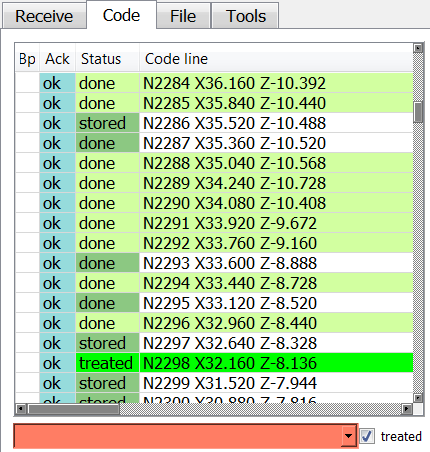
- receives at the beginning all the numbered lines to be sent from the file
- during the show highlighted brand commonly issued online
- a visual to center the course on three criteria:
- emitted on line
- on the treated online
- on any line
-
-
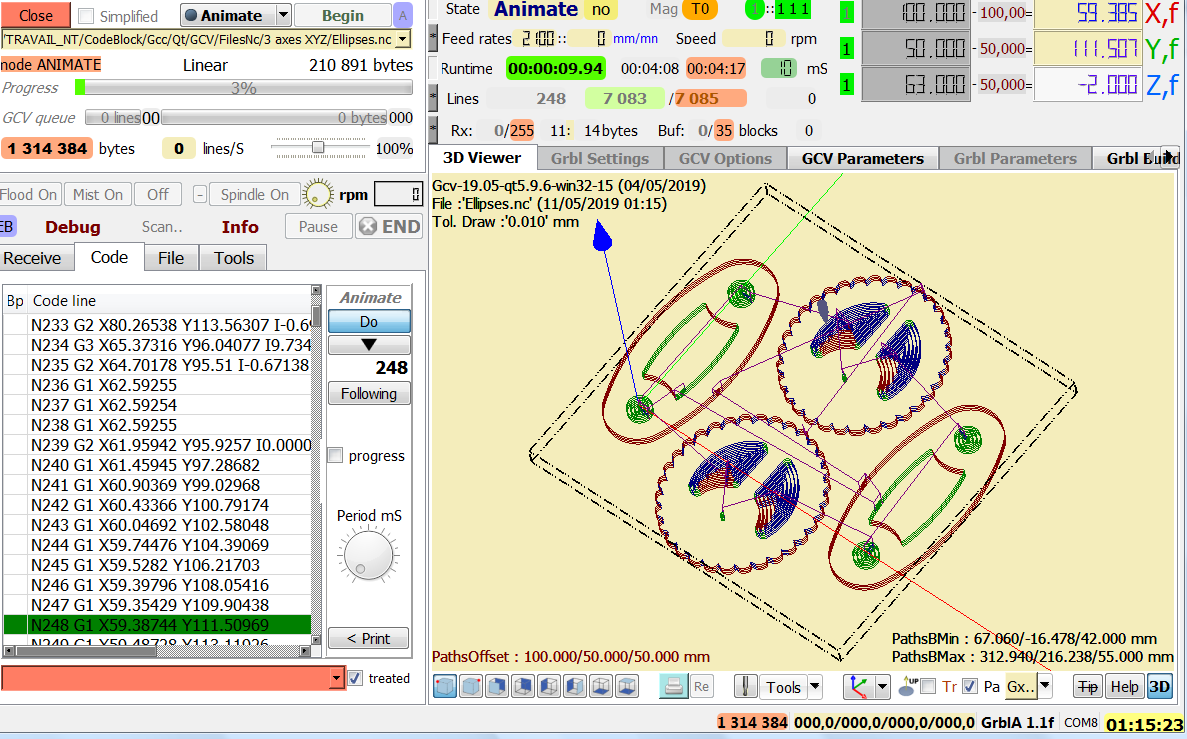
- Animation mode (Animate selected)
- use XYZQ axes
- regardless of the connection :
- when loading a file, you can read its contents in the console 'Code', which will launch the manual or automatic animation,
- during animation
- in manual mode, the selection of a line indicates its position in the 3D view you can use the mouse to select a line of code or the navigation buttons or sliders keyboard arrows,
- in automatic mode ('Do' pressed) you can adjust the period of the animation
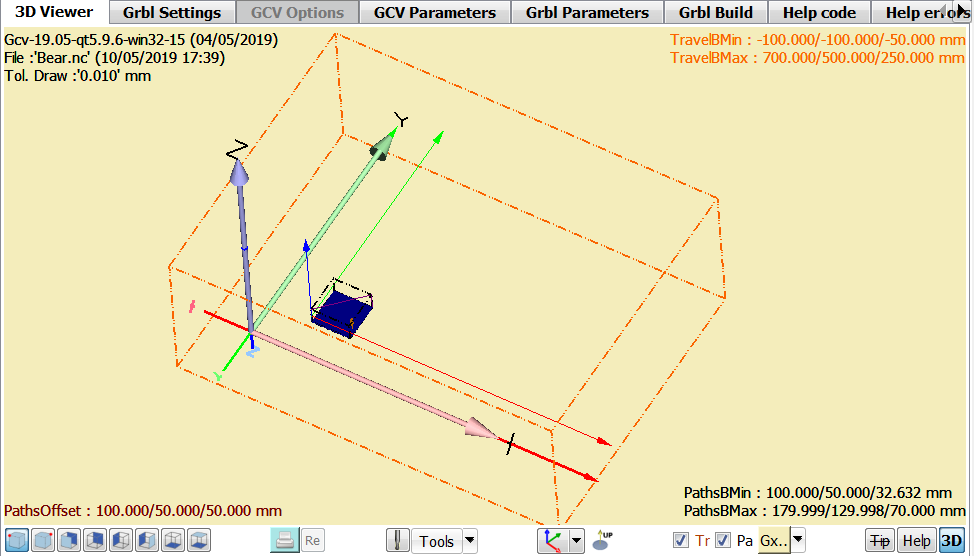
- Viewer3D
- shows the movement of the virtual tool indicating the current position XYZ
- the scene may move using the mouse
- a help button to explain the multiple possible actions on the drawing by utilsation keyboard and mouse,
- you can see it or not the box limits the drawing and the Grbl travel ,
- selecting a virtual tool among several,
- different views are available by buttons,
- display axes oriented (by 'A'),
- display a grid in the XY plane (by 'G'),
- inclusive choice of viewing lines (Gx :G0, G1, G2, G3, QG2, QG3).
- with the help of the mouse you can have an estimate of the 3D position using the key 'shift'
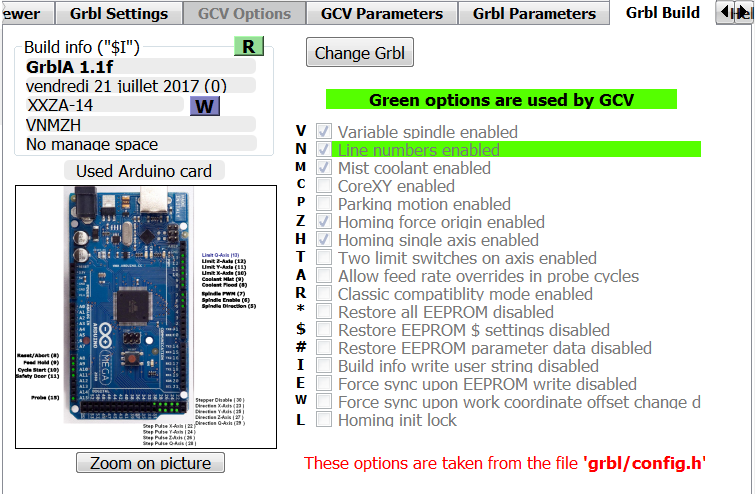
- build infos
- 'R' button for read informations : version, date, user message, options ...
- 'W' button for write user informations
- explanations of options
- used board with pins assignation
- 'Change Grbl' button to load a new firmware in board from 'Grbl loader' panel
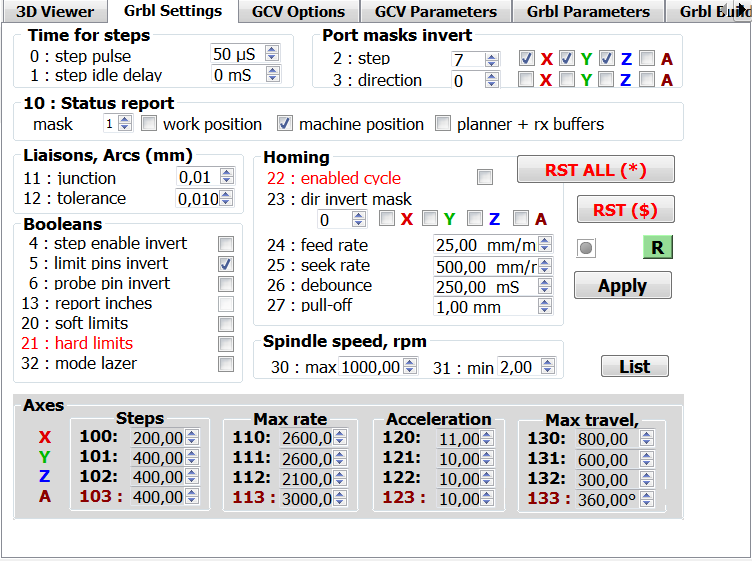
- settings
- IMPORTANT a remark :
GCV uses the same unit as the unit's report Grbl
- If the box 'report inches' is checked: GCV uses inches
- If the box 'report inches' is unchecked: GCV uses millimeters
- Any other combination is impossible
- IMPORTANT a remark :
GCV uses the same unit as the unit's report Grbl
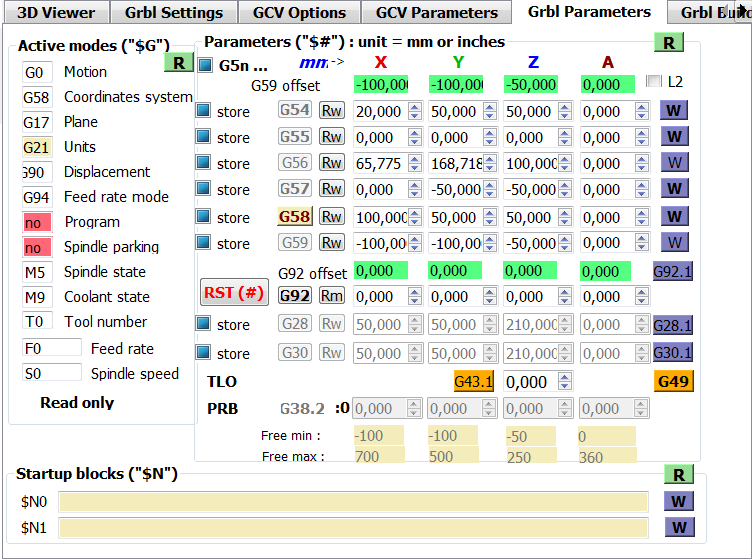
- parameters
- the table 'Parameters' lets you choose a coordinate system 'G5N'
- the checkbox on the left choose the values to display
- unchecked -> system offset : W -> write to Grbl
- checked -> Xw Yw Zw Tw parameters : G5N -> sends the command
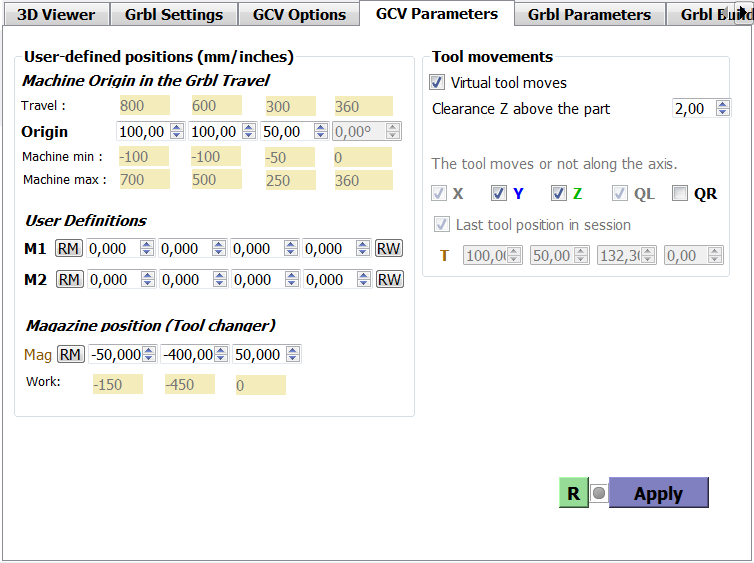
- 'Travel' indicates the available volume provided by the Grbl travel ( in 'Grbl Settings' )
- 'Origin' must indicate the position of the machine origin in the available physical space (give by Grbl travel )
- 'Machine min' indicates the minimum lower corner
- 'Machine max' indicates the maximum upper corner
- 'Mag' is the position of the tool changer
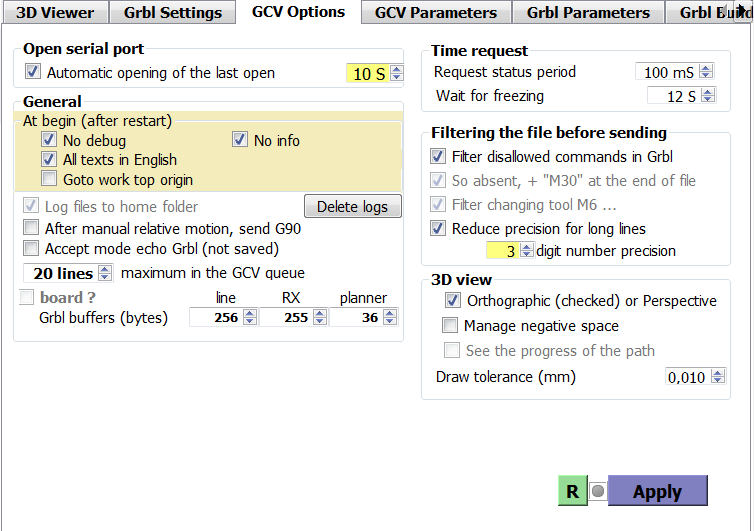
-
options
- Before you do anything, you must set the GCV behavior
- Also set the period of Grbl reports in ms [30..1000]
- Now if program end does not exist, GCV adds a 'M30' after the last line of g-code
- In this version the most unrecognized commands are commented out (...) and (M6) also
- It is recommended not to use the increase in 3D visualization, because currently it slows down the execution speed of large files : you have a progress bar and two estimates of duration that replace
- ...
- All these options are saved at the end of session or using 'Apply' button
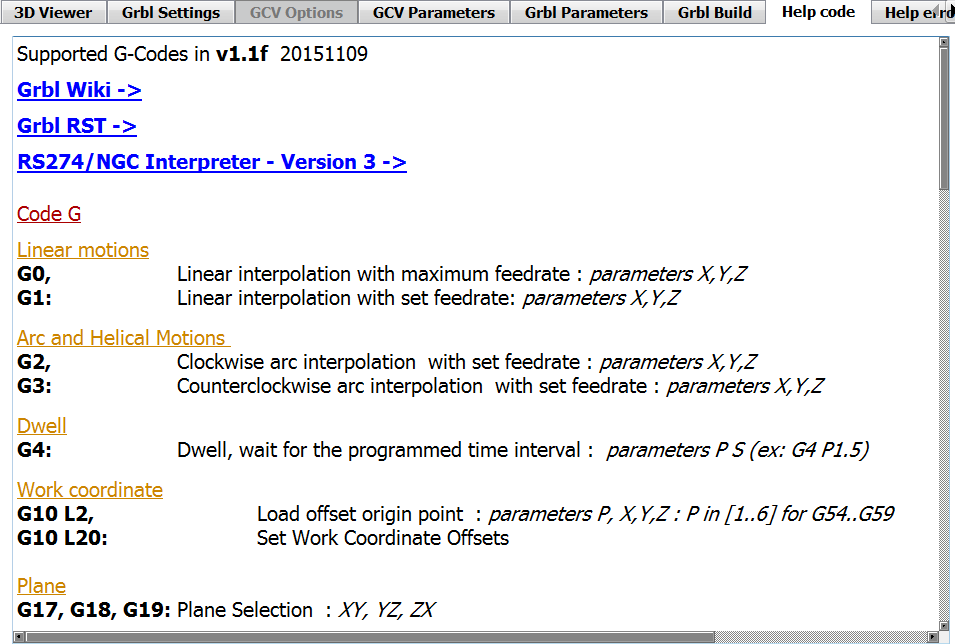
- help code
- the blue texts are links that call your Internet browser
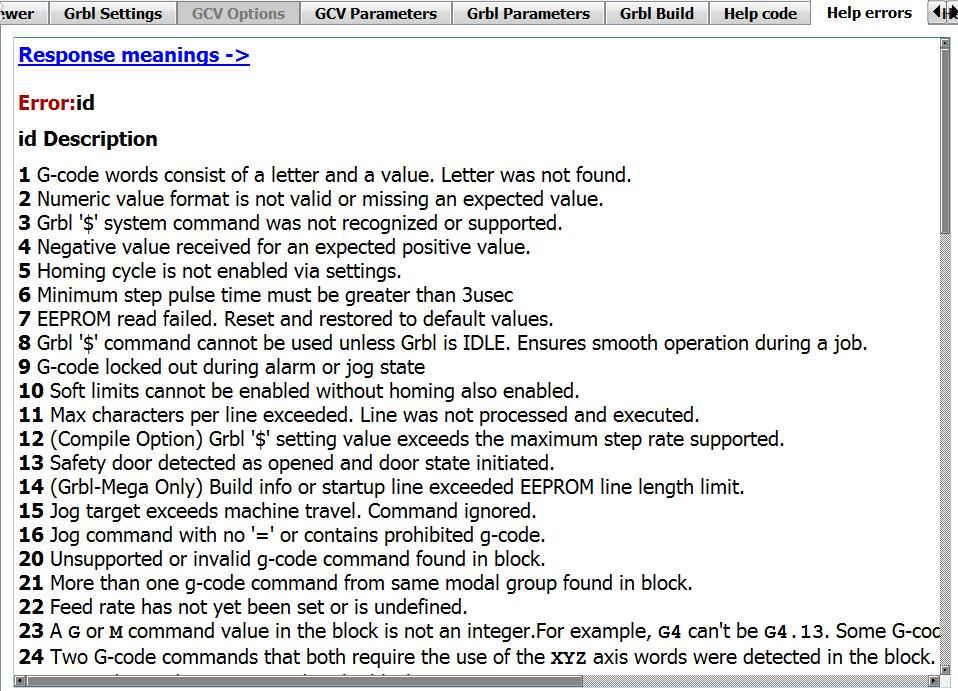
- help errors
- the blue texts are links that call your Internet browser
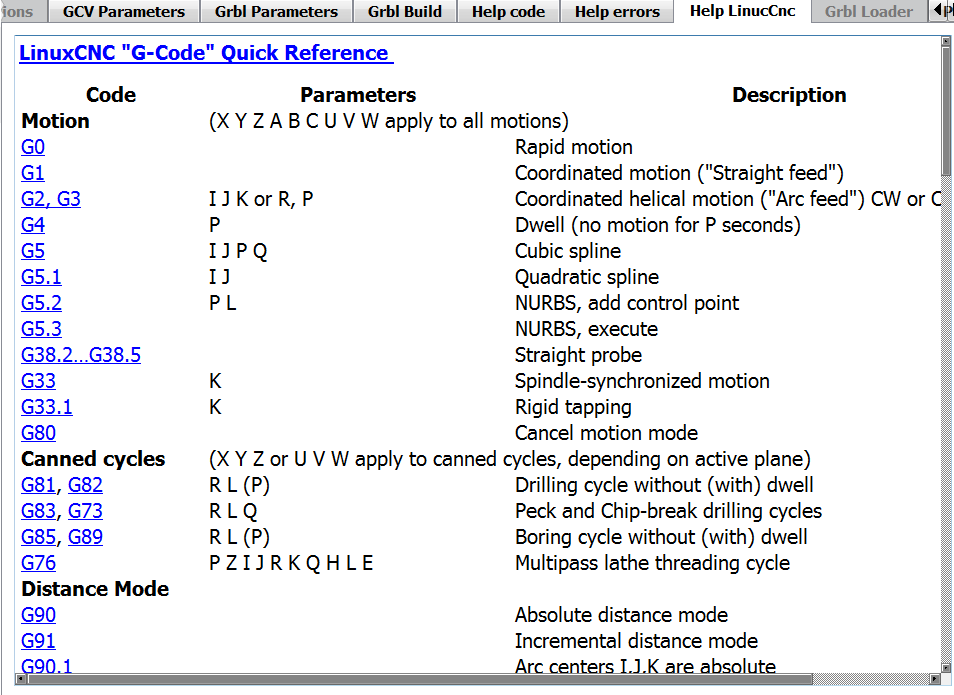
- help LinuxCnc
- the blue texts are links that call your Internet browser
-
only French
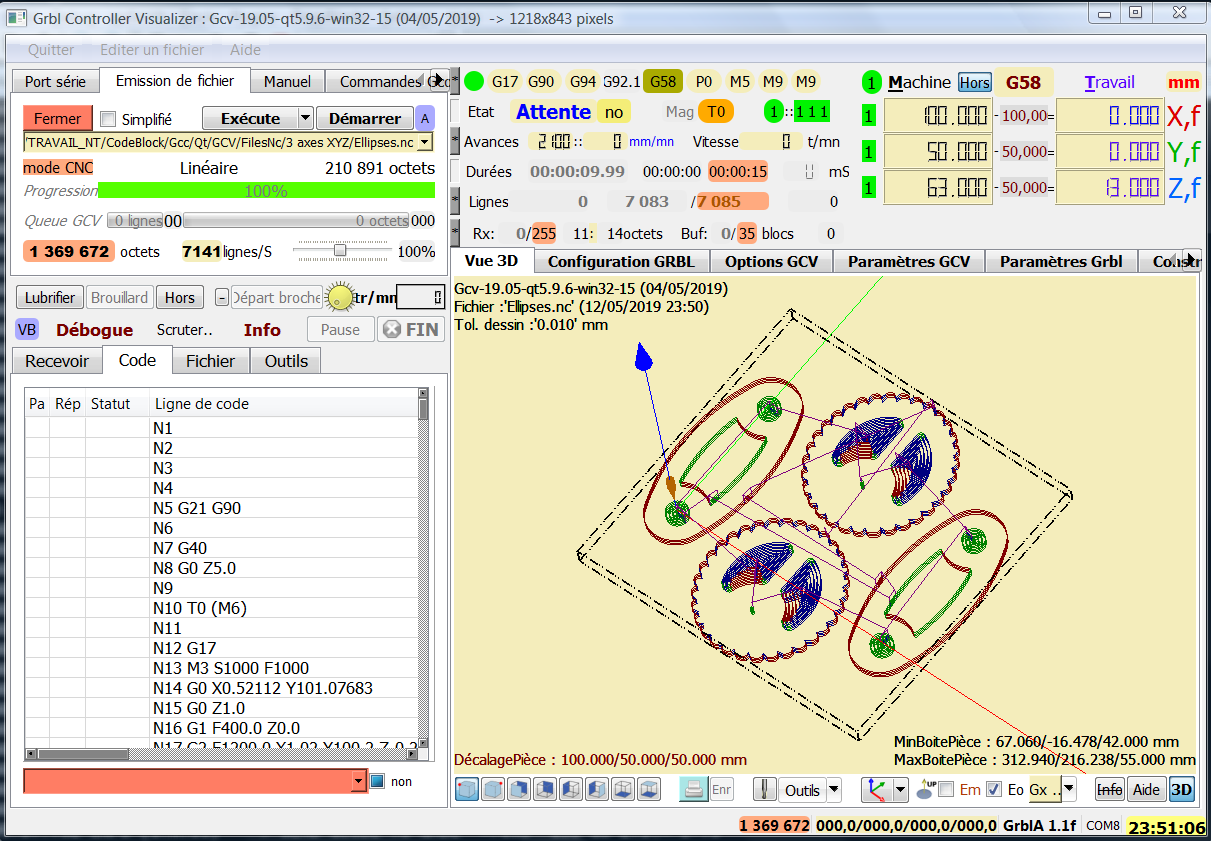
- All texts as well as aid have been translated except the section on 'LinuxCNC'
- You can in 'Options GCV' impose always have the text in English