Home
Welcome to the Custom MonoBehaviours wiki!
This repository is trying to answer the question. How do I get custom MonoBehaviours out of Unity and into Valheim?
By: sbtoonz
How to use custom MonoBehaviours that have come with your assets. ↑
If you have purchased assets from the asset store more-than-likely you have gotten a small handful of custom .cs scripts that control certain aspects of your asset. When you try to use those prefabs with Valheim you are usually met with a sea of yellow text explaining how it cannot locate script portions. In the example today we will be working with particle systems respectively therefore the focus of this wiki will be around that style of deployment.
First Steps ↑
- Download your custom asset in Unity for my example I will be using one of my paid assets Kripto MeshFX
- Next head to your Project Settings in Unity we need to make sure we have a few things in the "Player" setup properly
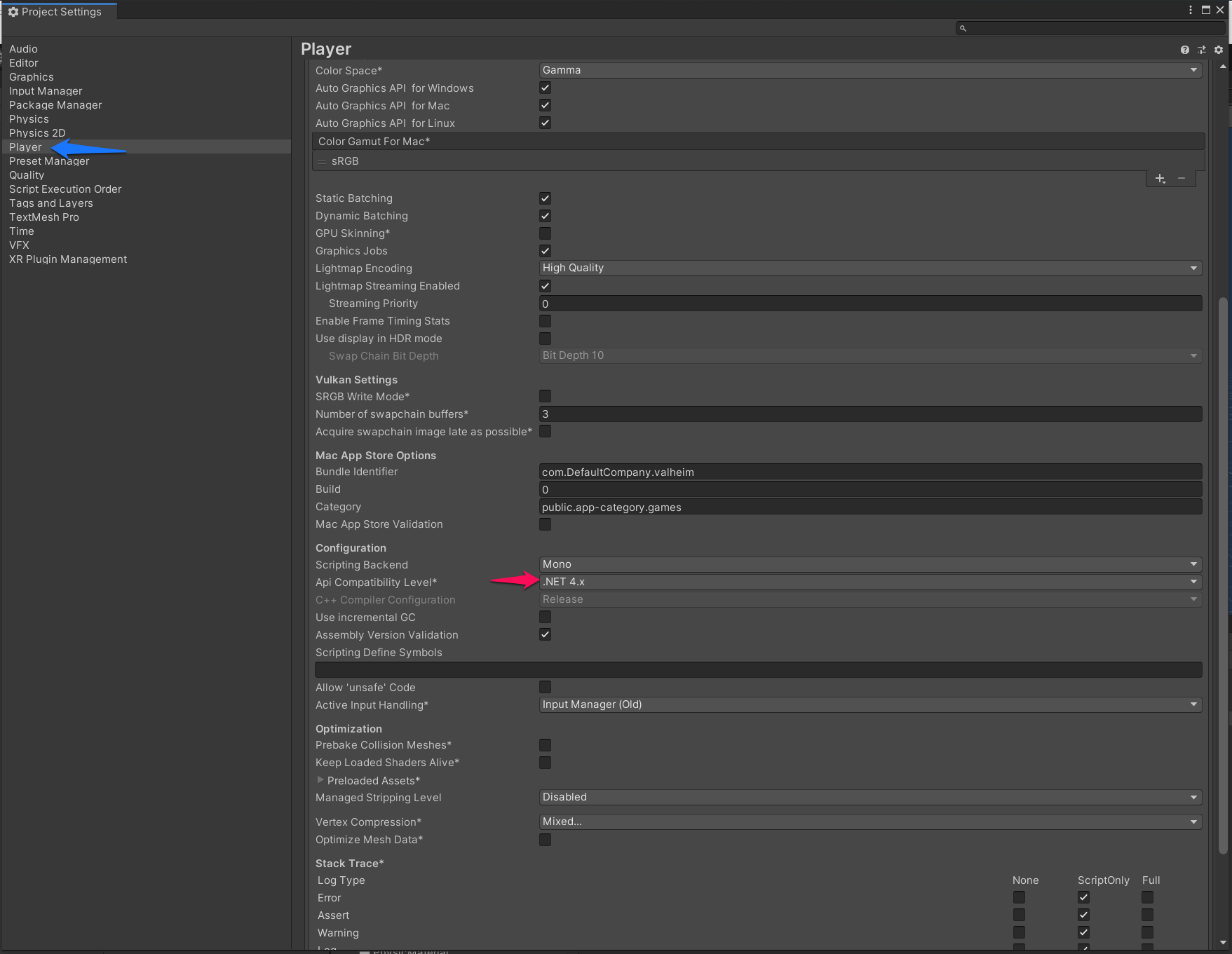
- The next thing you need to do is setup your prefab to use your custom
MonoBehaviourcomponent and bundle it. - After you have your object created with this custom
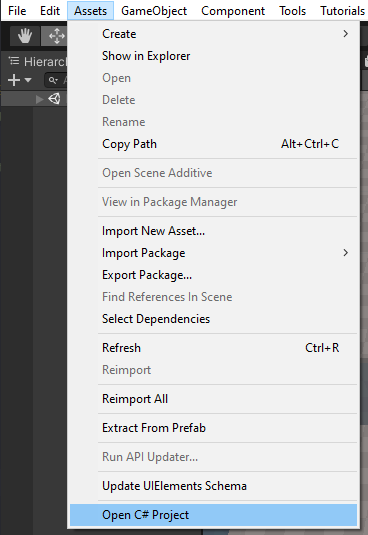
MonoBehaviourcomponent attached. You need to compile theMonoBehaviourinto a usable format by your mod / Valheim . You need to click the Assets drop-down tab. Then select Open C# project. This will open up a visual studio project related to your Unity project.
Visual Studio ↑
Visual Studio should have opened automatically based on the last step. There COULD be some work to do here depending on how your scripts are written but there is a high chance you won't need to do much. Just press CTRL+B to build the project that has opened when finishing step 4 in the prior sequence.
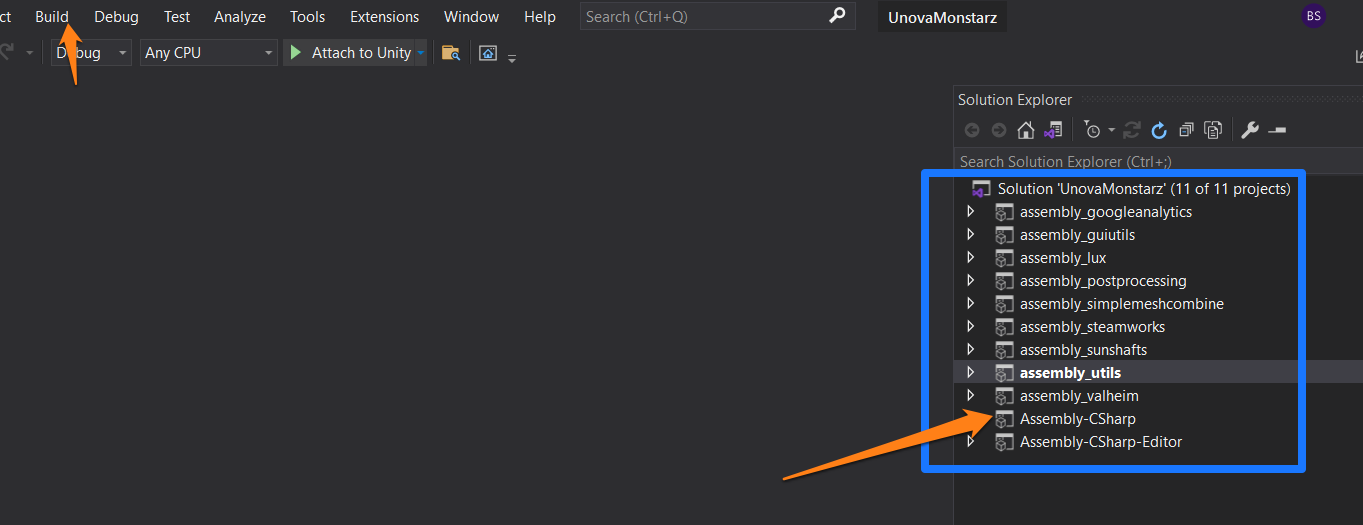
This will build all the *.dll files for your unity project. You will require one of these files in order to use your custom MonoBehaviours with your mod.
Now you have built the Assembly-Csharp.dll that you require to make these custom MonoBehaviours work with your mod.
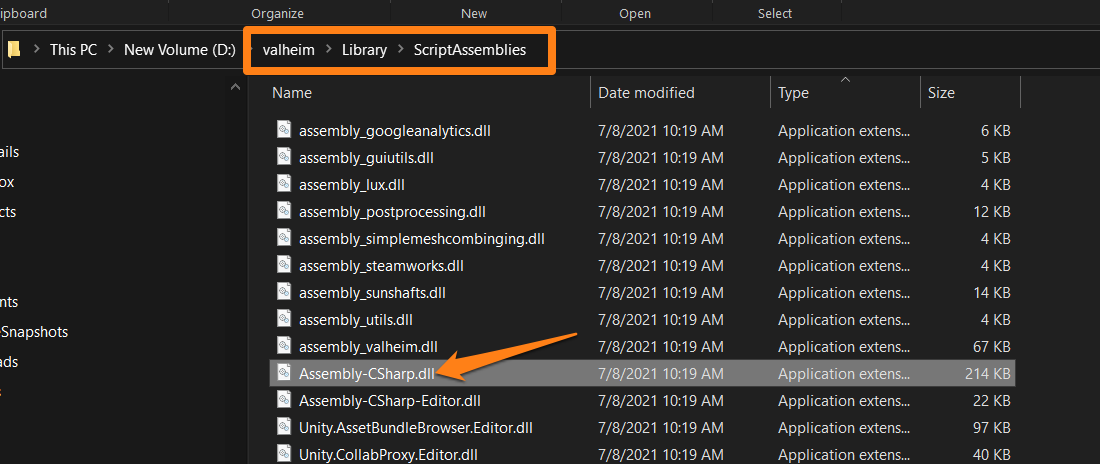
you can locate this file in UnityProjectFolder\Library\Scriptable Objects\Assembly-CSharp.dll
this shows the dll location in my project that is called Valheim
Logic Flow ↑
Usage in your mod ↑
When you want to deploy this repository.dll of custom MonoBehaviours in your mod so you can have your cool prefabs do something with this mod.
You will need to do just a few items in the project for your mod.
First you need to add your Assembly-CSharp.dll created earlier to your mod project as a file to be embedded.
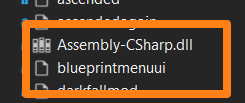
Once you have done that you will need to use a little code to stream this file on Awake() in order for the prefabs to be able to have their scripts find the supporting functions once they load into ObjectDB/Znet
public void Awake()
{
  Stream stream = Assembly.GetExecutingAssembly()
                          .GetManifestResourceStream("DefaultProjectNamespaceGoesHere.Assembly-CSharp.dll");
  byte[] buffer = new byte[stream.Length];
  stream.Read(buffer, 0, buffer.Length);
  Assembly assembly = Assembly.Load(buffer);
}
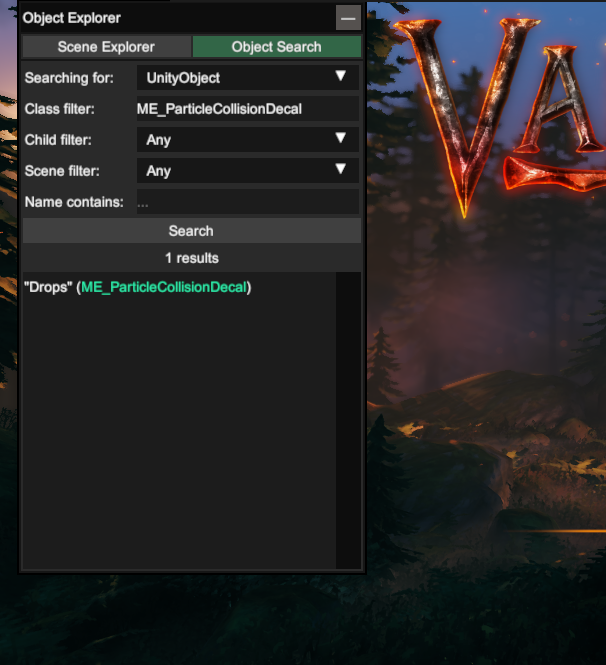
Witness your scripts working in game.
MonoBehaviourRepositoryLoader ↑
By: Digitalroot
MonoBehaviourRepository.csproj ↑
This is a simple project where each custom MonoBehaviour is defined as a class (.cs).
These classes are defined in the global namepace, which means there is no namespace
keyword used. I think this is how Unity does it.
Example ↑
using UnityEngine;

public class MyCustomMonoBehaviour : MonoBehaviour
{
  public void Update()
  {
    gameObject.transform.Rotate(0, 5f, 0);
  }
}
Wizard.csproj ↑
Note: There is a ref to MonoBehaviourRepository.dll in the Wizard.csproj file. I did this out of convence for testing. It is not required. Wizard.csproj does not have a hard dependency on MonoBehaviourRepository.dll
    <Content Include="..\MonoBehaviourRepository\bin\Debug\MonoBehaviourRepository.dll">
      <Link>MonoBehaviourRepository.dll</Link>
      <CopyToOutputDirectory>Always</CopyToOutputDirectory>
    </Content>
MonoBehaviourRepositoryLoader.cs ↑
This class adds Extension methods to the GameObject class and handles loading of MonoBehaviourRepository.dll
Code ↑
using System;
using System.IO;
using System.Reflection;
using UnityEngine;

namespace Wizard
{
  public static class MonoBehaviourRepositoryLoader
  {
    private static Assembly _monoBehaviourRepositoryAssembly;

    public static Assembly MonoBehaviourRepositoryAssembly
    {
      get
      {
        if (_monoBehaviourRepositoryAssembly != null) return _monoBehaviourRepositoryAssembly;
        var path = Path.Combine(AssemblyDirectory.FullName, "MonoBehaviourRepository.dll");
        _monoBehaviourRepositoryAssembly = Assembly.LoadFile(path);
        return _monoBehaviourRepositoryAssembly;
      }
    }

    private static DirectoryInfo AssemblyDirectory
    {
      get
      {
        string codeBase = Assembly.GetExecutingAssembly().CodeBase;
        UriBuilder uri = new UriBuilder(codeBase);
        var fileInfo = new FileInfo(Uri.UnescapeDataString(uri.Path));
        return fileInfo.Directory;
      }
    }

    #region GameObject Extensions

    public static GameObject AddMonoBehaviour(this GameObject gameObject, string name)
    {
      Type type = Assembly.GetExecutingAssembly().GetType(name) ?? MonoBehaviourRepositoryAssembly.GetType(name);

      if (type == null)
      {
        throw new ArgumentException($"Unable to find MonoBehaviour: {name}", nameof(name));
      }

      gameObject.AddComponent(type);
      return gameObject;
    }

    public static GameObject AddMonoBehaviour<T>(this GameObject gameObject) where T : MonoBehaviour
    {
      gameObject.AddComponent<T>();
      return gameObject;
    }

    public static MonoBehaviour GetOrAddMonoBehaviour(this GameObject gameObject, string name)
    {
      return (gameObject.GetComponent(name) ?? gameObject.AddMonoBehaviour(name).GetComponent(name)) as MonoBehaviour;
    }

    /// <summary>
    /// Returns the component of Type type. If one doesn't already exist on the GameObject it will be added.
    /// Source: Jotunn JVL
    /// </summary>
    /// <remarks>Source: https://wiki.unity3d.com/index.php/GetOrAddComponent</remarks>
    /// <typeparam name="T">The type of Component to return.</typeparam>
    /// <param name="gameObject">The GameObject this Component is attached to.</param>
    /// <returns>Component</returns>
    public static T GetOrAddMonoBehaviour<T>(this GameObject gameObject) where T : MonoBehaviour
    {
      return gameObject.GetComponent<T>() ?? gameObject.AddComponent<T>();
    }

    #endregion
  }
}
Usage ↑
To add a MonoBehaviour to a GameObject use one of the extension methods.
Example ↑
        private void LoadAssets()
        {
            wizard = GetAssetBundleFromResources("wizard");
            Debug.Log("Loading Wizard");
            Wizard = wizard.LoadAsset<GameObject>("Wizard");
            Wizard.AddMonoBehaviour(CustomMonoBehavioursNames.MyCustomMonoBehaviour); // extension method
            Wizard.GetOrAddMonoBehaviour(CustomMonoBehavioursNames.UnRemoveableCustomMonoBehaviour); // extension method
            wizard?.Unload(false);
        }
Magic Strings ↑
To avoid the usage of Magic Strings,
a static class with public static strings is used. This is not required, but
is strongly encouraged.
CustomMonoBehavioursNames ↑
    public static class CustomMonoBehavioursNames
    {
      public static string MyCustomMonoBehaviour = nameof(MyCustomMonoBehaviour);
      public static string UnRemoveableCustomMonoBehaviour = nameof(UnRemoveableCustomMonoBehaviour);
    }
Proof of concept ↑
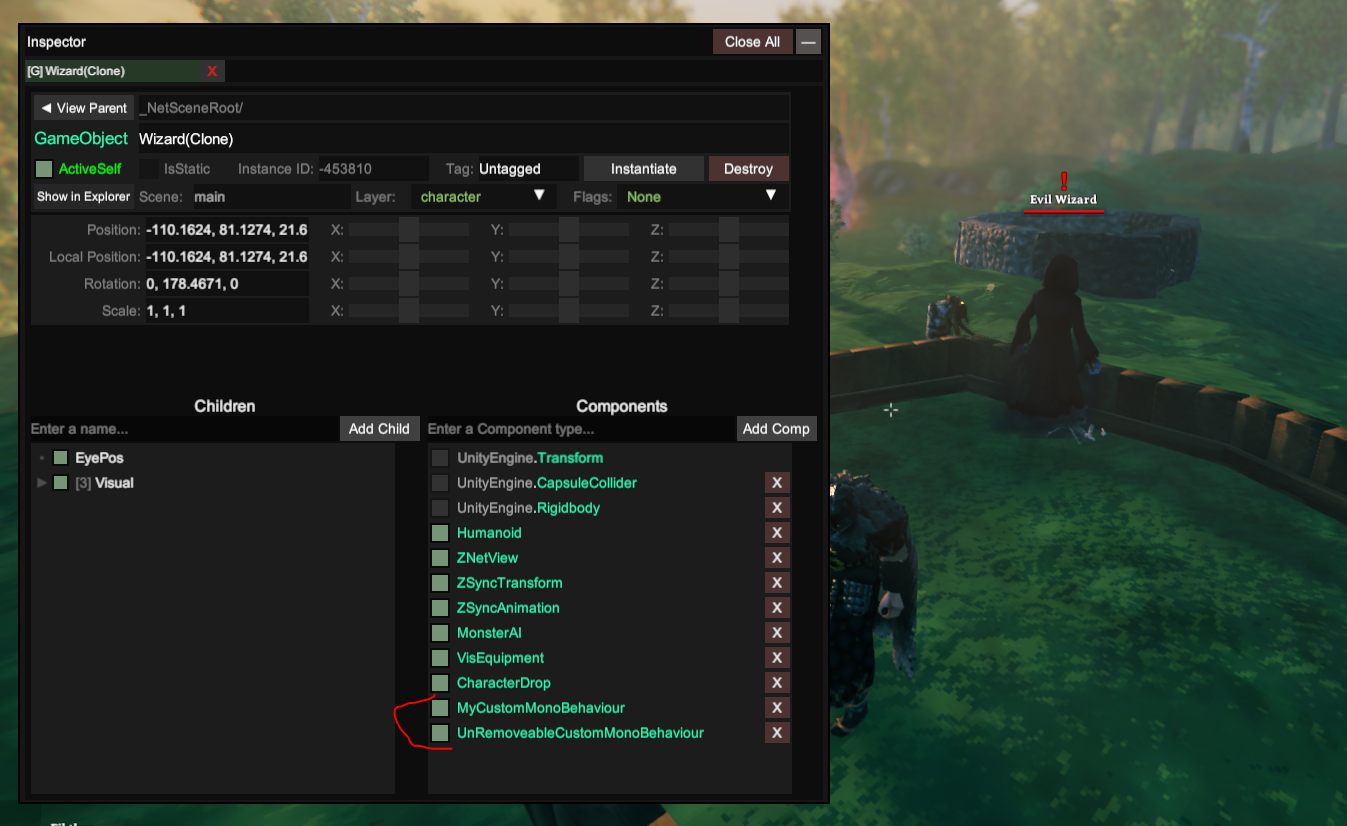
This is a screen shot of the Wizard spawned in game with the two custom MonoBehaviours attached.