AzureAD Integration #17

Description

Azure AD Integration
This is a two step process. First the administrator needs to setup Azure AD (creating users, groups, and an application) and then setup SureDrop to synchronise with Azure AD.
Setup Azure AD
If you already know how to setup Azure AD then you can skip this section. Otherwise login to your azure portal and follow the steps below:
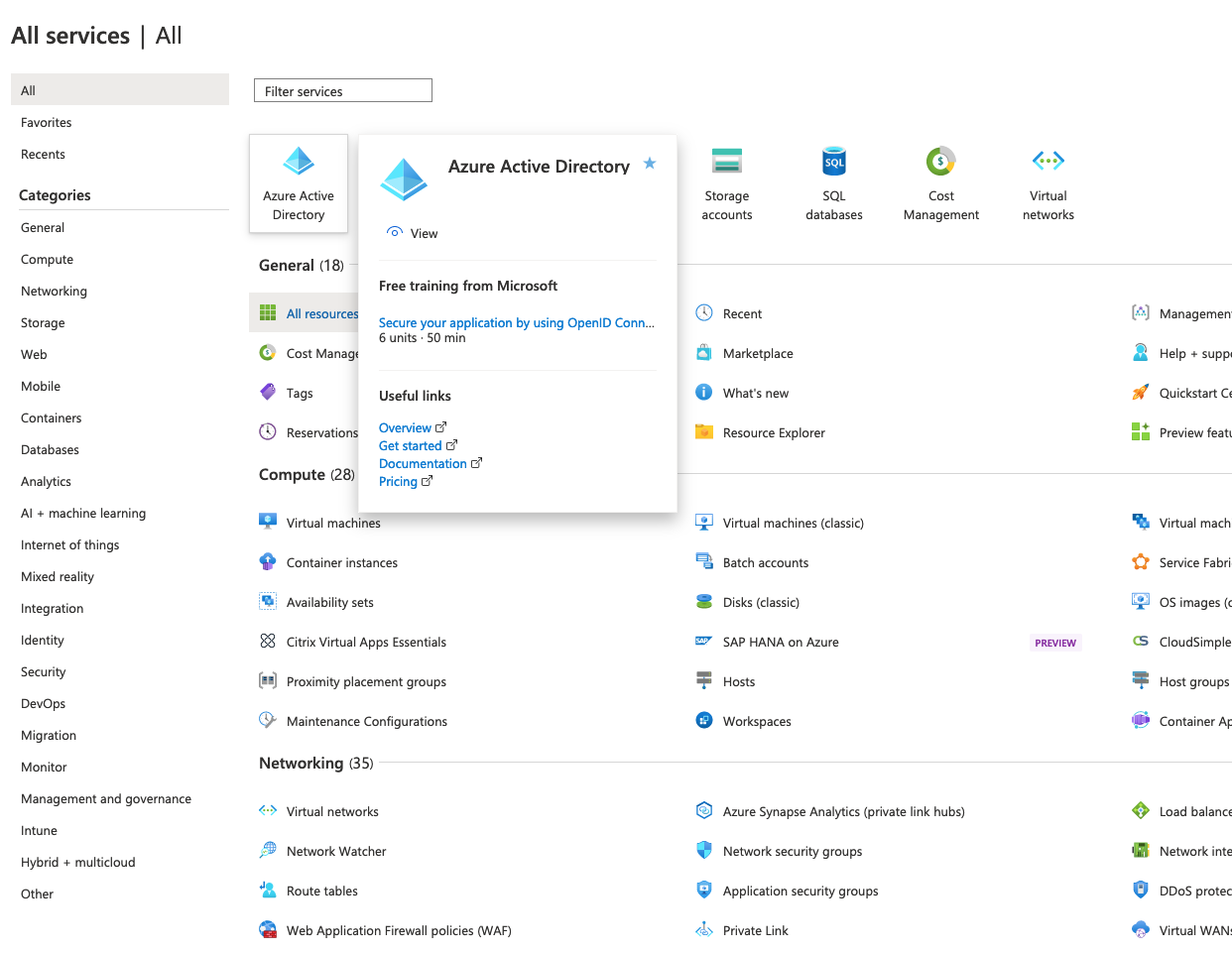
Click on AzureAD
-
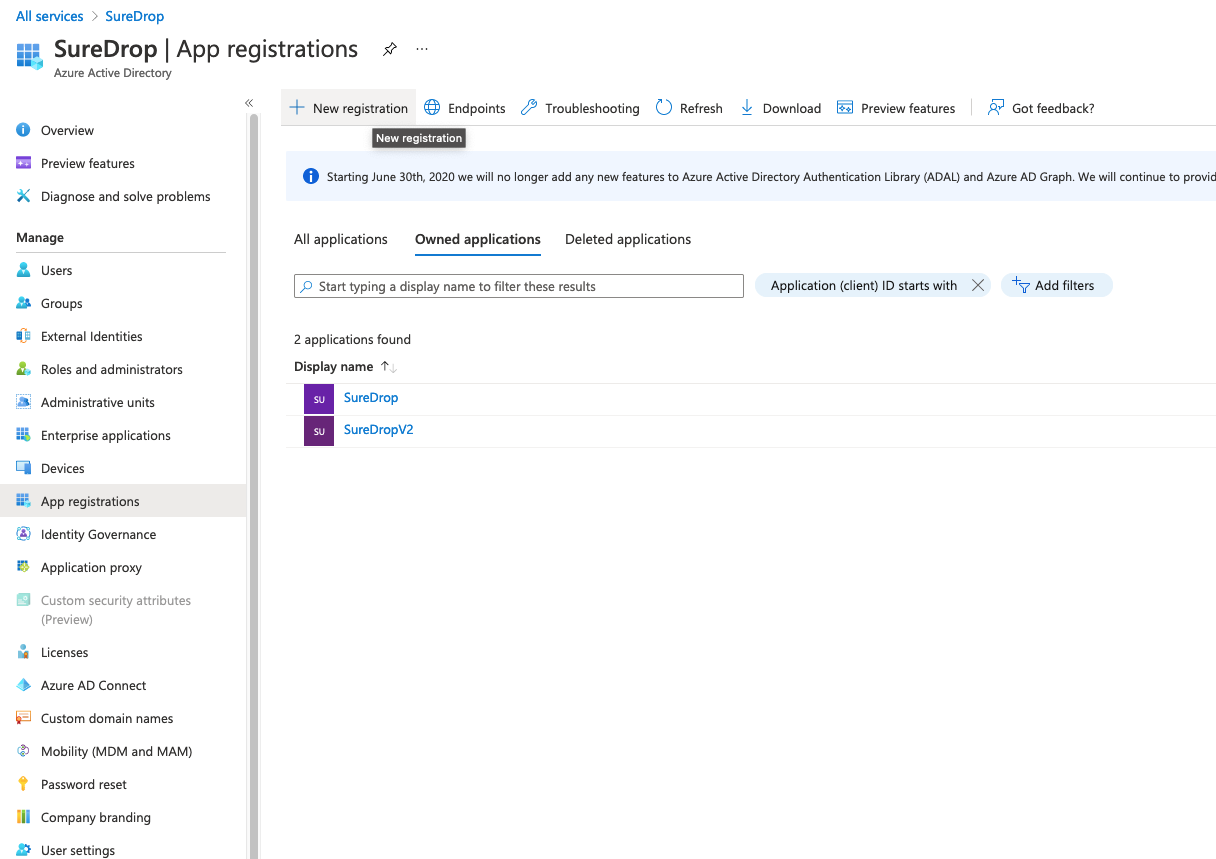
Click on Azure Active Directory->App Registrations. Then click on New Application Registration. For example if your AD name was SureDrop, then this step would be:
-
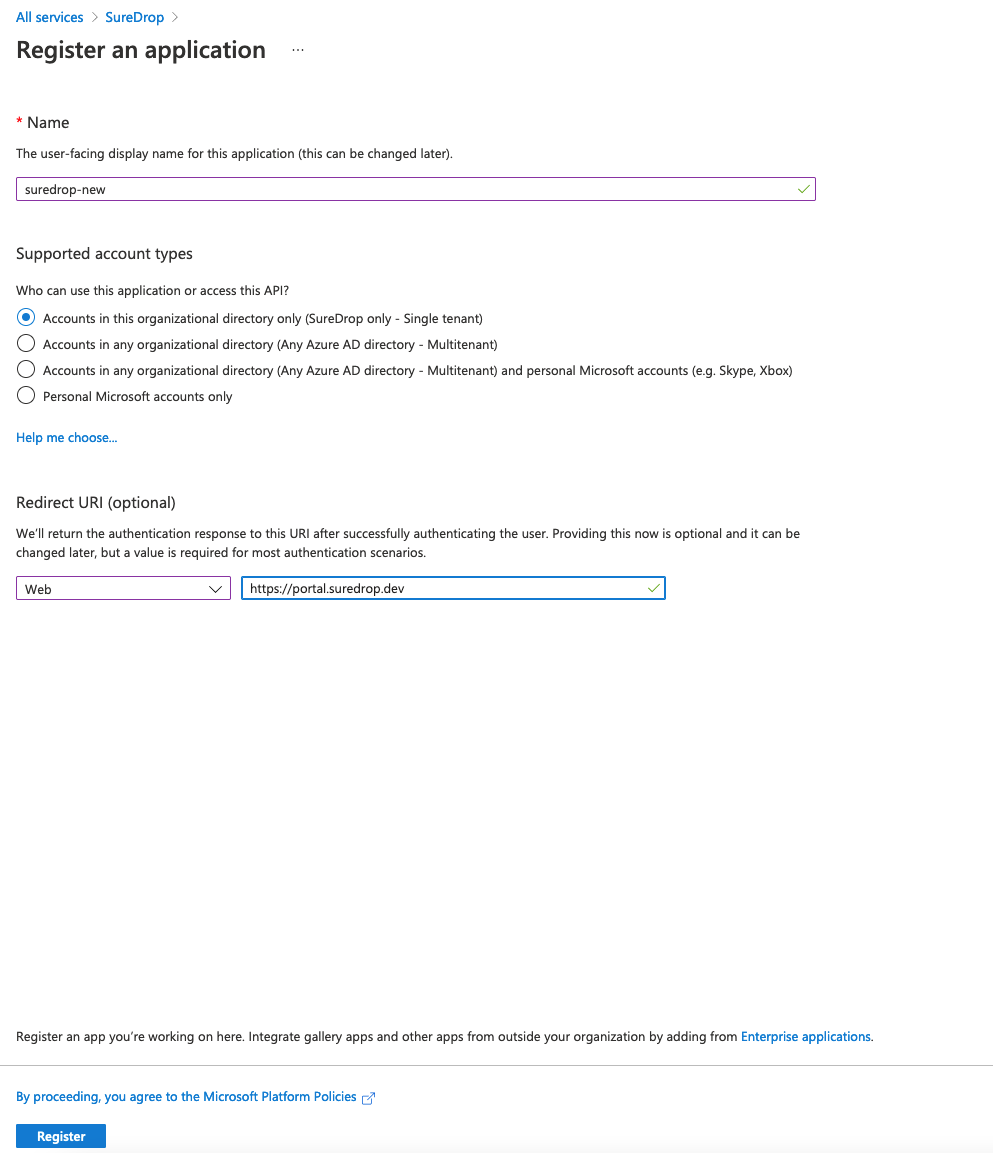
Give it a name, leave the Supported Account types as the default Accounts in this organizational directory only. Then select application type of Web and paste your SureDrop URL into the Redirect URI (optional) (for example, https://suredrop.dev). Microsoft will return the authentication response to this URI after successfully authenticating the user using oAuth 2.0. Finally, click the Register button at the bottom of the page.
-
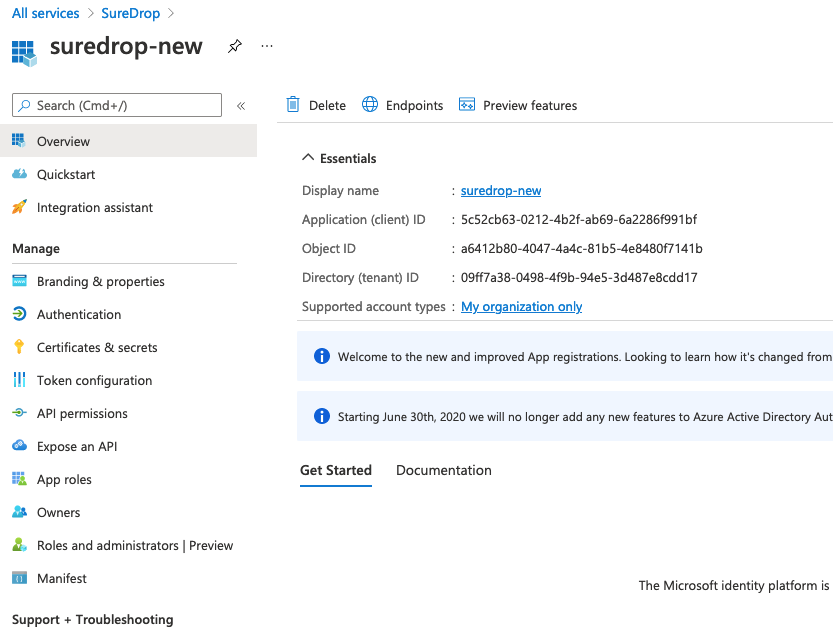
Once the application is created successfully Copy and save the
Application (client) IDand Directory (tenant) ID for later use, you will need this in the following section while configuring SureDrop.
-
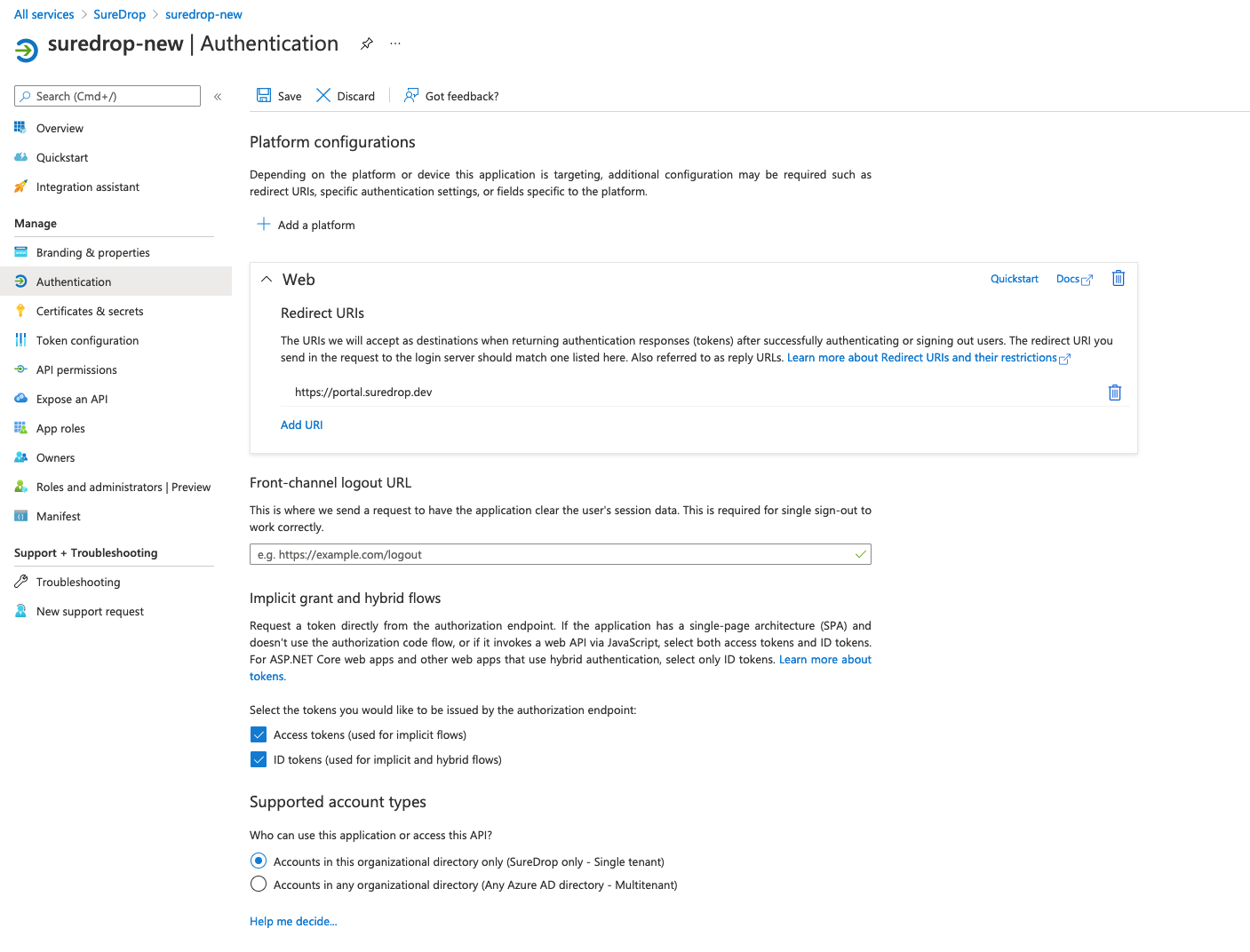
Click on Authentication and then enter the same SureDrop URL (from step 1) in the Redirect URIs input box under the Web panel. After this, tick both the checkboxes for Access tokens and ID tokens under the Implicit Grant section.
-
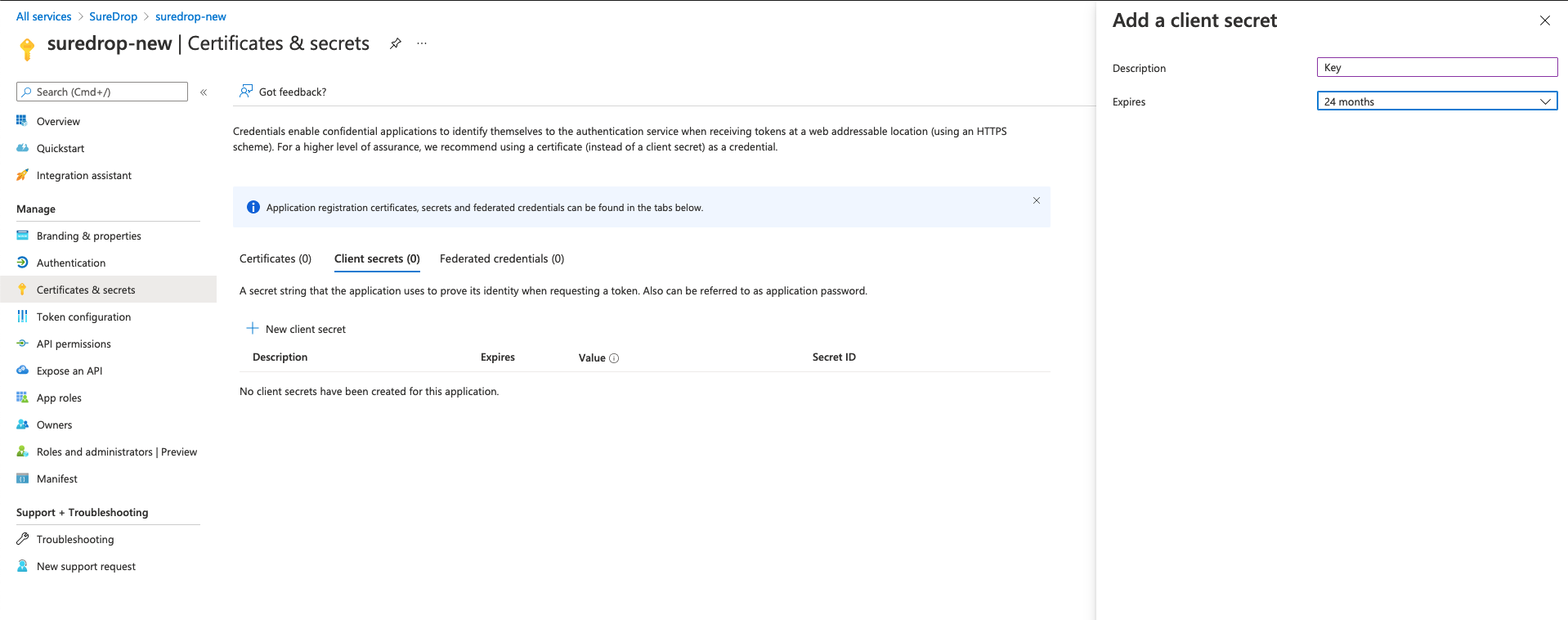
Click on Certificates & secrets > New client secret button. In the popup window fill in a description like Key and choose 24 months in the Expires category. Then click on the Add button. A client secret is a string that the application uses to prove its identity when requesting a token in the background.
-
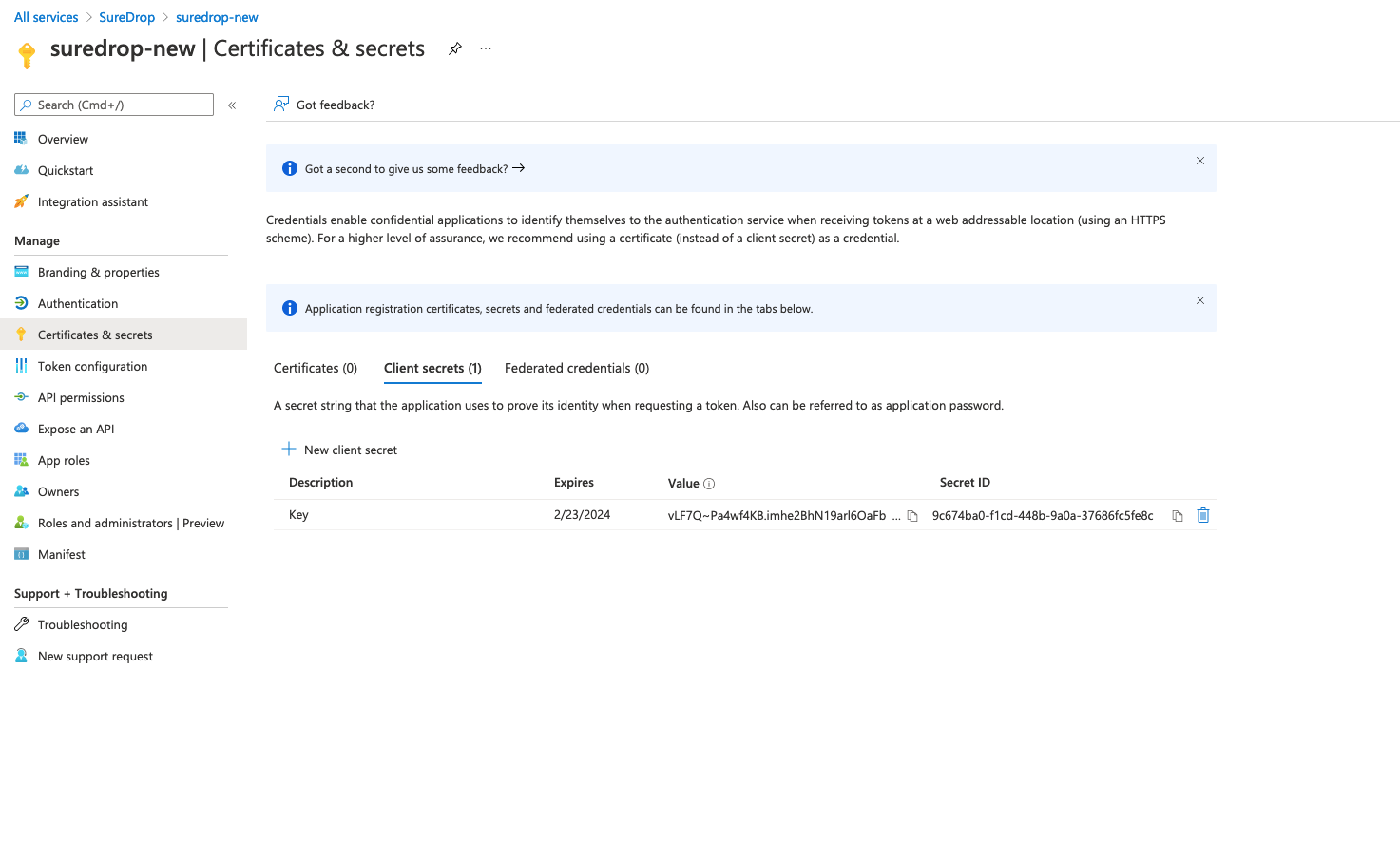
After successful generation of the key, please copy the key value and store it someplace safe. You will need this in the following section while configuring SureDrop (API Key).
-
The next step is configure API permissions. Applications are authorised to use APIs by requesting permissions. These permissions show up during the consent process where users are given the opportunity to grant/deny access. To do this, click on API permissions > Add a permission button. From the slider on the right choose Microsoft Graph

-
From the sliding right panel click on Application permissions, expand Directory and tick the checkbox for Directory.Read.All permission and click on Add Permissions.
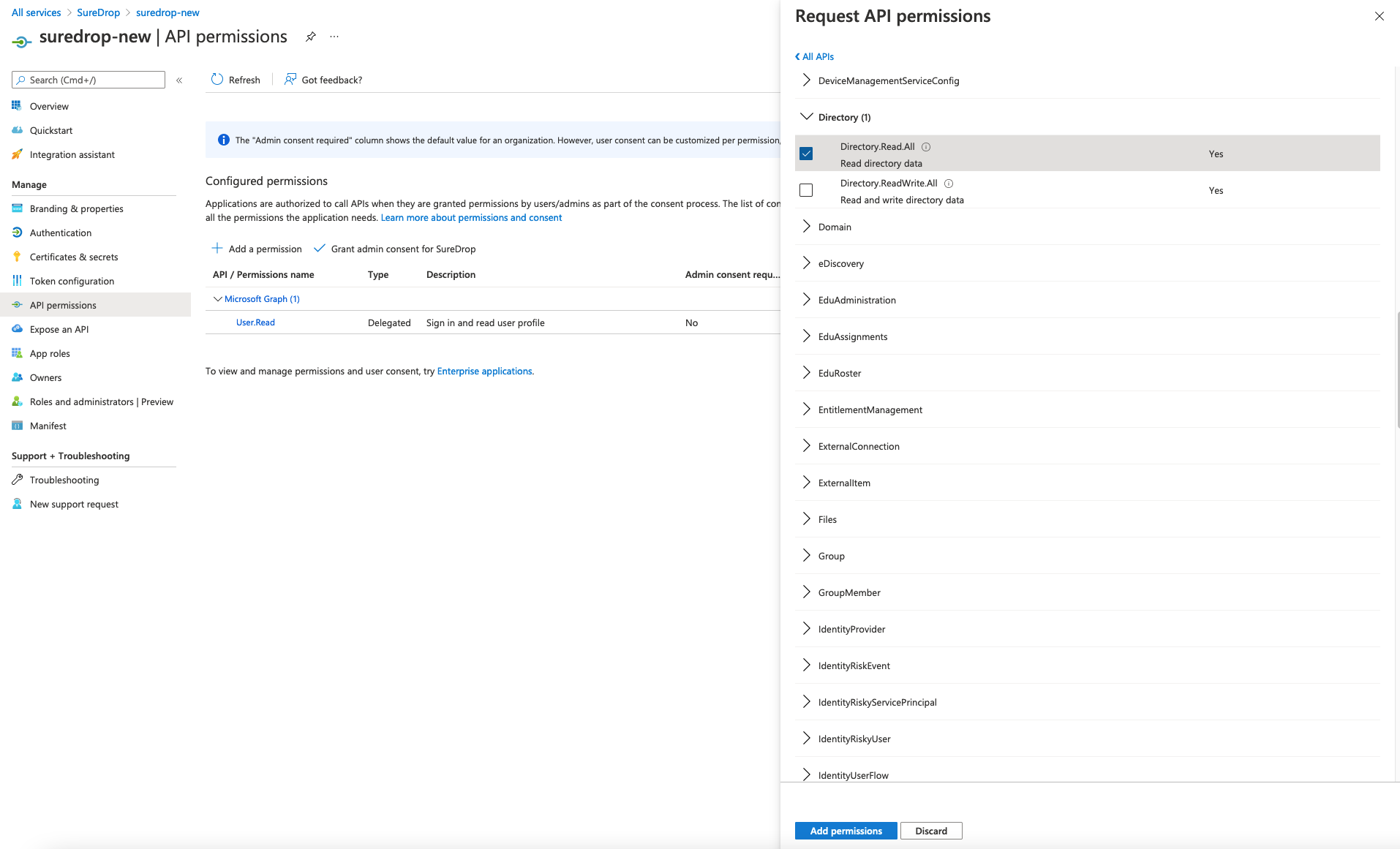
-
Then click on Delegated permissions button on the left, expand User and tick the checkbox for User.Read permission. Finally, click on the Add permissions button to save the changes.
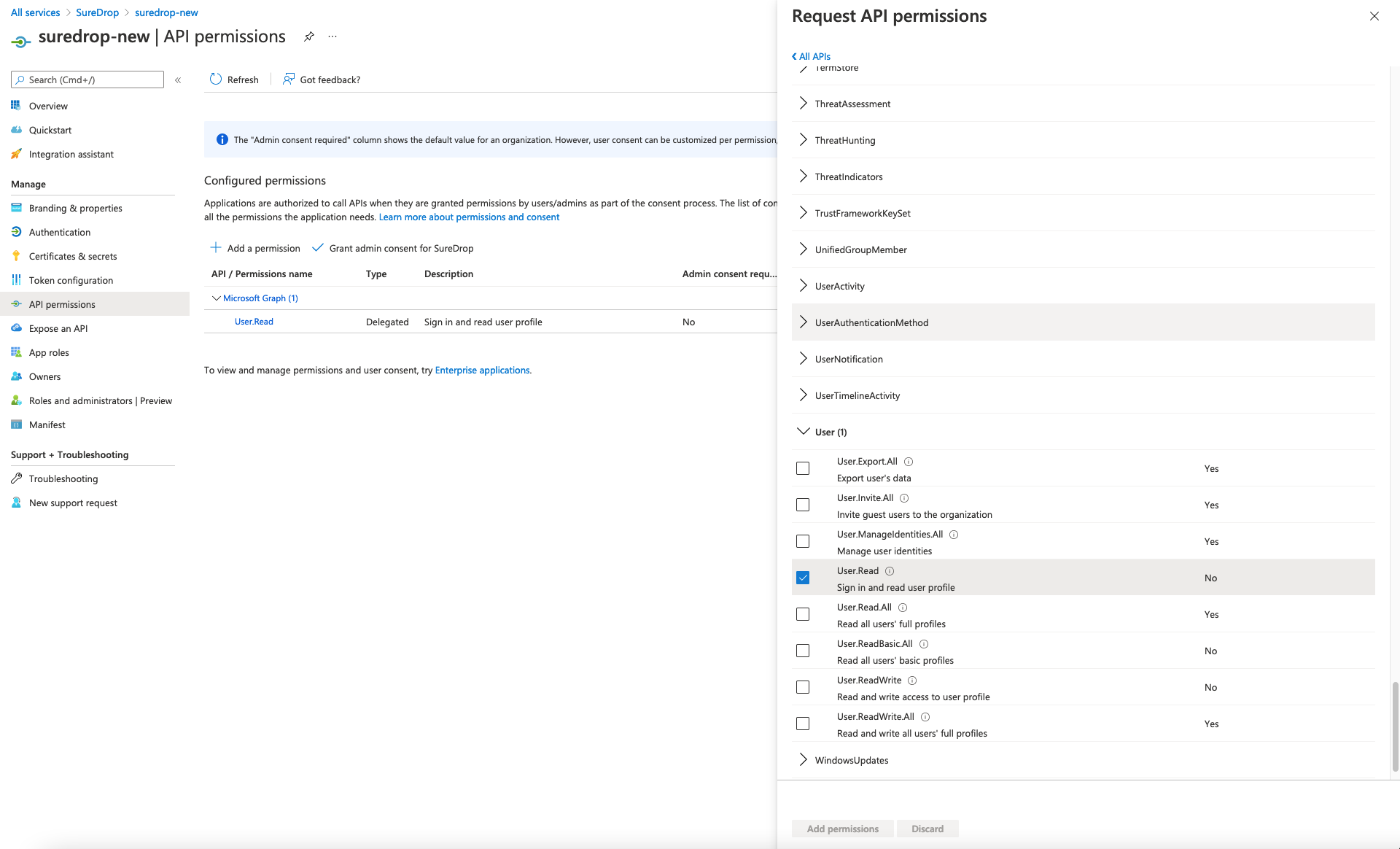
-
The API permission to read directory data (step 7 above) needs Azure AD administrator consent. So back in the API permissions click on the Grant admin consent for > Yes in the popup confirmation dialog.
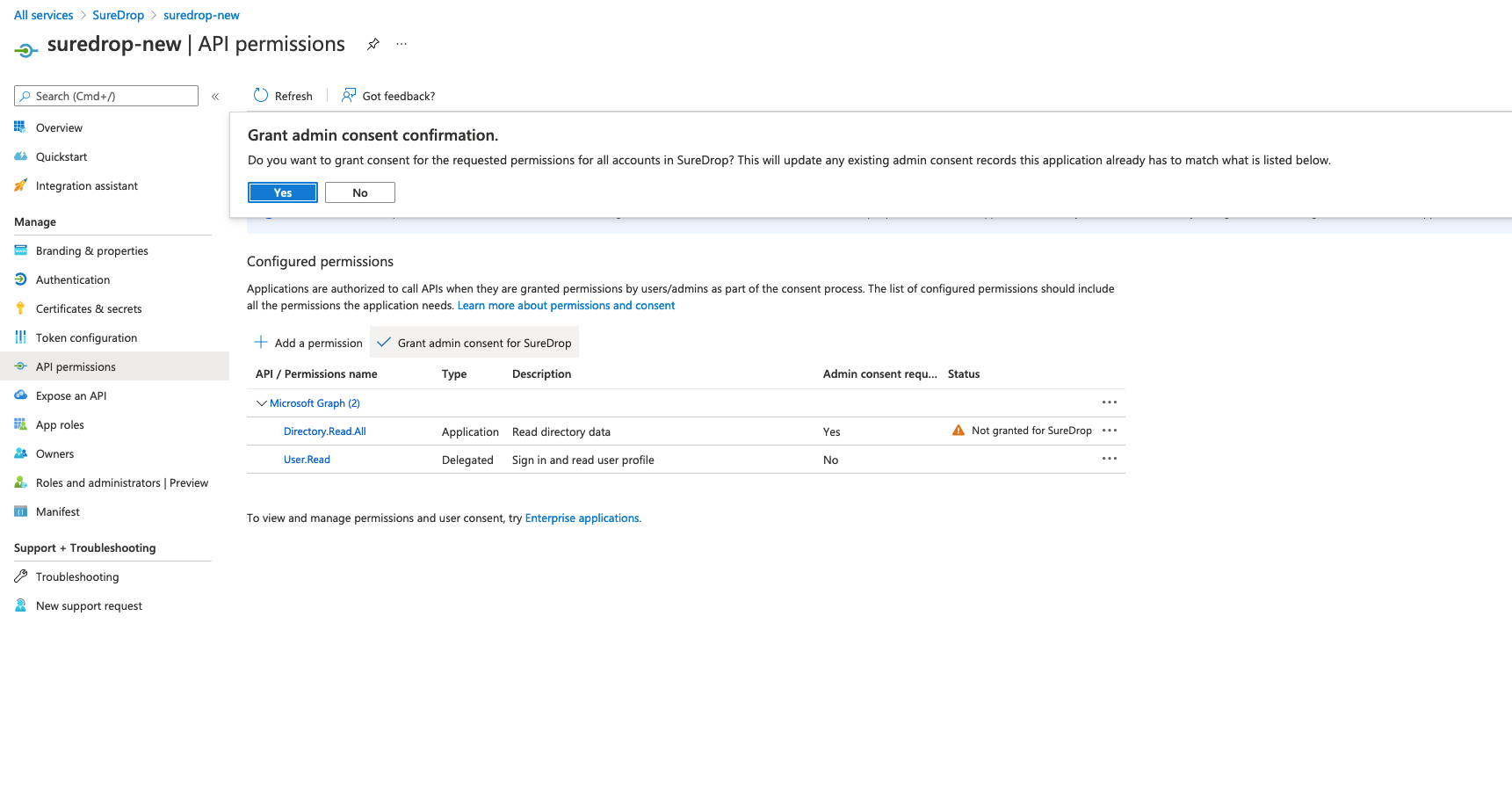
-
After setting the necessary API permissions properly, the final screen should look similar to this -
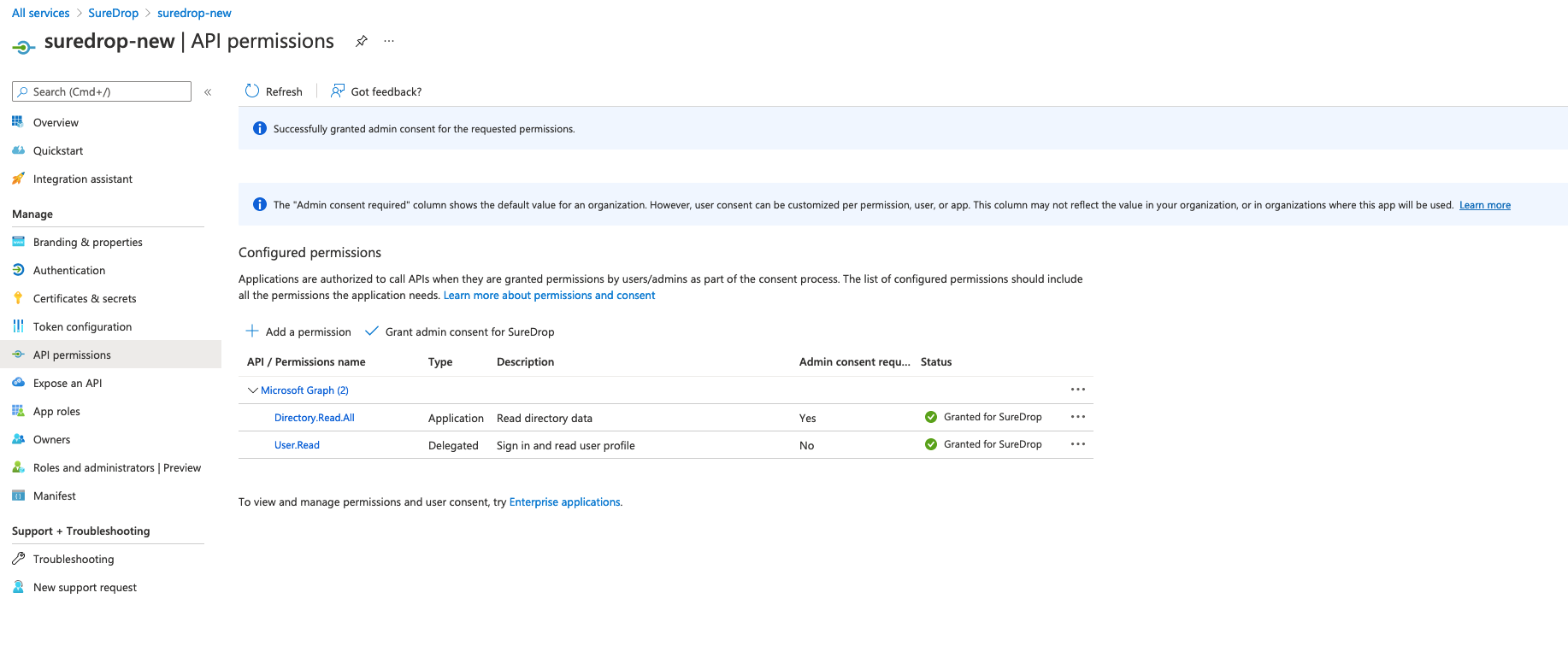
-
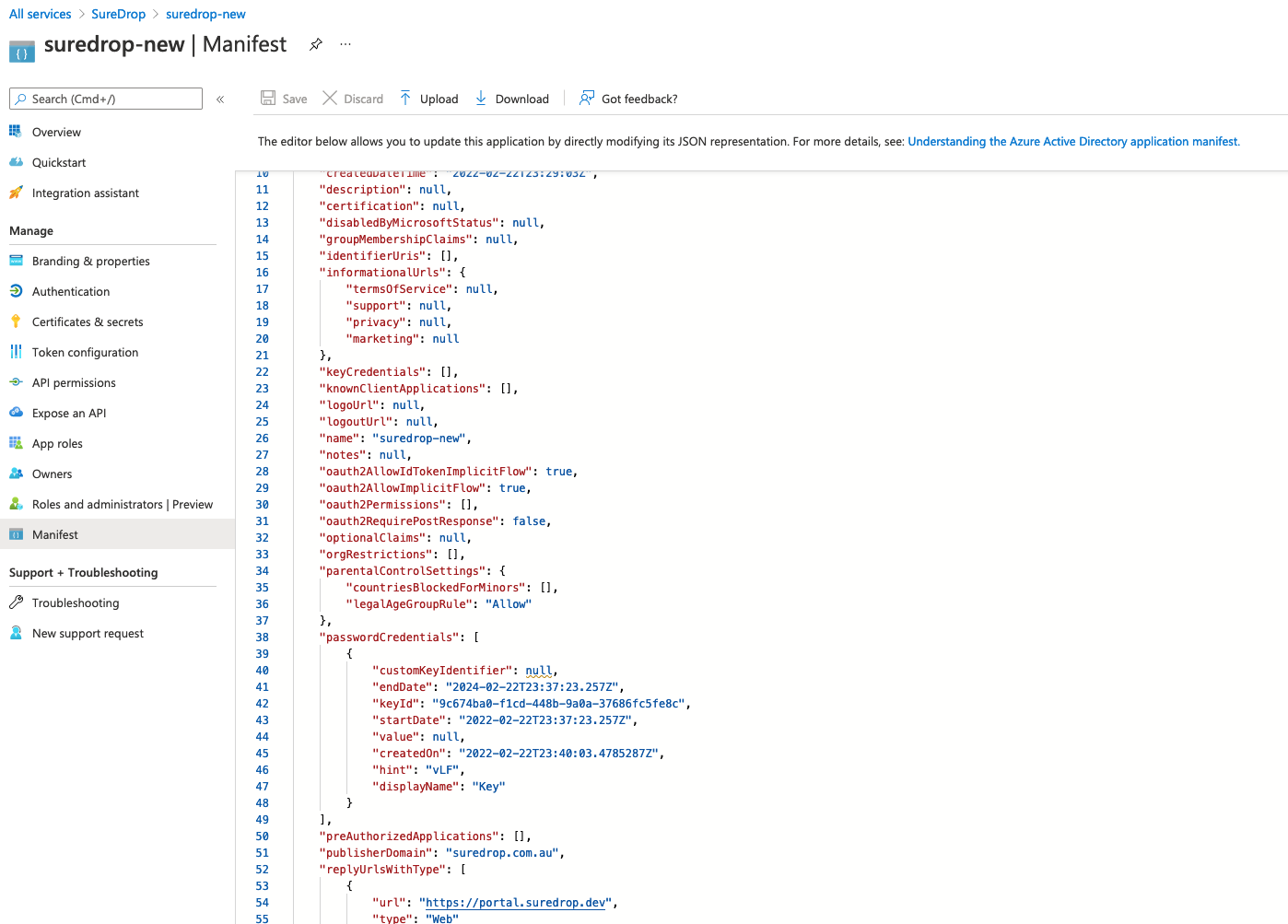
Click on Manifest and confirm that oauth2AllowImplicitFlow to true.
-
Edit the following URL and replace the TENANT_ID, APPLICATION_ID and SUREDROP_URL_FROM_STEP_2 then paste it into a browser:
https://login.microsoftonline.com/[TENANT_ID]/adminconsent?client_id=[APPLICATION_ID]&state=12345&redirect_uri=[SUREDROP_URL_FROM_STEP_2]
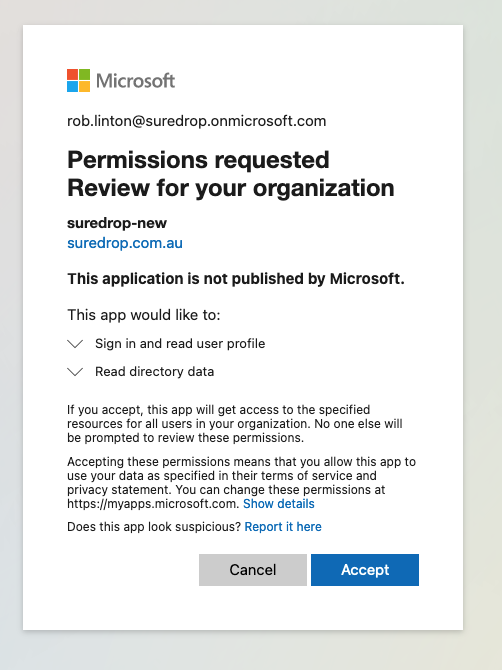
You will be asked to Log In to your Azure account as an administrator and accept permissions
-
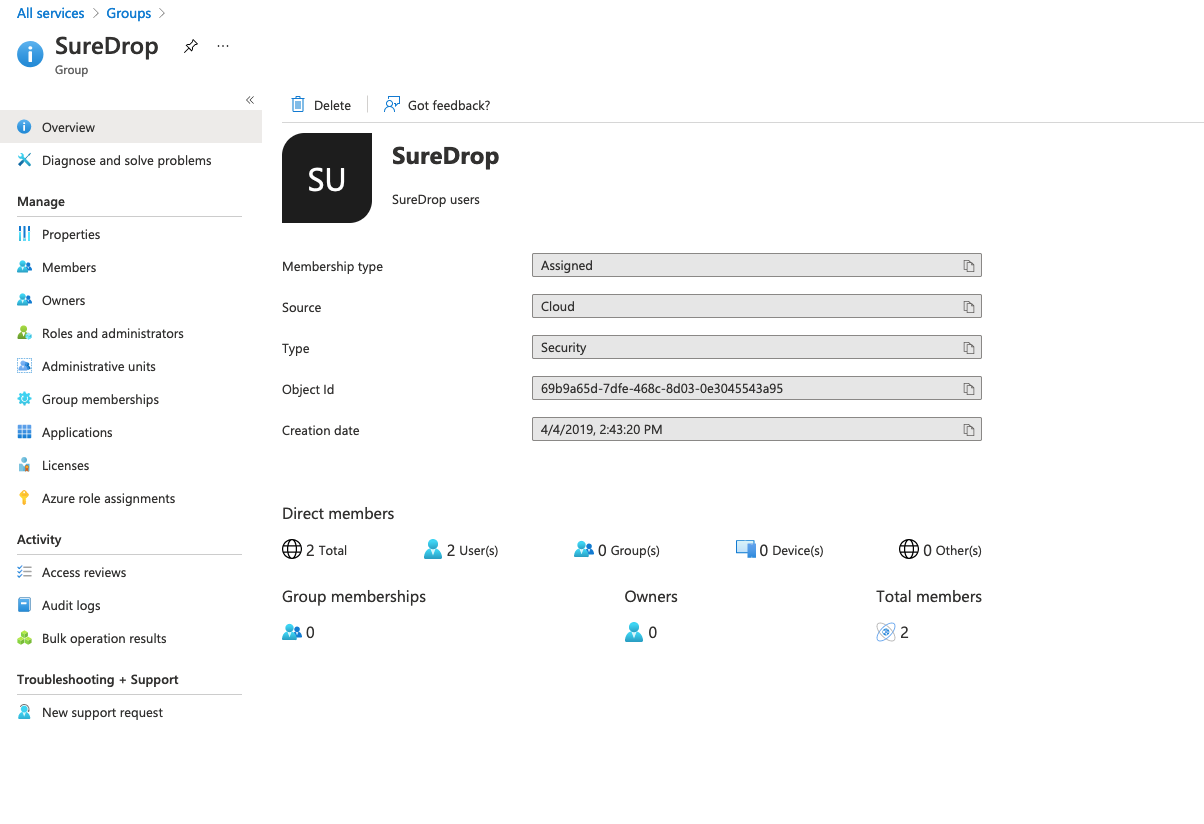
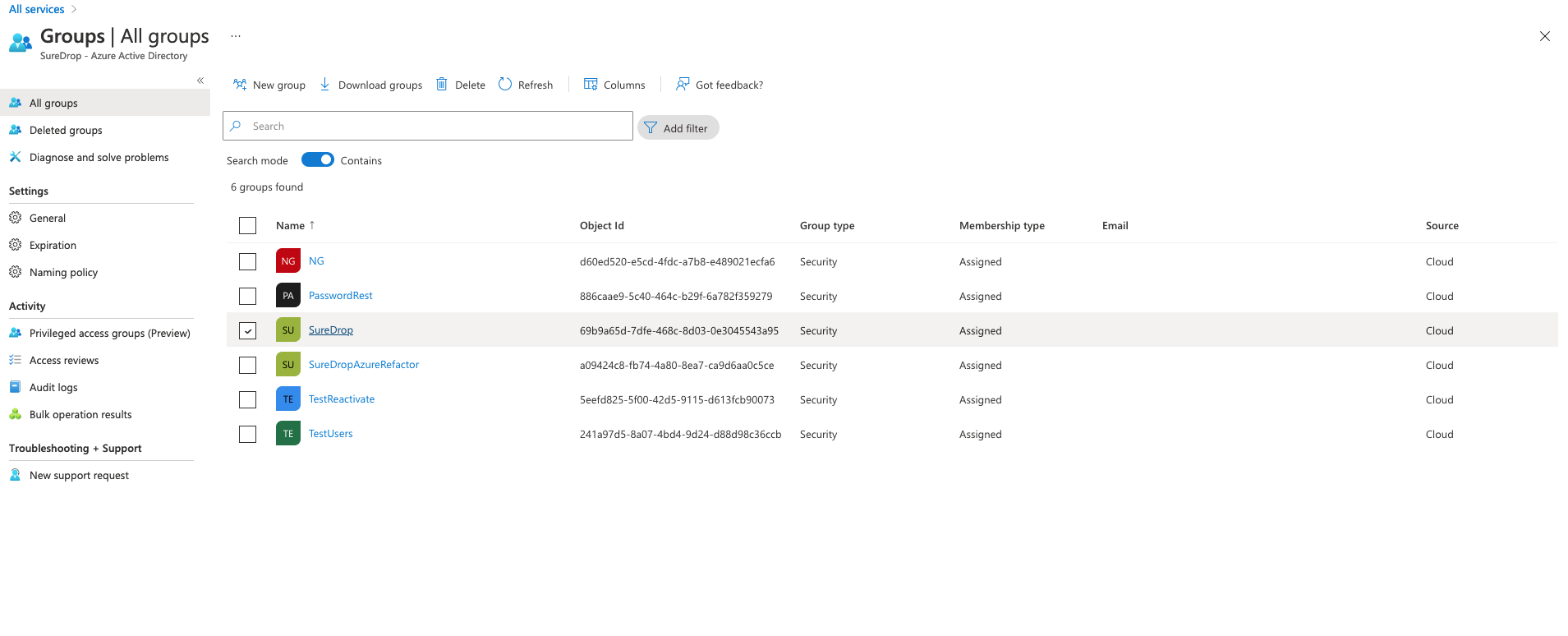
Now we need create a root group for SureDrop synchronisation. To do this, click on Home->Azure Active Directory > Groups

-
In the groups page, choose any existing group or create a new one to act as root for SureDrop.
-
You should now be in the specific group page which shows its Object ID. This is an important identifier and please copy and keep it somewhere safe. You will need this while configuring SureDrop in the next section (Options blob).